Explanation
In this example, the goal is to create a list of 10 random names from a larger list of 100 names. In other words, we want to select a random subset of names from a larger list. The names to select from are in column B, starting in row 5. The formula should handle any number of names in the input list and handle the number of names to select as a variable.
This is an interesting problem in Excel. Although there are several functions dedicated to generating random numbers, including RAND , RANDARRAY , and RANDBETWEEN , it isn’t obvious how you would use the output from these functions to generate a random list of names.
This article looks at two formula options to solve this problem. The first option involves sorting all 100 names in a random order, then selecting the first 10 names from the sorted list. The second option generates a list of 10 random integers between 1 and 100, then uses these numbers as indices to select the names in the original list. To start off, let’s look at how we can simply sort the names in a random order.
- Sorting names in a random order
- Option 1: TAKE with SORTBY and RANDARRAY
- Option 2: INDEX with RANDARRAY
- Sampling with and without replacement
- Summary and recommendation
Sorting names in a random order
To sort the names in a random order, we can use the SORTBY function and the RANDARRAY function . You can see how this works in the worksheet below, where the formula in D5 is:
=SORTBY(B5:B104,RANDARRAY(ROWS(B5:B104)))
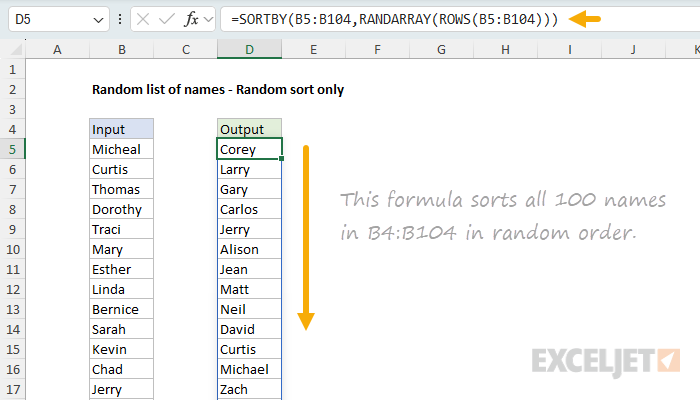
This formula sorts all 100 names in B4:B104 in random order.
Working from the inside out, the ROWS function is used to get the number of rows in the range B5:B104 (100), which is returned to the RANDARRAY function as the rows argument. This determines the number of random numbers to create:
=RANDARRAY(ROWS(B5:B104))
=RANDARRAY(100) // generates 100 random numbers
Next, the RANDARRAY function creates an array of 100 random numbers between 0 and 1. These are long decimals that look something like this:
{0.909292521,0.69722143,0.839223233,0.837319958,0.097171021,...}
In the screenshot below, you can see a full set of 100 random numbers in column D. These are the numbers that will be used to sort the names in a random order.
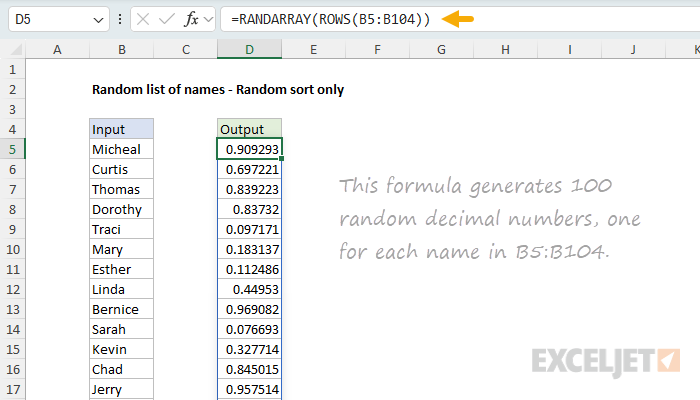
This formula generates 100 random decimal numbers, one for each name in B5:B104.
Next, the array of random numbers created by the RANDARRAY function is returned to the SORTBY function as the sort_by argument:
=SORTBY(B5:B104,{0.909292521,0.69722143,0.839223233,0.837319958,0.097171021,...})
The SORTBY function then sorts the input list by the random array of numbers. The result is a list of names in a random order.
This formula is generally useful to sort any range of values in a random order. Next, let’s look at how we can use it to generate 10 random names from the list of 100 names.
Note: the RANDARRAY function is a volatile function and will recalculate every time the worksheet is changed, causing values to be resorted. To stop values from sorting automatically, you can copy the formulas, then use Paste Special > Values to convert formulas to static values. Another option is to adapt the formula to use a this seeded random number generator . This involves replacing RANDARRAY with the custom RAND_SEQUENCE function explained in the article.
Option 1: TAKE with SORTBY and RANDARRAY
Option 1 involves selecting the first 10 names from a randomly sorted list. To sort the list in a random order, we use the SORTBY function with the RANDARRAY function as explained in the previous section. Then, we use the TAKE function to select the first 10 names from the sorted list. You can see this approach in the worksheet below, where the formula in D5 is:
=TAKE(SORTBY(B5:B104,RANDARRAY(ROWS(B5:B104))),10)

This formula sorts all 100 names in B4:B104 in random order, then uses the TAKE function to fetch the first 10 names in the sorted list.
Working from the inside out, we use SORTBY with RANDARRAY to sort the names in a random order as explained above :
=SORTBY(B5:B104,RANDARRAY(ROWS(B5:B104))) // randomly sort all names
The result from SORTBY is a list of all 100 names in a randomly sorted order.
Finally, we need to retrieve 10 names. Because we already have names in a random order, we can simply ask the TAKE function to fetch the first 10 names in the sorted list:
=TAKE(randomly_sorted_names,10)
Because the input list was sorted randomly, the result from TAKE is a random list of 10 names. I like this approach because it is simple and a great example of how new functions like TAKE can be useful. Let’s look at another approach to this problem.
Option 2: INDEX with RANDARRAY
Another way to solve this problem is to generate an array of random integers and then use the INDEX function to select the names at these positions, without sorting the names first. You can see this approach in the worksheet below, where the formula in D5 looks like this:
=INDEX(B5:B104,RANDARRAY(10,1,1,ROWS(B5:B104),1))

This formula generates 10 random integers between 1 and 100, then uses INDEX to select names at those positions in the range B5:B104.
As before, the ROWS function is used to count the names in the input. However, in this case, the output from ROWS is delivered to RANDARRAY as the max argument, which determines the maximum value for the random numbers to generate.
=RANDARRAY(10,1,1,ROWS(B5:B104),1)
The complete configuration of RANDARRAY is as follows:
- rows: 10
- columns: 1
- min: 1
- max: 100 (from ROWS(B5:B104) )
- integer: TRUE
The result from RANDARRAY is an array of 10 random integers between 1 and 100, like this:
{95;81;6;90;88;82;85;5;82;46}
This array is returned directly to the INDEX function as the row argument:
=INDEX(B5:B104,{95;81;6;90;88;82;85;5;82;46})
Because we give INDEX an array of 10 row numbers, it will return an array of 10 results, each corresponding to a name at the given position:
{"Darlene";"Larry";"Bernice";"Elizabeth";"Jose";"Donald";"Jennifer";"Damian";"Angie";"Homer"}
The final result is a random list of 10 names extracted from the list of 100 names in B5:B104. This approach is more efficient than Option 1 because it does not need to sort the entire list of 100 names. Instead, it creates only as many random integers as we need, then uses those numbers directly to extract names in that position from the master list. However, it comes with a caveat: there is no guarantee that the random integers created by RANDARRAY will be unique, and duplicate integers will result in duplicate names.
Note we are using INDEX and not TAKE to extract names in option 2. This is because we need to extract specific rows from the list, not the first 10 rows. Another option would be to use the CHOOSEROWS function to extract the names. Both INDEX and CHOOSEROWS will produce the same result.
Sampling with and without replacement
The two options above represent different approaches to random sampling. In statistics, there’s an important distinction between sampling with replacement and sampling without replacement :
- Sampling with replacement means each time you pick an item, it goes back into the pool before the next draw. The same item can appear multiple times in your sample. This is like drawing names from a hat and returning each name before drawing again.
- Sampling without replacement means once an item is picked, it’s removed from the pool and can’t be selected again. Each item in your sample will be unique.
Option 1 (TAKE with SORTBY) implements sampling without replacement . By sorting the entire list randomly and taking the first 10 names, we guarantee that every selected name is unique. This is what most people expect when they ask for “10 random names from a list.”
Option 2 (INDEX with RANDARRAY) implements sampling with replacement by default. Because RANDARRAY generates random integers independently, the same number can appear more than once, resulting in duplicate names. Each draw is independent, so there’s no guarantee of uniqueness unless you add additional logic to prevent duplicates.
Summary and recommendation
This article presents two formula options to create a random list of names. Option 1 uses TAKE with SORTBY to select names from a randomly sorted list, using sampling without replacement , which guarantees unique names. Option 2 uses INDEX with RANDARRAY to directly extract names by position, using sampling with replacement , which may produce duplicates.
I recommend Option 1 for most cases because it delivers the expected behavior: a random subset with no duplicates. It also performs well—I tested it on 100,000 random text strings without noticeable performance issues. Use Option 2 only if you specifically need sampling with replacement or are working with extremely large datasets where performance becomes critical.
Explanation
In this example, the goal is to generate a list of random numbers without duplicates. This involves jumping through a few hoops because although the RANDARRAY function can easily generate a list of random integers, there is no guarantee that the numbers will be unique. In the explanation below, we’ll look first at a simple option with the RANDARRAY function, then at a more complete solution based on the SEQUENCE function.
Background study
- New dynamic array functions in Excel - 3 min video
- How to perform a random sort - 3 min video
RANDARRAY option
The RANDARRAY function makes it easy to generate a list of random integers. For example, to generate 12 random numbers between 1 and 100, you can use RANDARRAY like this:
=RANDARRAY(12,1,1,100,TRUE)
The rows argument sets how many numbers are returned, columns is 1, start is 1, end is 100, and integer is set to TRUE. This formula works fine. However, if you enter the formula and press F9 a few times, you will likely see some duplicate numbers because there is no guarantee that the numbers are unique.
By increasing the range of numbers generated, we can reduce the possibility of duplicates substantially. For example, this formula returns 12 random numbers between 10000 and 50000:
=RANDARRAY(12,1,10000,50000,TRUE)
Although there is still a possibility of duplicates, the chance is much lower since there are 40,002 possible numbers. To ensure that there are no duplicates, we can wrap RANDARRAY inside the UNIQUE function like this:
=UNIQUE(RANDARRAY(12,1,10000,50000,TRUE))
The formula above works well if a specific number of results is not required . However, because the UNIQUE function will remove duplicates if they exist, the final count of numbers returned will change. To work around this problem, and ensure a fixed number of unique random numbers, we can take a different approach with the SEQUENCE function as described below.
Random sort
Another approach is to use the SEQUENCE function to generate a unique list of numbers, then use SORTBY and RANDARRAY to sort the list randomly. For example, to return 15 numbers sorted randomly, you can use a formula like this:
=SORTBY(SEQUENCE(15),RANDARRAY(15))
SEQUENCE returns an array of numbers between 1-15, RANDARRAY returns an array of 15 decimal values, and the SORTBY function sorts the output from SEQUENCE using the output from RANDARRAY. The result is a list of the 15 numbers between 1-15, sorted randomly.
Random sort and extract
An alternative to the simple approach described above is to create a list of unique numbers with the SEQUENCE function , sort the list randomly, and then extract a portion of the list. This guarantees a specific number of unique values across a large range of possibilities. This is the approach used in the worksheet shown above, where the formula in cell F5 is:
=INDEX(SORTBY(SEQUENCE(C5,1,C4,C6),RANDARRAY(C5)),SEQUENCE(C7))
Replacing the cell references with their values, we have:
=INDEX(SORTBY(SEQUENCE(1000,1,10000,10),RANDARRAY(1000)),SEQUENCE(12))
Working from the inside out, the core of the formula is this:
SORTBY(SEQUENCE(1000,1,10000,10),RANDARRAY(1000))
At a high level, the SORTBY function is used to sort the output from SEQUENCE randomly. The SEQUENCE function is configured to generate 1000 numbers starting at 10000. The step argument is given as 10 to return numbers that are multiples of 10. The result from SEQUENCE is an array that contains 1000 numbers. The first 10 numbers in the array look like this:
{10000;10010;10020;10030;10040;10050;10060;10070;10080;10090;...}
These numbers are returned directly to SORTBY as the array argument.
The RANDARRAY function is set to output 1000 numbers. By default, RANDARRAY will return an array of long decimals. The first 10 numbers in the array will look something like this:
{0.568145559543193;0.0442765690172342;0.682220112357301;0.293859840996845;0.0875380500249507;0.0872080540305316;0.384740824003848;0.8250435788655;0.698609517138334;0.844906019655289;...}
These numbers are provided to SORTBY as the by_array1 argument. With the result from SEQUENCE as array , and the result from RANDARRAY as by_array1 , SORTBY sorts all 1000 numbers randomly and returns the sorted array to the INDEX function . If we refer to this randomly sorted array as “random_array”, we can simplify and rewrite the original formula like this:
=INDEX(random_array,SEQUENCE(C7))
Here, random_array is delivered to INDEX as the array argument. The SEQUENCE function creates an array with the numbers 1-12, and returns this array to INDEX as the row_num argument:
=INDEX(random_array,{1;2;3;4;5;6;7;8;9;10;11;12})
With these inputs, INDEX returns the first 12 rows from the randomly sorted array as a final result. The numbers are guaranteed to be unique because the original array created by SEQUENCE contains no duplicates.
Random names
The approach described above can be applied to other related problems. For example, once you have a list of random numbers without duplicates, you can use those numbers with the INDEX function to create a random list of names without duplicates .
Legacy Excel
Dynamic array formulas are a new feature in Excel . If you have a version of Excel without SEQUENCE, SORTBY, and RANDARRAY, you can take a more manual approach. One method is to enter the core set of numbers to choose from in one column, and use the RAND function to assign random decimal values to each number in another column. Then you can use an INDEX and MATCH formula with the LARGE function to extract random numbers according to their numeric rank. The screen below shows the basic idea:
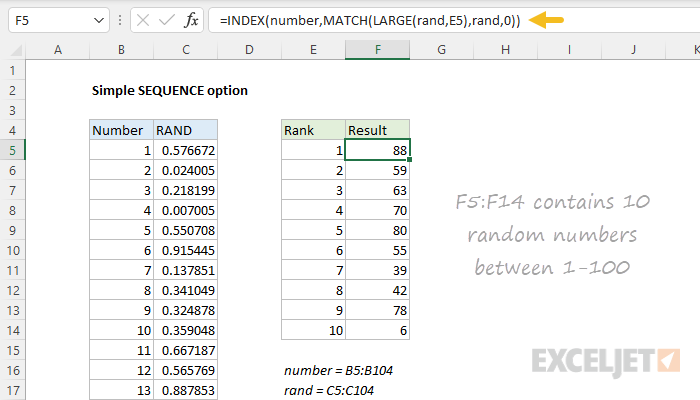
The formula in F5, copied down, is:
=INDEX(number,MATCH(LARGE(rand,E5),rand,0))
where number (B5:B104) and rand (C5:C104) are named ranges . The LARGE function is used to get the nth largest random decimal number in C5:C104, where n comes from column E. LARGE returns this value to the MATCH function as lookup_value , which locates the position of the value in the random decimal values. MATCH returns this position to the INDEX function , and INDEX returns the number at that position in B5:B104. The final result is 10 random numbers between 1-100 in F5:F14 without duplicates.
