Purpose
Return value
Syntax
=RANK.AVG(number,ref,[order])
- number - The number to rank.
- ref - A range that contains the numbers to rank against.
- order - [optional] Rank ascending or descending. Default is zero.
Using the RANK.AVG function
The RANK.AVG function returns the rank of a numeric value compared to a list of other numeric values. RANK.AVG can rank values from largest to smallest (i.e., the rank of highest test scores) and smallest to largest (i.e., the rank of fastest times in a race). When RANK.AVG encounters duplicates, it will assign an average rank to each set of duplicates. RANK.AVG works fine with sorted or unsorted data — it is not necessary to sort the values in the list before RANK.AVG.
Key Features
- Returns the rank of a single number against a list of other numbers
- Works with both ascending order (smallest = rank 1) and descending order (largest = rank 1)
- Does not require sorted data - works with data in any order
- Handles tied values by assigning an average rank to duplicates (e.g., 3.5 for values tied at 3rd place)
- Requires actual ranges - cannot use an array for the ref argument
- Preserves sum of ranks when averaging tied values
- Works in Excel 2010 and all later versions
Unlike most other Excel functions, RANK.AVG requires an actual range for the ref argument. If you try to use an array , Excel will not let you enter the formula.
Synax
The basic syntax for RANK.AVG looks like this:
=RANK.AVG(number,ref,[order])
where number is the value you want to rank, ref is a range that contains numbers to rank against, and order is an optional argument for controlling the ranking direction. By default, RANK.AVG will rank values in descending order and assign an average rank to tied values in the list. This behavior can be reversed using the optional order argument as explained below.
Note: The RANK.AVG function is designed to handle ties by assigning them an average rank, which is different from RANK.EQ or RANK.
Ranking in descending or ascending order
The RANK.AVG function has two modes of operation, descending and ascending, which are controlled by the order argument. To rank values where the largest value is ranked number 1, set order to zero (0) or omit the argument altogether:
=RANK.AVG(A1,range) // rank descending (default)
=RANK.AVG(A1,range,0) // rank descending
To rank values where the smallest value should be 1, set order to 1:
=RANK.AVG(A1,range,1) // rank ascending
To recap: set order to zero (0) when you want to rank something like top sales, where the largest sales number should rank #1, and set order to one (1) when you want to rank something like race results, where the smallest (fastest) time should rank #1.
Example - ranking test scores in descending order
In the worksheet below, the goal is to rank test scores. For test scores, the highest score should be assigned a rank of 1, so the RANK.AVG function is used in its default mode. The formula in cell D5 is:
=RANK.AVG(C5,$C$5:$C$12)
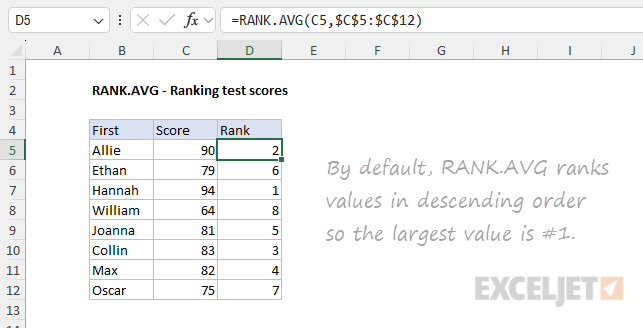
Notice that the range is provided as the absolute reference $C$5:$C$12 so that it won’t change when the formula is copied down. The optional order argument is not provided, since RANK.AVG will assign an average rank to tied values by default.
Example - ranking race times in ascending order
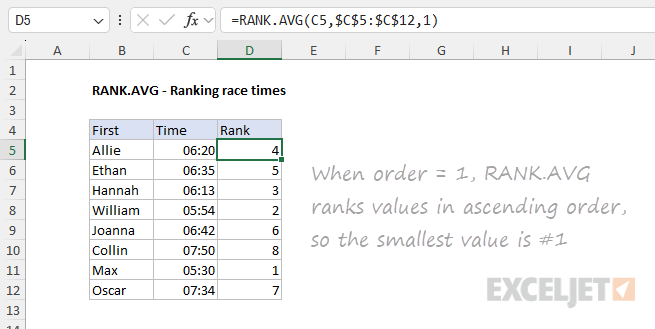
In the example below, the goal is to rank race times. This is an example of where we want to assign a rank of 1 to the fastest time, which will be the smallest time. The formula in cell D5 is:
=RANK.AVG(C5,$C$5:$C$12,1)
Notice the range $C$5:$C$12 is absolute to prevent the reference from changing when the formula is copied down while the reference to C5 is relative so that it will change as the formula is copied down. Also, note that the order argument is provided as 1 to force RANK.AVG to rank the times in ascending order.
Ranking ties
When the data contains duplicate (tied) values, you have to decide how you want to rank tied values. There are two basic approaches: (1) assign the same rank to each tie value or (2) assign an average rank to each tie value. The RANK.AVG function is designed to follow the second approach. For example, in the data {90,85,95,80}, there are no ties and RANK.AVG would assign ranks of {2,3,1,4}. In the data {85}, there are two tied values and RANK.AVG would assign ranks of {2,3.5,1,3.5}. One advantage of using an average rank is that the sum of ranks (10) is preserved.
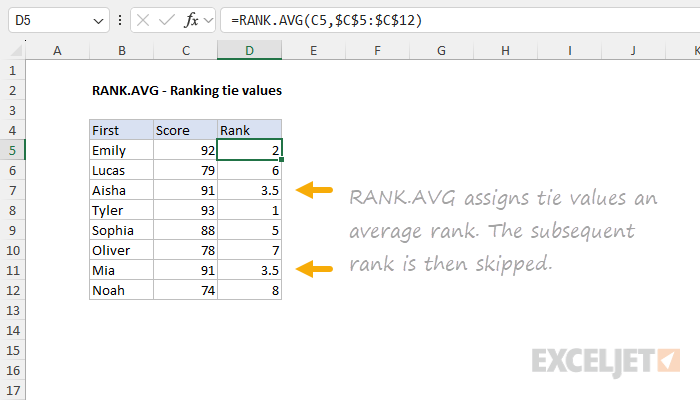
As mentioned above, the RANK.AVG function handles ties by assigning an average rank to tied values. For example, if two or more values in the data have the same rank, RANK.AVG will assign them an average rank rather than giving them the same rank. You can see how this works in the worksheet below. Aisha and Mia are tied for third place with a score of 91 and RANK.AVG assigns a rank of 3.5 to each. Notice the subsequent rank of 4 is skipped entirely:
Note: the fact that RANK.AVG averages tied values is the main reason to use RANK.AVG, since in other respects it operates like RANK and RANK.EQ.
RANK.AVG versus RANK and RANK.EQ
Excel contains three functions for assigning rank: RANK, RANK.EQ, and RANK.AVG. RANK is the original ranking function in Excel. RANK.EQ and RANK.AVG were introduced in Excel 2010 as part of a broader effort by Microsoft to make Excel functions more consistent and intuitive. RANK and RANK.EQ are essentially the same function. There should be no cases where RANK and RANK.EQ return different results. RANK and RANK.EQ will assign tie values the same rank and the “EQ” in the name indicates this “equal rank” behavior. In contrast, the RANK.AVG function will assign tie values an average rank . For example, if two numbers are tied for third place, RANK.AVG will assign both numbers a rank of 3.5. The “AVG” in the name denotes the “average rank” behavior.
Recommendations
- The RANK function should continue to work fine in older worksheets. If you are updating an older worksheet, you could optionally replace RANK with RANK.EQ and get the same behavior and results.
- In new worksheets, Microsoft recommends RANK.EQ instead of RANK, since there is a possibility that RANK will be unsupported at some point in the future. Both RANK.EQ and RANK will return the same results and both will assign the same rank to tie values.
- If you specifically want an average rank for tie values in the data (i.e. duplicates) use the RANK.AVG function. This is the primary reason to use RANK.AVG since in other respects it works the same as RANK.EQ and RANK.
- The names for RANK.EQ and RANK.AVG identify the expected ranking behavior explicitly. So, while the names seem more complicated and fussy at first glance, they do have a purpose.
Notes
- The default for order is zero (0). If order is 0 or omitted, number is ranked against the numbers sorted in descending order, where ties are given an average rank, reflecting their equal standing.
- If order is 1, number is ranked against the numbers sorted in ascending order, again with ties receiving an average rank.
- Sorting values in the list before using the RANK.AVG function is not necessary.
- RANK.AVG averages ties and preserves the “sum of ranks”.
- Some documentation suggests ref can be an array , but in our testing, ref must be a range. Otherwise, Excel will display the “There’s a problem with this formula” error dialog.
Purpose
Return value
Syntax
=RANK.EQ(number,ref,[order])
- number - The number to rank.
- ref - A range that contains the numbers to rank against.
- order - [optional] Rank ascending or descending. Default is zero.
Using the RANK.EQ function
The RANK.EQ function returns the rank of a numeric value compared to a list of other numeric values. RANK.EQ can rank values from largest to smallest (i.e., the rank of highest test scores) and smallest to largest (i.e., the rank of fastest times in a race). You can use the RANK.EQ function to calculate the rank of each value in a dataset. When values contain duplicates, RANK.EQ will assign the same rank to each tie value, and the subsequent rank will be skipped. RANK.EQ works fine with sorted or unsorted data — it is not necessary to sort the values in the list before RANK.EQ.
Key Features
- Returns the rank of a single number against a list of other numbers
- Works with both ascending order (smallest = rank 1) and descending order (largest = rank 1)
- Does not require sorted data - works with data in any order
- Handles tied values by assigning the same rank to duplicates and skipping subsequent ranks
- Requires actual ranges - cannot use an array for the ref argument
- Recommended function for ranking - Microsoft’s preferred replacement for the RANK function
- Works in Excel 2010 and all later versions
Unlike most other Excel functions, RANK.EQ requires an actual range for the ref argument. If you try to use an array , Excel will not let you enter the formula.
Syntax
The basic syntax for RANK.EQ looks like this:
=RANK.EQ(number,ref,[order])
where number is the value you want to rank, ref is a range that contains numbers to rank against, and order is an optional argument that controls ranking direction. By default, RANK.EQ will rank values in descending order and assign 1 to the largest value in the list. However, this behavior can be reversed using the optional order argument as explained below.
Note: The RANK.EQ function is the recommended function for ranking in Excel, as RANK is now classified as a compatibility function. RANK is still available for backward compatibility. RANK.EQ and RANK are essentially the same function and there should be no cases where they return different results.
Ranking in descending or ascending order
The RANK.EQ function has two modes of operation, descending and ascending, which are controlled by the order argument. To rank values where the largest value is ranked number 1, set order to zero (0) or omit the argument altogether:
=RANK.EQ(A1,range) // rank descending (default)
=RANK.EQ(A1,range,0) // rank descending
To rank values where the smallest value should be 1, set order to 1:
=RANK.EQ(A1,range,1) // rank ascending
Set order to zero (0) when you want to rank something like top sales, where the largest sales number should rank #1, and set order to one (1) when you want to rank something like race results, where the shortest (fastest) time should rank #1.
Example - ranking test scores in descending order
In the worksheet below, the goal is to rank test scores. For test scores, the highest score should be assigned a rank of 1, so the RANK.EQ function is used in its default mode. The formula in cell D5 is:
=RANK.EQ(C5,$C$5:$C$12)
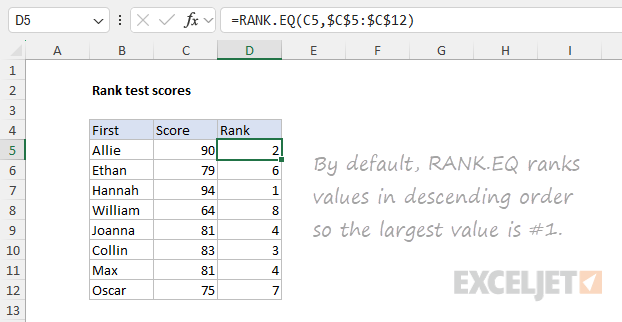
Notice that the range is provided as the absolute reference $C$5:$C$12 so that it won’t change when the formula is copied down. The optional order argument is not provided, since RANK.EQ will assign 1 to the largest value by default.
Example - ranking race times in ascending order
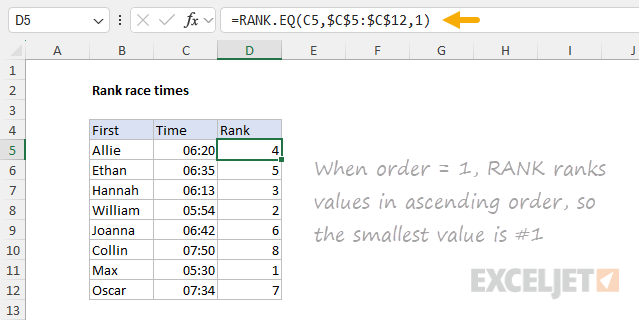
In the example below, the goal is to rank race times. This is an example of where we want to assign a rank of 1 to the fastest time, which will be the smallest time. The formula in cell D5 is:
=RANK.EQ(C5,$C$5:$C$12,1)
Notice the range $C$5:$C$12 is absolute to prevent the reference from changing when the formula is copied down while the reference to C5 is relative so that it will change as the formula is copied down. Also, note that the optional order argument is provided as 1 to force RANK.EQ to rank the times in ascending order.
Ranking ties
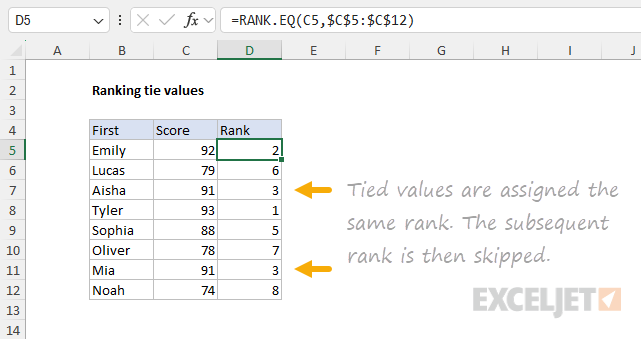
The RANK.EQ function handles ties in a specific manner: it assigns the same rank to both items. A tie occurs when two or more items in the data have the same value or, in other words, the data being ranked contains duplicates. For example, if a certain value has a rank of 3, and there are two instances of the value in the data, the RANK.EQ function will assign both instances a rank of 3. The next rank assigned will be 5, and no value will receive the rank of 4 . The process looks like this:
- Ties are identified - When two or more values in the list are the same, they are considered tied. For example, if two students have a score of 91, they are in a tie.
- Ties are ranked - Excel assigns the same rank to the tied values. For instance, if two students are tied for the third-highest score, both will receive a rank of 3.
- The subsequent rank is skipped - After a tie, Excel skips the next rank(s). If two students are tied for third place, the next student (with a lower score) receives a rank of 5, not 4. The tie essentially absorbs the fourth rank.
You can see the result of this process in the worksheet below, where Aisha and Mia have a score of 91 and are both tied for third place. The RANK.EQ function assigns both a rank of 3 and the next rank, 4, is skipped.
If tied ranks are a problem, one workaround is to employ a tie-breaking strategy .
RANK.EQ versus RANK and RANK.AVG
Excel contains three functions for assigning rank: RANK, RANK.EQ, and RANK.AVG. RANK.EQ is the updated function for ranking in Excel, recommended over the older RANK function for its consistency and intuitive use. RANK and RANK.EQ are essentially the same function, and there should be no cases where they return different results. RANK.AVG, on the other hand, assigns ranks to numeric values but provides a different behavior when there are tie values, assigning tie values an average rank . For example, if two numbers are tied for third place, RANK.AVG will assign both numbers a rank of 3.5.
Recommendations
- For older worksheets that use RANK, consider replacing RANK with RANK.EQ to ensure consistent behavior and results.
- In new worksheets, use RANK.EQ instead of RANK to align with Microsoft’s recommendations and to prepare for any future updates where RANK might be deprecated.
- Use RANK.AVG if you require an average rank for tie values in the data (i.e., duplicates). This is the only reason to use RANK.AVG since in other respects it works the same as RANK.EQ and RANK.
Notes
- The default for order is zero (0). If order is 0 or omitted, number is ranked against the numbers sorted in descending order: smaller numbers receive a higher rank value, and the largest value in a list will be ranked #1.
- If order is 1, number is ranked against the numbers sorted in ascending order: smaller numbers receive a lower rank value, and the smallest value in a list will be ranked #1.
- It is not necessary to sort the values in the list before using the RANK.EQ function.
- In the event of a tie (i.e., the list contains duplicates), RANK.EQ will assign the same rank value to each duplicate (tie) value and the next rank will be skipped.
- Some documentation suggests ref can be an array , but in our testing, ref must be a range. Otherwise, Excel will display the “There’s a problem with this formula” error dialog.
