Purpose
Return value
Syntax
=REGEXEXTRACT(text,pattern,[return_mode],[case_sensitivity])
- text - The text value to extract from.
- pattern - The pattern to extract.
- return_mode - [optional] 0 = first match, 1 = all matches, 2 = capture groups.
- case_sensitivity - [optional] 0 = Case sensitive, 1= Case-insensitive. Default is 0.
Using the REGEXEXTRACT function
The REGEXEXTRACT function extracts text matching a specific regex pattern from a given text string. For the advanced Excel user, this function is a major upgrade. Instead of working out complex formulas based on functions like LEFT, RIGHT, FIND, MID, etc., REGEXEXTRACT can target data very precisely with a single regex pattern. With REGEXEXTRACT, you can easily extract numbers, dates, times, email addresses, and other text with a recognizable structure. REGEXEXTRACT not only saves time but also reduces errors created by complicated workarounds.
Regular expressions (“regex” for short) are a powerful tool for pattern matching and text manipulation. Regex patterns can match simple strings or very specific sequences like phone numbers, email addresses, dates, and other text that has an identifiable pattern. Compared to the simple wildcards provided in older versions of Excel, regular expressions are a huge upgrade in functionality. They make it possible to match text in extremely specific ways that were impossible before now. While regex itself can be daunting to newcomers, it’s a very powerful language. As you become more comfortable with the syntax, you can tackle increasingly complex data extraction challenges.
- Example - Extracting numbers
- Example - Extracting phone numbers
- Example - Extracting email addresses
- Example - Extracting dates
- Example - Extract all hashtags
- Example - Capturing groups
- Regex terminology and reference
Example - Extracting numbers
The REGEXEXTRACT function provides a way to extract text values using regular expressions. To use REGEXEXTRACT, provide the text string to extract from and a regex pattern. For example, to extract a number from a text string, you can use REGEXEXTRACT with a pattern like “[0-9]+”:
=REGEXEXTRACT("10 apples","[0-9]+") // returns "10"
You can see how this works in the worksheet below, where the formula in cell D5, copied down, is:
=REGEXEXTRACT(B5,"[0-9]+")
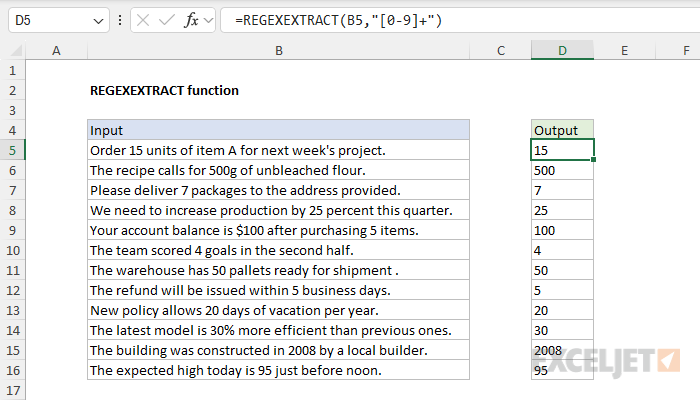
The pattern “[0-9]+” means “match one or more characters, where each character is a digit from 0 to 9”:
- Square brackets [ ]: - In regex, square brackets define a character set. They mean “match any single character that is inside these brackets.”
- 0-9: - This is a range that includes all digits from 0 to 9. It’s a shorthand way of writing [0123456789].
- The plus sign +: The “+” is a quantifier that means “one or more of the preceding element.” In this case, it applies to the range [0-9].
In practice, this pattern will:
- Match any sequence of one or more digits.
- Match the entire number, not just a single digit.
- Not match decimal points, negative signs, or any non-digit characters.
Note that you can also match one or more digits with the more compact pattern “\d+”. The “\d” is a character class representing digits, so “\d+” also means “one or more digits”.
Note that if a number is not found in the text, REGEXEXTRACT will return a #N/A error.
Example - Extracting phone numbers
Expanding on the example above, the worksheet below shows how to match and extract phone numbers in the format xxx-xxx-xxxx (i.e., a number like 888-123-1234) from text strings. The formula in cell D5, copied down, looks like this:
=REGEXEXTRACT(B5,"\d{3}-\d{3}-\d{4}")
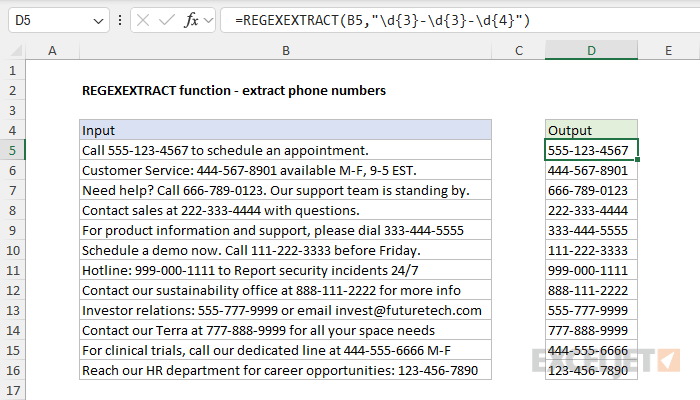
Here’s how the pattern “\d{3}-\d{3}-\d{4}” works:
- The “\d” matches any digit (0-9). “{3}” is a quantifier meaning “exactly 3 times”. So “\d{3}” matches exactly 3 digits.
- The hyphen ("-") is a “literal” and matches a literal hyphen character.
- As before, the pattern “\d{3}” matches exactly 3 digits.
- The ("-") matches a literal hyphen character.
- The pattern “\d{4}” matches exactly 4 digits.
Example - Extracting email addresses
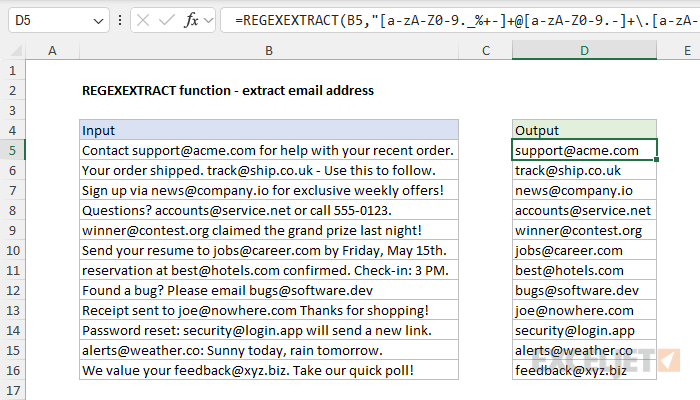
Another classic use of regex is matching and extracting email addresses. In the worksheet below, the formula in cell D5, copied down, is:
=REGEXEXTRACT(B5, "[a-zA-Z0-9._%+-]+@[a-zA-Z0-9.-]+\.[a-zA-Z]{2,}")
This example shows how matching simple things like an email address can quickly become more complicated as the pattern expands to handle variations in format. You can see how it works in the worksheet below. Briefly, here’s how it works:
- The pattern “[a-zA-Z0-9._%+-]+@[a-zA-Z0-9.-]+.[a-zA-Z]{2,}” is designed to match the most common email address formats.
- It begins with “[a-zA-Z0-9.%+-]+”, which matches one or more characters that can be letters (both lowercase and uppercase), numbers, or certain special characters typically allowed in email usernames.
- This is followed by a literal “@” symbol. After the “@”, “[a-zA-Z0-9.-]+” matches one or more characters for the domain name, allowing letters, numbers, dots, and hyphens.
- The “.” matches a literal dot, which is followed by “[a-zA-Z]{2,}”, matching two or more letters for the top-level domain (like .com, .org, etc.).
Note: although this pattern covers most standard email formats while excluding many invalid ones, it doesn’t capture all possible valid email addresses.
Example - Extracting dates
Another classic problem in Excel is how to extract a date from a text string. Traditionally, you might use a formula based on the SEARCH function and the MID function like this:
=MID(A1,SEARCH("??/??/??",A1),8)+0
However, SEARCH only supports Excel’s very primitive wildcards, so the formula above is error-prone. With REGEXEXTRACT, we can use a more robust formula like this:
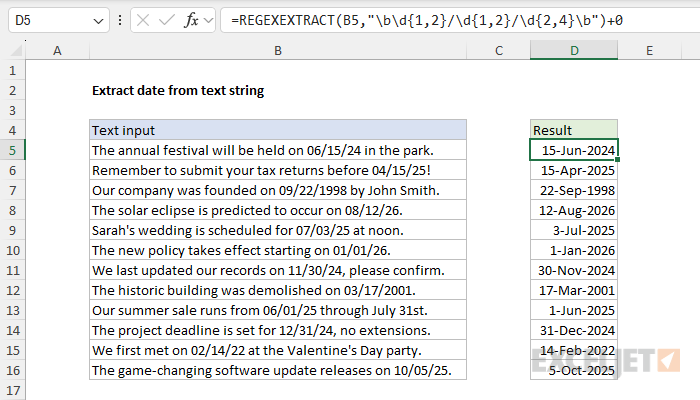
=REGEXEXTRACT(A1,"\b\d{1,2}/\d{1,2}/\d{2,4}\b")+0
You can see how this works in the worksheet below:
For a full explanation and sample worksheet, see this page .
Example - Extract all hashtags
The return_mode argument in REGEXEXTRACT defaults to zero (0), which will return only the first match . To return all matches, set this value to 1. You can see how this works in the worksheet below, where the formula in cell D5 is:
=REGEXEXTRACT(B5,"#\w+",1)
With the pattern “#\w+”, and return_type set to 1, REGEX will return all hashtags for each text string in column B.
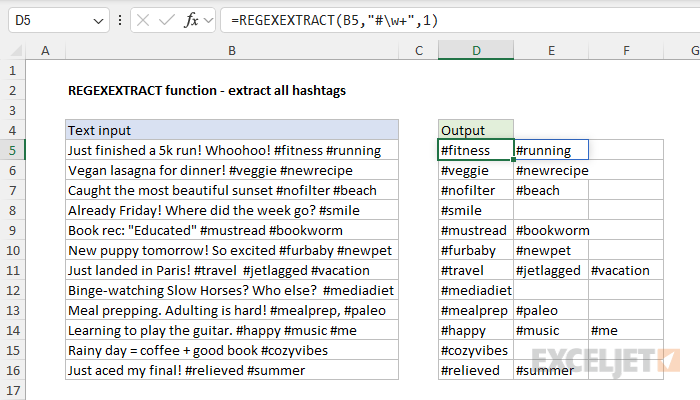
Multiple matches are returned in an array that spills to the right. If needed, you can use the TEXTJOIN function to combine multiple values into a single text string.
Example - Capturing groups
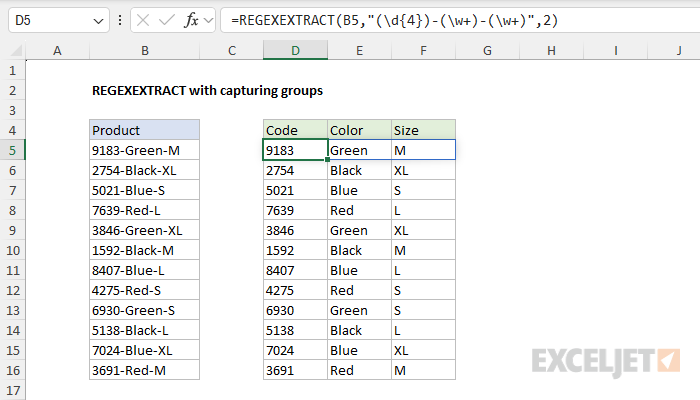
Capturing groups are a key concept in regular expressions (regex) that provide the ability to isolate and extract specific portions of a matched pattern. These groups are created by enclosing part of a regex pattern in parentheses (), which tells the regex engine to “capture” or remember the text matched by that particular section. REGEXEXTRACT provides basic support for capturing groups by setting the third argument, return_mode, to 2. You can see how this works below, where the formula in cell D5 is:
=REGEXEXTRACT(B5,"(\d{4})-(\w+)-(\w+)",2)
Note that we are using three sets of parentheses (), which create three capturing groups inside the pattern. The value for return_mode is set to 2, which causes REGEXEXTRACT to return all three groups in an array that spills onto the worksheet:
Regex terminology and reference
Because Regex is essentially a mini programming language, it has its own vocabulary. Here is a list of some important terminology:
- Pattern - The actual sequence of characters that defines the regex.
- Literal - Characters in a regex pattern that match themselves. For example, in cat , the literals are c , a , and t .
- Metacharacter - Characters with special meanings in regex. For example, a period . matches any character, ^ matches the start of a string, $ matches the end of a string.
- Character Class - A set of characters enclosed in square brackets [] that matches any one of the characters inside. For example, [aeiou] matches any vowel.
- Quantifier - Specifies how many instances of a character, group, or character class must be present in the input for a match. For example, a* matches zero or more a’s, a+ matches one or more a’s, a{3} matches exactly three a’s.
For details and more examples of useful regex patterns, see our Regex Reference Guide .
Purpose
Return value
Syntax
=REGEXREPLACE(text,pattern,replacement,[occurrence],[case_sensitivity])
- text - The text value to process.
- pattern - The pattern to replace.
- replacement - The text to replace with.
- occurrence - [optional] The instance to replace. Default = 0 = all instances.
- case_sensitivity - [optional] 0 = Case sensitive, 1= Case-insensitive. Default is 0.
Using the REGEXREPLACE function
The REGEXREPLACE function replaces text matching a specific regex pattern in a given text string. You can think of REGEXREPLACE as a much more powerful version of the simplistic SUBSTITUTE function . While both functions can be used to search and replace simple text strings, REGEXREPLACE can use regex, a powerful language built for matching and manipulating text values. This function is a major upgrade to Excel’s rather primitive text functions.
Regular expressions (“regex” for short) are a powerful tool for pattern matching and text manipulation. Regex patterns can match simple strings or very specific sequences like phone numbers, email addresses, dates, and other text that has an identifiable pattern. Compared to the simple wildcards provided in older versions of Excel, regular expressions are a huge upgrade in functionality. They make it possible to match text in extremely specific ways that were impossible before now. While regex itself can be daunting to newcomers, it’s a very powerful language. As you become more comfortable with the syntax, you can tackle increasingly complex data extraction challenges.
- Example - Basic usage
- Example - Strip non-numeric characters
- Example - capitalize first letter in text string
- Example - capitalize specific words
- Example - Format telephone numbers with grouping
- Example - combining multiple REGEXREPLACE functions
- Regex terminology and reference
Example - Basic usage
To use REGEXREPLACE, provide a text string, a regex pattern, and the replacement text. For example, to replace “t” with “b” in the text string “tuttle”, you can use a formula like this:
=REGEXREPLACE("tuttle","t","b") // returns "bubble"
The formula replaces all three instances of “t” with “b”. Note that REGEXREPLACE is case-sensitive by default. If we capitalize the first “t”, only the second and third occurrences of “t” are changed:
=REGEXREPLACE("Tuttle","t","b") // returns "Tubble"
To disable case sensitivity, provide a 1 for the case-sensitive argument:
=REGEXREPLACE("Tuttle","t","b",,1) // returns "bubble"
With case sensitivity disabled, all three “t"s are replaced with “b”. Another way to replace both “T” and “t” with “b” is to include both in a regex character set like this:
=REGEXREPLACE("Tuttle","[Tt]","b") // returns "bubble"
Example - Strip non-numeric characters
The REGEXREPLACE function provides an easy way to remove non-numeric characters from a text string. You can see an example below, where REGEXREPLACE is configured to remove all space and punctuation from the (fake) telephone numbers in column B. The formula in cell D5, copied down, is:
=REGEXREPLACE(B5,"[^0-9]","")

The arguments in REGEXREPLACE are configured like this:
- text - from cell B5
- pattern - “[^0-9]”
- replacement - "” (an empty string)
The pattern “[^0-9]” breaks down like this:
- Square brackets [ ]: - In regex, square brackets define a character set. They mean “match any single character that is inside these brackets.”
- Caret ^: When used inside [], it means “not”
- 0-9: - A range that includes all digits from 0 to 9. It’s a shorthand way of writing [0123456789].
The result is that the pattern will match any character that is not a digit . With this pattern, REGEXREPLACE will replace any character that is not a digit with an empty string. The final result contains digits only.
Note that if the pattern is not found in the text, REGEXEXTRACT will return the original value.
Example - capitalize first letter in text string
REGEXREPLACE can perform certain transformations, for example making text upper or lower case. You can see an example of how this works in the worksheet below, where REGEXREPLACE is used to capitalize the first letter in a text string. The formula in cell D5 is:
=REGEXREPLACE(B5,"^(.)","\U$1")
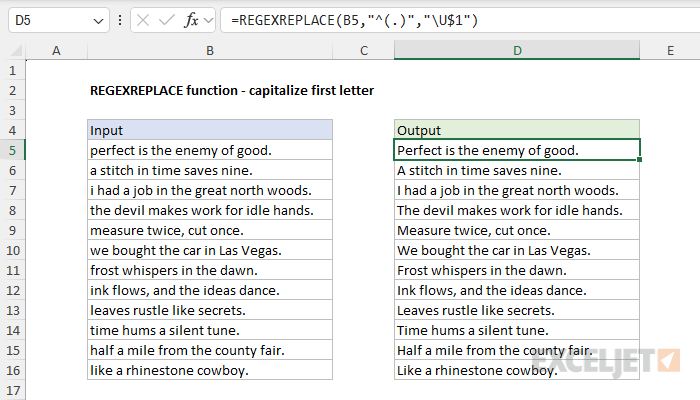
The arguments in REGEXREPLACE are configured as follows:
- text - B5
- pattern - “^(.)”.
- replacement - “\U$1”
In the pattern, “^” means the start of the string, and “.” means any single character. The parentheses () define a capturing group. The full pattern “^(.)” captures any single character at the beginning of the text in a group. In the replacement, “\U” means convert to uppercase, and “$1” refers to the first (and only) captured group. So, the formula finds the first character of the text in B5 and replaces it with its uppercase version, effectively capitalizing the first letter of the text.
Example - capitalize specific words
We can extend the idea in the example above to use REGEXREPLACE to capitalize specific words in a text string. In the worksheet below, REGEXREPLACE is configured to capitalize “cat”, “bird”, and “dog”, including the pluralized versions of these words. The formula in cell D5 looks like this:
=REGEXREPLACE(B5,"\b((cat|dog|bird)s?)\b","\U$1",,1)

The arguments are provided as follows:
- text - from cell B5
- pattern - “\b((cat|dog|bird)s?)\b”
- replacement - “\U$1”
- occurrence - omitted
- case_sensitivity - 1 (to disable case sensitivity)
This formula will capitalize both singular and plural forms of “cat”, “dog”, and “bird”, regardless of their original capitalization.
- In the pattern “\b((cat|dog|bird)s?)\b”, “\b” is a word boundary to ensure we match whole words only. The partial pattern “(cat|dog|bird)” matches “cat” or “dog” or “bird”. The parentheses define a capturing group. The full pattern “((cat|dog|bird)s?)” matches “cat”, “dog”, or “bird”, optionally followed by “s”. Note we have a second pair of parentheses that defines a capturing group for the entire match, including the optional “s”.
- The replacement pattern is “\U$1”. The “\U” is an uppercase operator. The “$1” is the first capturing group. The capturing groups are numbered from left to right based on the order of their opening parentheses, so the “outer” group is the first and includes the optional “s”.
- Note that we have omitted occurrence since it is not needed (extra blank comma), and case_sensitivity is set to 1 to disable the default case sensitivity of REGEXREPLACE. We do this so that REGEXREPLACE will ignore the case when looking for words.
Example - Format telephone numbers with grouping
In the worksheet below, we are using REGEXREPLACE to format telephone numbers that were previously “cleaned” by removing all non-numeric characters (see the example above for details). The formula in cell F5 looks like this:
=REGEXREPLACE(D5,"(\d{3})(\d{3})(\d{4})","($1)-$2-$3")

The arguments to REGEXREPLACE are configured like this:
- text - from cell D5
- pattern - “(\d{3})(\d{3})(\d{4})”
- replacement - “($1)-$2-$3”
Note that we are working with previously “cleaned” phone numbers in column D. These are 10-digit numbers with all punctuation and white space removed (see above for details).
- The regex pattern is “(\d{3})(\d{3})(\d{4})”. The first part (\d{3}) captures the first three digits, the second part (\d{3}) captures the next three digits, and the third part (\d{4}) captures the last four digits. Note that the three pairs of parentheses define three capturing groups.
- The replacement pattern is “($1)-$2-$3”, which uses all three groups. ($1) puts parentheses around the first group, -$2- adds hyphens before and after the second group, and $3 adds the last group.
- The result is that a number like “0234568765” becomes “(023)-456-8765”.
This formula will work for 10-digit phone numbers. If you need to handle different lengths or formats, you will need to adjust the regular expression accordingly.
Example - combining multiple REGEXREPLACE functions
In the examples above, we used two separate REGEXREPLACE formulas, one to strip out non-numeric characters and one to format the remaining digits. Excel makes it easy to combine these two formulas together by nesting the first REGEXREPLACE inside the second. You can see how this works in the worksheet below, where the formula in D5 is:
=REGEXREPLACE(REGEXREPLACE(B5,"[^0-9]",""),"(\d{3})(\d{3})(\d{4})","($1)-$2-$3")

The inner REGEXREPLACE removes punctuation and whitespace and returns a cleaned phone number to the outer REGEXREPLACE, which formats the final result. Solving problems this way is a good approach because each formula can be developed and tested separately, and neither formula is especially complex. While it would be possible to do everything in a single REGEXREPLACE formula, the regex would be significantly more complex.
Regex terminology and reference
Because Regex is essentially a mini programming language, it has its own vocabulary. Here is a list of some important terminology:
- Pattern - The actual sequence of characters that defines the regex.
- Literal - Characters in a regex pattern that match themselves. For example, in cat , the literals are c , a , and t .
- Metacharacter - Characters with special meanings in regex. For example, a period . matches any character, ^ matches the start of a string, $ matches the end of a string.
- Character Class - A set of characters enclosed in square brackets [] that matches any one of the characters inside. For example, [aeiou] matches any vowel.
- Quantifier - Specifies how many instances of a character, group, or character class must be present in the input for a match. For example, a* matches zero or more a’s, a+ matches one or more a’s, a{3} matches exactly three a’s.
For details and more examples of useful regex patterns, see our Regex Reference Guide .
