Explanation
In this example, the goal is to repeat a range of values. This can be done in various ways in Excel, but I think the CHOOSEROWS/ CHOOSECOLS functions are the easiest way to retrieve values from the range for now. Both functions work natively with two-dimensional ranges and can accept a single array of numeric index numbers. The formulas below work in two steps:
- Generate a repeating list of numeric index numbers.
- Use the index numbers to retrieve and repeat values from a range.
Step 1 is based on the formula explained in detail here . Step 2 is based on either the CHOOSEROWS function (to repeat values by row) or the CHOOSECOLS function (to repeat values by column).
Generic formula
The generalized formula for repeating a range into rows looks like this:
=CHOOSEROWS(range,MOD(SEQUENCE(n*x)-1,n)+1)
- range - the range to repeat, or an array constant like {“a”;“b”;“c”}
- n - the number of rows to repeat
- x - the number of times to repeat
Worksheet formula
In the example shown above, we are repeating 3 values {“dog”;“cat”;“fish”} 4 times into 12 rows with this formula in cell D5:
=CHOOSEROWS(B8:B10,MOD(SEQUENCE(3*B5,,0),3)+1)
Step 1: Generate repeating index numbers
The core idea of this approach is to create a repeating sequence of numbers that can be used as indices to retrieve values from a range or array. This is done with the SEQUENCE function and the MOD function here:
MOD(SEQUENCE(3*B5,,0),3)+1
This code creates a single array of repeating numbers. First, SEQUENCE creates an array of 12 sequential numbers starting with zero:
=SEQUENCE(3*4,,0)
=SEQUENCE(12,,0)
={0;1;2;3;4;5;6;7;8;9;10;11}
Next, the MOD function converts the numbers into a repeating sequence:
=MOD({0;1;2;3;4;5;6;7;8;9;10;11},3)+1
={0;1;2;0;1;2;0;1;2;0;1;2}+1
={1;2;3;1;2;3;1;2;3;1;2;3}
The final result is an array like this:
{1;2;3;1;2;3;1;2;3;1;2;3}
Notice that we have repeated the values {1;2;3} four times.
Note: For a more detailed explanation of this part of the formula, which can used standalone, see: Repeat sequence of numbers .
Step 2: Repeat the values
Now that we have an array of repeating numbers, the next step is to use these numbers to extract values in the range B8:B10. To do that, we use the CHOOSEROWS function , which is designed to return specific rows from an array or range. The array from the SEQUENCE and MOD operation described above is delivered directly to CHOOSEROWS as row_num1 :
=CHOOSEROWS(B8:B10,{1;2;3;1;2;3;1;2;3;1;2;3})
Although the signature for CHOOSEROWS suggests that row numbers must be provided separately, an array constant works just fine. The result from CHOOSEROWS is an array with the first three rows of the range B5:B10 repeated 4 times:
{"dog";"cat";"fish";"dog";"cat";"fish";"dog";"cat";"fish";"dog";"cat";"fish"}
This array lands in cell D5 and spills into the range D5:D16.
Example with a 2D range
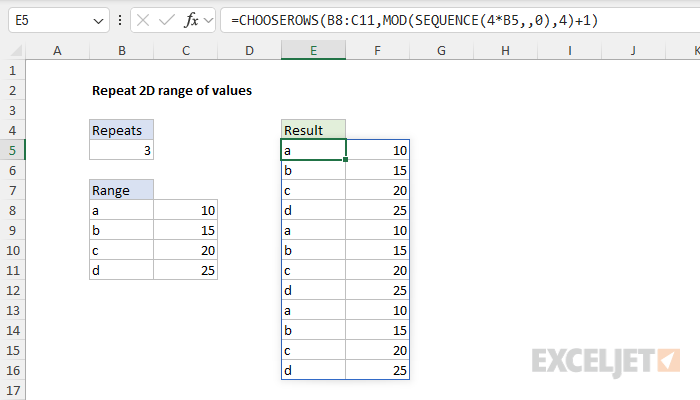
Because we are using the CHOOSEROWS function, we have native support for two-dimensional ranges. In the worksheet below, we repeat the range B8:C11 3 times with this formula in cell E5:
=CHOOSEROWS(B8:C11,MOD(SEQUENCE(4*B5,,0),4)+1)
Repeat range into columns
By switching to CHOOSECOLS, we can repeat a range into columns instead of rows. The CHOOSECOLS function is designed to return specific columns from a range. The generic version of the formula looks like this:
=CHOOSECOLS(range,MOD(SEQUENCE(n*x)-1,n)+1)
In the worksheet below, we use this formula to repeat the range B8:B11 5 times by column:
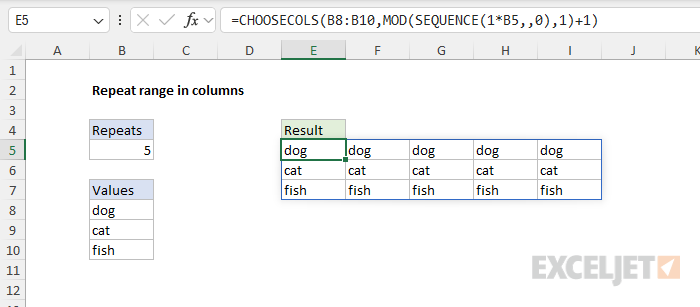
This formula’s operation is the same as the original above, except that we repeat values by column.
Explanation
In this example, the goal is to repeat a sequence of numbers. This is a useful way to create repeating sequences of numbers by itself. In addition, this formula is a building block to the more general formula here , which can repeat ranges and arbitrary values that are not sequential numbers.
Ingredients
The formulas on this page are based on two functions: the SEQUENCE function and the MOD function.
- The SEQUENCE function is designed to create all kinds of numeric sequences. For a quick primer, watch this short video: The SEQUENCE function .
- The MOD function is a classic match formula that returns the remainder after division. MOD often shows up in problems that have a “repeating” element: highlight every other row , sum every nth row , and so on.
Repeat sequence of numbers
To repeat a sequence of numbers, you can use a generalized version of a formula that looks like this, where “n” is the number of items being repeated and “x” is the number of times to repeat the items:
=MOD(SEQUENCE(n*x)-1,n)+1
For example, to repeat the numbers {1,2,3} four times, n=3 and x=4, so we can use:
=MOD(SEQUENCE(3*4,,0),3)+1
What’s going on here?
In a nutshell, the SEQUENCE function creates an array of sequential numbers, and the MOD function converts these numbers into repeating numbers. Working from the inside out, SEQUENCE is configured like this:
=SEQUENCE(3*4,,0)
- rows - numbers (3) * repeats (4) = 12
- columns - left blank intentionally (defaults to 1)
- start - given as 0 to start the sequence at zero instead of 1
Note that we get 12 for rows by multiplying the repeating numbers (3) by the number of repeats (4). Also note that the optional third argument, start, is given as zero to begin the sequence at 0 instead of 1. The evaluation of SEQUENCE works like this:
=SEQUENCE(3*4,,0)
=SEQUENCE(12,,0)
={0;1;2;3;4;5;6;7;8;9;10;11}
The final result is a zero-based sequence of 12 numbers. Next, the array returned by SEQUENCE is passed into the MOD function as the number argument, with the divisor set to 3:
=MOD({0;1;2;3;4;5;6;7;8;9;10;11},3)+1
The MOD function divides each number by 3 and returns the remainder after division. The result is an array of repeating numbers like this:
={0;1;2;0;1;2;0;1;2;0;1;2}+1
Finally, 1 is added to each number in the array to shift the numbers into their final form. The final result looks like this:
{1;2;3;1;2;3;1;2;3;1;2;3}
Now, let’s adjust the formula to repeat the numbers 1-6 two times. For this problem, n=6 and x=2, so the formula looks like this:
=MOD(SEQUENCE(6*2,,0),6)+1
As before, SEQUENCE generates an array of 12 numbers starting with zero, and MOD returns the remainder after dividing by 6.
=MOD(SEQUENCE(6*2,,0),6)+1
=MOD(SEQUENCE(12,,0),6)+1
=MOD({0;1;2;3;4;5;6;7;8;9;10;11},6)+1
={0;1;2;3;4;5;0;1;2;3;4;5}+1
{1;2;3;4;5;6;1;2;3;4;5;6}
In the final step, we add 1 to each number in the array to the repeating numbers from {0,1,2} to {1,2,3}. The workbook below shows how the formulas compare side-by-side:
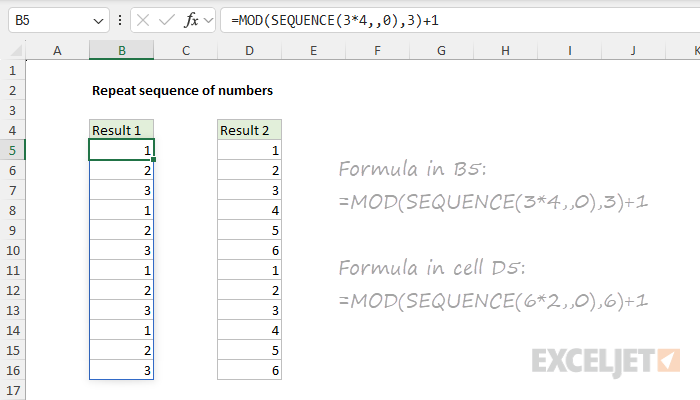
To recap, the first formula repeats the numbers 1-3 four times, and the second formula repeats the numbers 1-6 twice.
Repeat a sequence of numbers into columns
With a small adjustment, you can repeat a series of numbers in columns instead of rows. In the worksheet below, the formulas in cell B5 and cell B8 are:
B5=MOD(SEQUENCE(,3*4,0),3)+1
B8=MOD(SEQUENCE(,6*2,0),6)+1
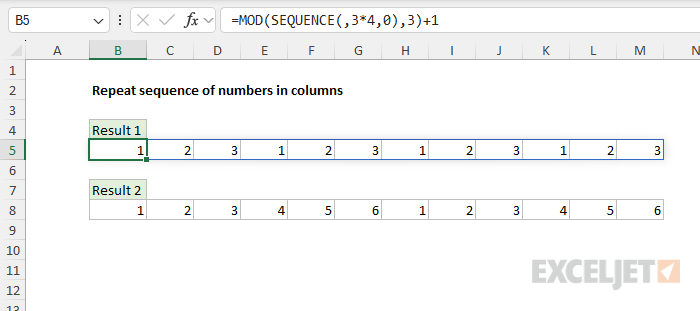
As above, the first formula repeats the numbers {1,2,3} four times, and the second formula repeats the numbers {1,2,3,4,5,6} two times. The only difference is that the n * x calculation appears as the columns argument in SEQUENCE instead of the rows argument, which is left empty.
