In this article, I want to show you how you can sometimes replace a more complicated IF formula with a more elegant MIN or MAX formula. This is a very simple tip that really demonstrates how you can leverage Excel’s formulas to create clever and compact solutions to everyday problems. To illustrate, let’s look at two examples.
A free lunch with MAX
Let’s say you have a $50 credit at a restaurant. It’s a one-time use credit that expires tomorrow, so you take your friend to dinner today. You split a salad, a pizza, and a couple of beers. When it comes time to apply the credit to the bill, you might calculate the balance like this:
balance= total-credit
Simple formula. But what happens when the credit is greater than the total?
If that happens, you’ll see a negative balance:

A negative balance doesn’t make sense in this case, so you reach for the handy IF function:
balance=IF(total-credit>0,total-credit,0)

Problem solved. The IF function now catches negative results and returns zero instead.
This works, but the approach is ugly and redundant. The IF function is only there to trap negative results, and it forces you to repeat the main operation twice. There must be a more direct approach?
Yes, indeed, with the MAX function.
MAX instead of IF
You might not think of the MAX function in a situation like this, because it seems geared toward large sets of data. That’s true, but MAX works equally well with small, even tiny, sets of data.
Consider that you want the formula to return the greater of two things: the calculated balance, or zero. That means you can write a formula like this:
=MAX(total-credit, 0)

Now MAX simply returns the greater of the two options — a positive balance or zero. Negative values are banished and never make it to the final result.
Pretty cool, huh?
A capped fee with MIN
You can use the MIN function in the same way. For example, assume you need to calculate an association fee of 1.5%, up to a maximum of $3,000. In other words, use 1.5% to calculate the fee, but cap the result at $3,000.
You could of course use IF like this:
=IF(1.5%*amount>3000,3000,1.5%*amount)

However, with the MIN function, you can write a compact formula that fully captures the requirement:
=MIN(1.5%*amount,3000)

Now any fee under $3000 is returned as calculated, but the total fee is never greater than $3000.
More examples
Here are a couple more examples of using MAX or MIN to replace IF:
- Force negative numbers to zero
- Cap percentage at a specific amount
More formulas
Like so many things in Excel, the trick to learning more formulas is more exposure. To help you out, we maintain a large collection of sample formulas you can browse and study. This is a great way to find specific solutions to many problems you’re likely to encounter in Excel. We also have a good library of video courses to help you learn quickly in a more structured environment.
Quick Links
- Quick Start
- Examples
- Troubleshooting
- Training
Conditional formatting is a fantastic way to quickly visualize data in a spreadsheet. With conditional formatting, you can do things like highlight dates in the next 30 days, flag data entry problems, highlight rows that contain top customers, show duplicates, and more.
Excel ships with a large number of “presets” that make it easy to create new rules without formulas. However, you can also create rules with your own custom formulas. By using your own formula, you take over the condition that triggers a rule and can apply exactly the logic you need. Formulas give you maximum power and flexibility.
For example, using the “Equal to” preset, it’s easy to highlight cells equal to “apple”.
But what if you want to highlight cells equal to “apple” or “kiwi” or “lime”? Sure, you can create a rule for each value, but that’s a lot of trouble. Instead, you can simply use one rule based on a formula with the OR function :
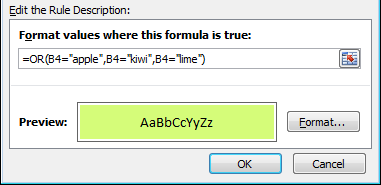
Here’s the result of the rule applied to the range B4:F8 in this spreadsheet:
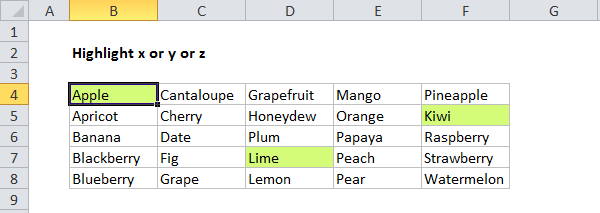
Here’s the exact formula used:
=OR(B4="apple",B4="kiwi",B4="lime")
Quick start
You can create a formula-based conditional formatting rule in four easy steps:
- Select the cells you want to format.
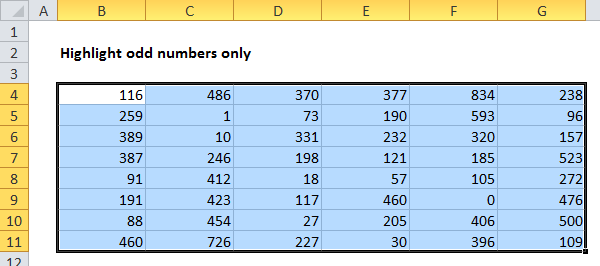
- Create a conditional formatting rule, and select the Formula option
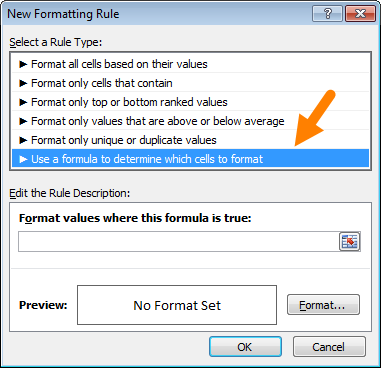
- Enter a formula that returns TRUE or FALSE.
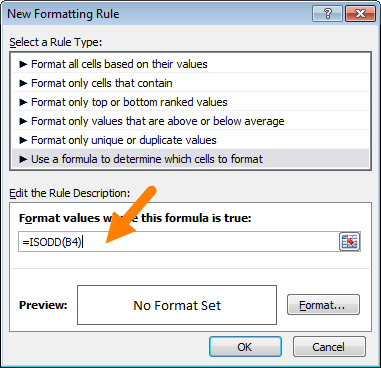
- Set formatting options and save the rule.
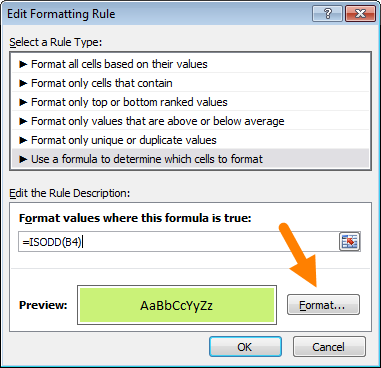
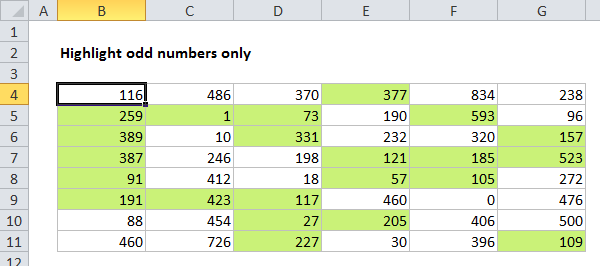
The ISODD function only returns TRUE for odd numbers, triggering the rule:
Video: How to apply conditional formatting with a formula
We also offer video training on conditional formatting .
Formula logic
Formulas that apply conditional formatting must return TRUE or FALSE, or numeric equivalents. Here are some examples:
=ISODD(A1)
=ISNUMBER(A1)
=A1>100
=AND(A1>100,B1<50)
=OR(F1="MN",F1="WI")
The above formulas all return TRUE or FALSE, so they work perfectly as a trigger for conditional formatting.
When conditional formatting is applied to a range of cells, enter cell references with respect to the upper-left cell. The trick to understanding how conditional formatting formulas work is to visualize the same formula being applied to each cell in the selection , with cell references updated as usual. Imagine that you entered the formula in the upper-left cell of the selection, and then copied the formula across the entire selection. If you struggle with this, see the section on Dummy Formulas below.
Formula Examples
Below are examples of custom formulas you can use to apply conditional formatting. Some of these examples can be created using Excel’s built-in presets for highlighting cells, but custom formulas can go far beyond presets, as you can see below.
Also see: More than 30 Conditional Formatting Formulas
Highlight orders from Texas
To highlight rows that represent orders from Texas (abbreviated TX), use a formula that locks the reference to column F:
=$F5="TX"
<img loading=“lazy” src=“https://exceljet.net/sites/default/files/images/articles/inline/highlight%20orders%20from%20texas.png" onerror=“this.onerror=null;this.src=‘https://blogger.googleusercontent.com/img/a/AVvXsEhe7F7TRXHtjiKvHb5vS7DmnxvpHiDyoYyYvm1nHB3Qp2_w3BnM6A2eq4v7FYxCC9bfZt3a9vIMtAYEKUiaDQbHMg-ViyGmRIj39MLp0bGFfgfYw1Dc9q_H-T0wiTm3l0Uq42dETrN9eC8aGJ9_IORZsxST1AcLR7np1koOfcc7tnHa4S8Mwz_xD9d0=s16000';" alt=“Use a formula to highlight rows where state = “TX” - 13”>
For more details, see this article: Highlight rows with conditional formatting .
Video: How to highlight rows with conditional formatting
Highlight dates in the next 30 days
To highlight dates occurring in the next 30 days, we need a formula that (1) makes sure dates are in the future and (2) makes sure dates are 30 days or less from today. One way to do this is to use the AND function together with the NOW function like this:
=AND(B4>NOW(),B4<=(NOW()+30))
With a current date of August 18, 2016, the conditional formatting highlights dates as follows:
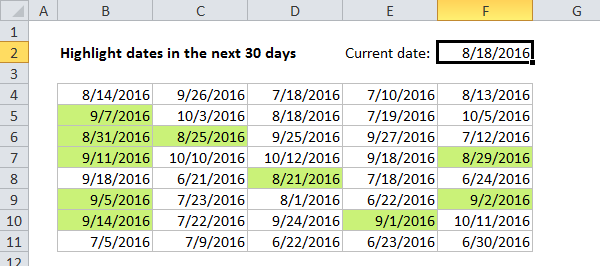
The NOW function returns the current date and time. For details about how this formula, works, see this article: Highlight dates in the next N days .
Highlight column differences
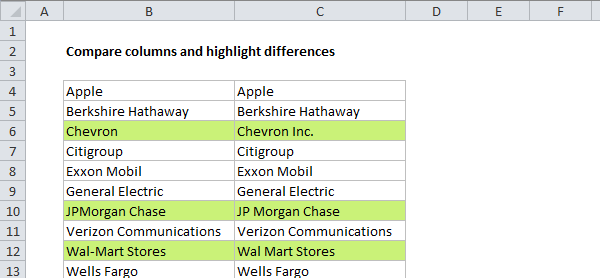
Given two columns that contain similar information, you can use conditional formatting to spot subtle differences. The formula used to trigger the formatting below is:
=$B4<>$C4
Highlight missing values
To highlight values in one list that are missing from another, you can use a formula based on the COUNTIF function :
=COUNTIF(list,B5)=0
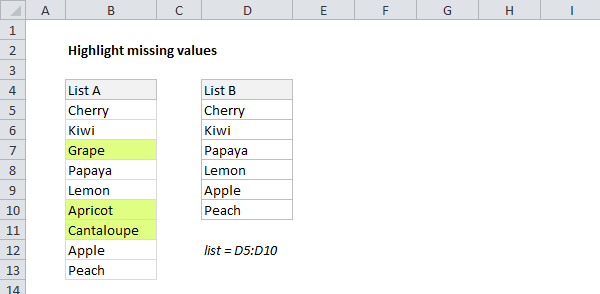
This formula simply checks each value in List A against values in the named range “list” (D5:D10). When the count is zero, the formula returns TRUE and triggers the rule, which highlights values in List A that are missing from List B .
Video: How to find missing values with COUNTIF
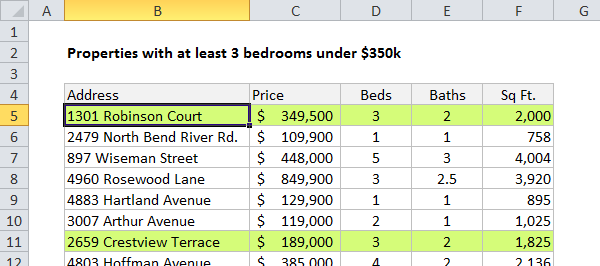
Highlight properties with 3+ bedrooms under $350k
To find properties in this list that have at least 3 bedrooms but are less than $300,000, you can use a formula based on the AND function:
=AND($C5<350000,$D5>=3)
The dollar signs ($) lock the reference to columns C and D, and the AND function is used to make sure both conditions are TRUE. In rows where the AND function returns TRUE, the conditional formatting is applied:
Highlight top values (dynamic example)
Although Excel has presets for “top values”, this example shows how to do the same thing with a formula, and how formulas can be more flexible. By using a formula, we can make the worksheet interactive — when the value in F2 is updated, the rule instantly responds and highlights new values.
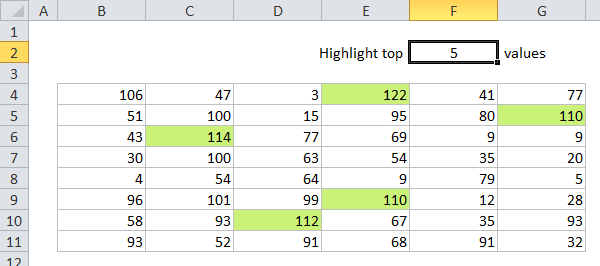
The formula used for this rule is:
=B4>=LARGE(data,input)
Where “data” is the named range B4:G11, and “input” is the named range F2. This page has details and a full explanation .
Gantt charts
Believe it or not, you can even use formulas to create simple Gantt charts with conditional formatting like this:
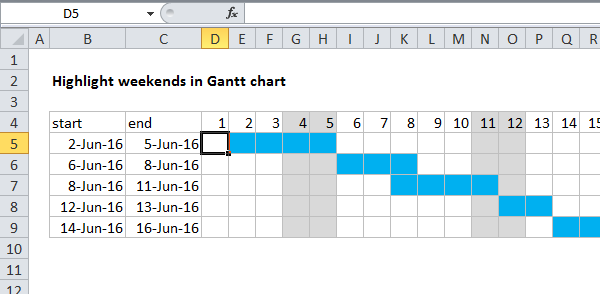
This worksheet uses two rules, one for the bars, and one for the weekend shading:
=AND(D$4>=$B5,D$4<=$C5) // bars
=WEEKDAY(D$4,2)>5 // weekends
This article explains the formula for bars , and this article explains the formula for weekend shading .
Simple search box
One cool trick you can do with conditional formatting is to build a simple search box. In this example, a rule highlights cells in column B that contain text typed in cell F2:
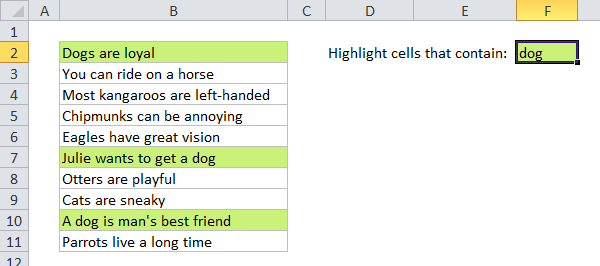
The formula used is:
=ISNUMBER(SEARCH($F$2,B2))
For more details and a full explanation, see:
- Article: How to highlight cells that contain specific text
- Article: How to highlight rows that contain specific text
- Video: How to build a search box to highlight data
Troubleshooting
If you can’t get your conditional formatting rules to fire correctly, there’s most likely a problem with your formula. First, make sure you started the formula with an equals sign (=). If you forget this step, Excel will silently convert your entire formula to text, rendering it useless. To fix, just remove the double quotes Excel added at either side and make sure the formula begins with equals (=).
If your formula is entered correctly but is not triggering the rule, you may have to dig a little deeper. Normally, you can use the F9 key to check results in a formula or use the Evaluate feature to step through a formula. Unfortunately, you can’t use these tools with conditional formatting formulas, but you can use a technique called “dummy formulas”.
Dummy Formulas
Dummy formulas are a way to test your conditional formatting formulas directly on the worksheet, so you can see what they’re actually doing. This can be a big time-saver when you’re struggling to get cell references working correctly.
In a nutshell, you enter the same formula across a range of cells that matches the shape of your data. This lets you see the values returned by each formula, and it’s a great way to visualize and understand how formula-based conditional formatting works. For a detailed explanation, see this article .
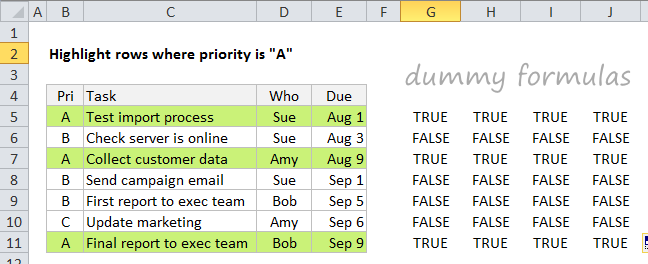
Video: Test conditional formatting with dummy formulas
Limitations
There are some limitations that come with formula-based conditional formatting:
- You can’t apply icons, color scales, or data bars with a custom formula. You are limited to standard cell formatting, including number formats, font, fill color, and border options.
- You can’t use certain formula constructs like unions, intersections, or array constants for conditional formatting criteria.
- You can’t reference other workbooks in a conditional formatting formula.
You can sometimes work around #2 and #3. You may be able to move the logic of the formula into a cell in the worksheet, and then refer to that cell in the formula instead. If you are trying to use an array constant, try creating a named range instead.
More CF formula resources
- More than 30 conditional formatting formulas examples
- Video training with practice worksheets

