Purpose
Return value
Syntax
=ROMAN(number,[form])
- number - Number (in Arabic numeral) you want to convert to Roman numeral.
- form - [optional] The type of Roman numeral you want.
Using the ROMAN function
The ROMAN function converts a number to a Roman numeral. For example:
=ROMAN(4) // returns "IV"
=ROMAN(9) // returns "IX"
=ROMAN(99) // returns "XCIX"
=ROMAN(100) // returns "C"
ROMAN takes two arguments : number and form . Number should be a whole number between 1 and 3999. The form argument controls the convention used for Roman numbers. The argument is optional and the default is zero (0), which results in classic non-abbreviated Roman numbers. Other possible values are 1-4, which specify progressively more concise output. For example:
=ROMAN(1999,0) // returns "MCMXCIX"
=ROMAN(1999,2) // returns "MXMIX"
=ROMAN(1999,4) // returns "MIM"
See more form samples below .
Roman numbers
The table below lists available Roman numbers with their equivalent Arabic number value.
| Symbol | Value |
|---|---|
| I | 1 |
| V | 5 |
| X | 10 |
| L | 50 |
| C | 100 |
| D | 500 |
| M | 1000 |
The ROMAN function converts Arabic numbers to Roman numbers. Use the ARABIC function to convert Roman numbers to Arabic numbers.
Abbreviated syntax
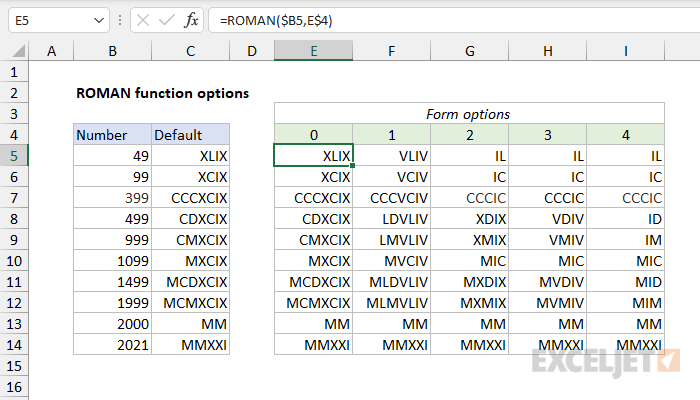
The ROMAN function can output Roman numbers in a more abbreviated syntax, controlled with the form argument. The screen below shows how different values for form affect output.
Notes
- Number should be a positive number between 1 and 3999.
- Number should be a whole number; decimal values are ignored.
- If number is negative or out of range, ROMAN returns #VALUE!
- The ROMAN function performs the opposite conversion as the ARABIC function .
- The form argument controls Roman numeral abbreviation. Valid inputs are 0-4.
Purpose
Return value
Syntax
=ROUND(number,num_digits)
- number - The number to round.
- num_digits - The place at which number should be rounded.
Using the ROUND function
The ROUND function rounds a number to a given number of places. ROUND rounds up when the last significant digit is 5 or greater, and rounds down when the last significant digit is less than 5.
ROUND takes two arguments, number and num_digits . Number is the number to be rounded, and num_digits is the place at which the number should be rounded. When num_digits is greater than zero, the ROUND function rounds on the right side of the decimal point. When num_digits is less or equal to zero, the ROUND function rounds on the left side of the decimal point. Use zero (0) for num_digits to round to the nearest integer. This behavior is summarized in the table below:
| Digits | Behavior |
|---|---|
| >0 | Round to the nearest 0.1, 0.01, 0.001, etc. |
| <0 | Round to the nearest 10, 100, 1000, etc. |
| =0 | Round to the nearest whole number |
How ROUND works
Rounding simplifies numbers by decreasing the number of digits while keeping the number close to its original value. The result is less accurate, but easier to use. The ROUND function uses a standard rounding process like this:
Determine the precision. The precision is determined by the number of decimal places provided as the num_digits argument. For example, =ROUND(A1,1) will round a number in A1 to one decimal place, and =ROUND(A1,0) will round to the nearest whole number.
Determine the rounding digit. This is the number in the place you are rounding to. For example, when rounding to the nearest whole number, the last number to keep is in the 1s position.
Round the number based on the next number to the right . Leave the rounding digit the same if the next number to the right is less than 5. Increase the rounding digit by 1 if the next number is 5 or more. For example, to round the number 2.786 to the nearest tenth:
- The rounding digit is 7 (the first digit after the decimal).
- The next digit is 8.
- Since 8 is greater than 5, round up the 7 to 8.
- The number becomes 2.8.
We can get the same result with the ROUND function by providing 1 as num_digits :
=ROUND(2.786,1) // returns 2.8
Round to right
To round values to the right of the decimal point, use a positive number for digits:
=ROUND(A1,1) // Round to nearest tenth (0.1)
=ROUND(A1,2) // Round to nearest hundredth (0.01)
=ROUND(A1,3) // Round to nearest thousandth (0.001)
=ROUND(A1,4) // Round to nearest ten-thousandth (0.0001)
Round to left
To round down values to the left of the decimal point, use zero or a negative number for digits:
=ROUND(A1,0) // Round to nearest whole number
=ROUND(A1,-1) // Round to nearest 10
=ROUND(A1,-2) // Round to nearest 100
=ROUND(A1,-3) // Round to nearest 1000
=ROUND(A1,-4) // Round to nearest 10000
Nesting inside ROUND
Other operations and functions can be nested inside the ROUND function. For example, to round down the result of A1 divided by B1, you can ROUND in a formula like this:
=ROUND(A1/B1,0) // round result to nearest integer
Any formula that returns a numeric result can be nested inside the ROUND function.
Rounding vs. formatting
It’s important to understand that Excel can perform “visual rounding” with number formatting . When number formatting is applied to a number, Excel will display the number of places specified in the format, rounding as necessary. For example, with the value 2.786 in cell A1:
- Excel displays 2.786 when the “General” number format is applied to A1.
- Excel displays 2.79 when the number format “0.00” is applied to A1.
- Excel displays 2.8 when the number format “0.0” is applied to A1.
- Excel displays 3 when the number format “0” is applied to A1.
Number formats affect the display of a number only, and the original value is not modified. In contrast, the ROUND function will round a number and return a modified number as a final result. For details on Excel’s custom number formatting with many examples, see this article .
Other rounding functions
Excel provides several rounding functions, each with a different behavior:
- To round with standard rules, use the ROUND function .
- To round to the nearest multiple , use the MROUND function .
- To round down to the nearest specified place , use the ROUNDDOWN function .
- To round down to the nearest specified multiple , use the FLOOR function .
- To round up to the nearest specified place , use the ROUNDUP function .
- To round up to the nearest specified multiple , use the CEILING function .
- To round down and return an integer only, use the INT function .
- To truncate decimal places, use the TRUNC function .
Notes
- The ROUND function rounds a number to a specified level of precision, determined by num_digits .
- If the number is already rounded to the given number of places, no rounding occurs.
- If the number is not numeric, ROUND returns a #VALUE! error.
- If num_digits is not numeric, ROUND returns a #VALUE! error.
