Explanation
The goal is to generate a series of “custom” days of the week based on a start date entered in cell B5. For example, you might want to list sequential dates for any of the following combinations of days:
- Mondays, Wednesdays, and Fridays (as shown)
- Tuesdays, Thursdays, and Saturdays
- Tuesdays and Thursdays
- Mondays and Fridays
The number of dates to create (n) is entered in cell B8. If the start date or the number of dates to create is changed, the dates should be recalculated. In the current version of Excel, the easiest way to solve this problem is to use the SEQUENCE function inside the WORKDAY.INTL function. In older versions of Excel, you can also use the WORKDAY.INTL function and a more manual approach, as explained below.
WORKDAY.INTL function
The WORKDAY.INTL function takes a start date and returns the next workday based on a given offset value provided as the days argument. WORKDAY.INTL will automatically exclude Saturday and Sunday, and can optionally exclude dates that are holidays. The generic syntax for WORKDAY.INTL looks like this:
=WORKDAY.INTL(start_date,days,[weekend],[holidays])
- start_date - the date to start from
- days - the number of days to move forward or back
- weekend - a code to specify which days are weekends
- holidays - a list of dates that are non-working days
One of WORKDAY.INTL’s tricks is that it can be configured to treat any day of the week as a workday by providing the weekend argument as a 7-digit code that covers all seven days of the week, Monday through Saturday. In this scheme, a 1 indicates a weekend (non-working) day, and a 0 indicates a workday. The table below shows sample codes in column B and the workdays they define in column J:

This method is more flexible since it can define any day of the week as a weekend or workday. For example, to get the next workday that is a Monday, Wednesday, or Friday after a date in cell A1, you can use a formula like this:
=WORKDAY.INTL(A1,1,"0101011") // Mon, Wed, Fri
To get the next Tuesday or Thursday, you can use a formula like this:
=WORKDAY.INTL(A1,1,"1010111") // Tue, Thu
You can also use this feature to create a list of weekends only .
Note: weekend must be entered as a text string surrounded by double quotes ("") when using this feature.
Current Excel version
In the current version of Excel (Excel 2019+), the easiest way to solve this problem is to use the SEQUENCE function inside the WORKDAY.INTL function . In the workbook shown above, the formula in cell D5 is:
=WORKDAY.INTL(B5-1,SEQUENCE(B8),"0101011")
The inputs provided to WORKDAY.INTL are as follows:
- start_date - B5-1 (the day before the start date)
- days - array created by SEQUENCE (see below)
- weekend - “0101011” (code allowing Mon, Wed, and Fri only)
- holidays - omitted (could be supplied as a range of dates)
Working from the inside out, the SEQUENCE function is used to generate a sequential array of n numbers, where n comes from cell B8. With the number 12 in cell B8, SEQUENCE generates an array like this:
=SEQUENCE(B8)
=SEQUENCE(12)
={1;2;3;4;5;6;7;8;9;10;11;12}
Next, the start_date is calculated by subtracting 1 from the date in B5. We do this because we want to force WORKDAY.INTL to check the start date as well. If it is a Monday, Wednesday, or Friday, it should be included in the list:
=B5-1
=45170-1
=45169 // 31-Aug-2023
Excel dates are just large serial numbers , so the result is 45169, a number that represents 31-Aug-2023, the day before the start date in B5. Simplifying, we have:
=WORKDAY.INTL(45169,{1;2;3;4;5;6;7;8;9;10;11;12},"0101011")
Because days is given as an array with 12 numbers, WORKDAY.INTL returns 12 dates filtered by the code “0101011”, which treats only Mondays, Wednesdays, or Fridays as workdays. With this configuration, WORKDAY.INTL, returns the next 12 Saturdays and Sundays after 31-Aug-2023, skipping all Saturdays, Sundays, Tuesdays, and Thursdays. For more details on WORKDAY.INTL, see How to use the WORKDAY.INTL function .
Tuesdays and Thursdays
To create a list of Tuesdays and Thursdays, just update the weekend code like so:
=WORKDAY.INTL(B5-1,SEQUENCE(B8),"1010111") // Tue and Thu
List custom days between dates
To adapt this formula to list all Mondays, Wednesdays, and Fridays between two given dates ( start and end ), you can use the same basic idea in a formula like this:
=LET(dates,SEQUENCE(end-start+1,1,start),FILTER(dates,WORKDAY.INTL(dates-1,1,"0101011")=dates))
See this page for a detailed explanation of how this approach works.
Legacy Excel
In older versions of Excel, there is no SEQUENCE function, so we don’t have a simple way to request 12 dates at once. One simple solution is to set up the worksheet so that we can “drag copy” a formula that will return the next Saturday or Sunday after the “cell above”. First, enter this formula in cell D5:
=WORKDAY.INTL(B5-1,1,"0101011")
- start_date - B5-1 (day before the start date)
- days - 1 (i.e. next date)
- weekend - “1111100” (code allowing Mon, Wed, and Fri only)
To get the start_date , we subtract 1 day from the date in B5 to force WORKDAY.INTL to evaluate the start date in B5, like other dates. If the date in cell B5 is a Saturday or Sunday, it will be returned by the formula above. Otherwise, the next Saturday or Sunday will be returned. As explained above, the weekend argument is given as the code “1111100”, which tells WORKDAY.INTL to treat only Mondays, Wednesdays, and Fridays as workdays. Next, in cell D6, enter the formula below and copy the formula down as needed:
=WORKDAY.INTL(D5,1,"0101011")
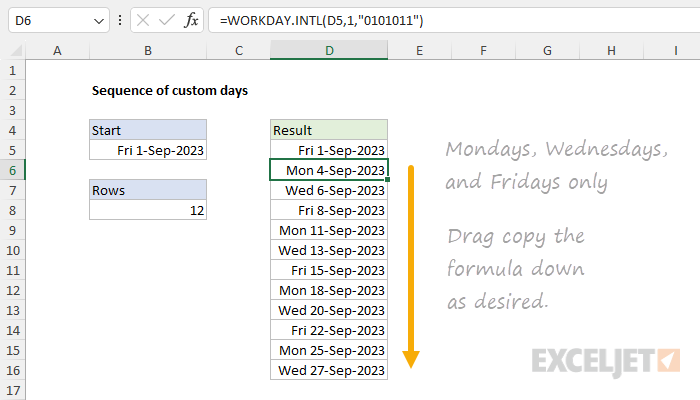
As the formula is copied down, it begins with the date in the “cell above” and returns the next Monday, Wednesday, or Friday. Because the formula in cell D6 refers to the start date in cell B5, cell B5 still drives all results. The downside of this approach is that the formula in D5 is different from the formulas in cell D6 and below, so you must take care to keep them separate.
Conclusion
The WORKDAY.INTL function will calculate the next working day and can be customized with the “weekend” argument to treat any day of the week as a weekend or workday. The SEQUENCE function can be used within WORKDAY.INTL to create a dynamic list of custom days based on a start date and the number of dates you want. You can also combine WORKDAY.INTL with SEQUENCE and the FILTER function to list custom days between two given dates . In older versions of Excel without SEQUENCE, you can use a more manual approach to get the same results.
Explanation
The goal is to generate a series of sequential dates with a formula. In the current version of Excel, the easiest method is to use the SEQUENCE function. SEQUENCE can return all dates at the same time into a range on the worksheet. In older versions of Excel without the SEQUENCE function, you can enter a formula, then manually copy the formula down as needed. Both approaches are explained below.
Background study
- How to use the SEQUENCE function - overview
- The SEQUENCE function - 3 min video
- SEQUENCE of dates - 3 min video
- Dynamic Array Formulas - Video training
SEQUENCE function
The SEQUENCE function is a dynamic array function that can generate multiple results. When used by itself on the worksheet, SEQUENCE outputs an array of results that " spill " onto the worksheet in a " spill range “. SEQUENCE can generate numeric sequences in rows, columns, or rows and columns. The generic syntax for the SEQUENCE function looks like this:
=SEQUENCE(rows,[columns],[start],[step])
Rows is the number of rows to return, columns is the number of columns to return, start is the starting value, and step is the increment to use between values. In this example, the goal is to generate a sequence of 12 dates, starting with the date in cell B5. To generate the dates, the formula in cell D5 is:
=SEQUENCE(B8,1,B5)
The inputs provided to SEQUENCE are as follows:
- rows - B8 (12)
- columns - 1
- start - B5 (1-Sep-2023)
- step - omitted, defaults to 1
Because dates in Excel are just serial numbers , and the date in B5 is represented by the number 45170 in Excel’s date system, SEQUENCE returns an array that contains 12 large sequential numbers like this:
{45170;45171;45172;45173;45174;45175;45176;45177;45178;45179;45180;45181}
Each number in this array represents a date, starting with September 1, 2023. The array lands in cell D5 and spills into the range D5:D16. When these numbers are formatted as dates , they display 12 consecutive dates beginning on September 1, 2023, and ending on September 12, 2023. If the start date in cell B5 is changed, SEQUENCE will automatically return a new set of dates.
For more details, see How to use the SEQUENCE function .
All dates between two dates
The formula above generates a set number of dates, provided as the rows argument. To adapt the formula to generate all the dates between two a start date and an end date you can adapt the formula like this:
SEQUENCE(end-start+1,1,start)
Where the inputs to SEQUENCE are:
- rows - start date - end date + 1
- columns - 1
- start - start date
Older versions of Excel
In older versions of Excel, there is no SEQUENCE function. However, if you want to generate a sequence of dates with a formula, you can use a generic formula like this:
=A1+1
Where A1 contains a start date. This works because dates in Excel are large serial numbers so it is possible to create and manipulate dates with normal math operations. In this formula above, adding 1 to a date entered in cell A1 is the same as adding 1 day. To adapt the SEQUENCE example above to an older version of Excel, enter this formula in cell D5:
=B5
This formula simply gets the start date in cell B5. Then in D6, enter this formula:
=D5+1
And copy the formula down as needed. Each subsequent formula creates a new date incremented by one day. One key difference in this approach is that it is not possible to dynamically change the number of dates created as we can with the SEQUENCE function. Instead, the dates must be copied manually.
Workdays only
The formula above will output will list all days in the sequence , including weekends and holidays. To generate a sequence of workdays only, you can use the SEQUENCE function with the WORKDAY.INTL function , as explained on this page .
