Explanation
The goal is to generate a series of sequential weekend days (Saturday and Sunday) with a formula. The start date is entered in cell B5. The number of dates to create (n) is entered in cell B8. If either of these two values are changed, a new list of weekend dates should be generated. In the current version of Excel, the easiest way to solve this problem is to use the SEQUENCE function inside the WORKDAY.INTL function. In older versions of Excel, you can also use the WORKDAY.INTL function with a more manual approach, as explained below.
WORKDAY.INTL function
The WORKDAY.INTL function takes a date and returns the next workday based on a given offset value provided as the days argument. WORKDAY.INTL will automatically exclude weekends and can optionally exclude dates that are holidays. In this example, we don’t need to exclude holidays so we are only using the first 3 arguments in WORKDAY.INTL:
=WORKDAY.INTL(start_date,days,weekend)
- start_date - the date to start from
- days - the number of days to move forward or back
- weekend - a code to specify which days are weekends
One of the arguments provided to WORKDAY.INTL is called “weekend”, and controls which days are considered non-working days. The weekend argument can be provided as a number linked to a preconfigured list , or as a 7-digit code that covers all seven days of the week, Monday through Saturday. In this code, a 1 indicates a weekend and a 0 indicates a workday. Each digit in the code represents a day of the week. The first digit represents Monday and the last digit represents Sunday. For example, to configure WORKDAY.INTL to get the next working day after a date in cell A1, where Saturday and Sunday are weekends, you can use a formula like this:
=WORKDAY.INTL(A1,1,"0000011") // weekends = sat, sun
To get the next working day when Friday, Saturday, and Sunday are weekend days, you can use a formula like this:
=WORKDAY.INTL(A1,1,"0000111") // weekends = fri, sat, sun
The screen below demonstrates how WORKDAY.INTL behaves with different codes. In all cases, the start date comes from column B and the weekend code comes from column C. The result in column F shows the next working day after the start date:
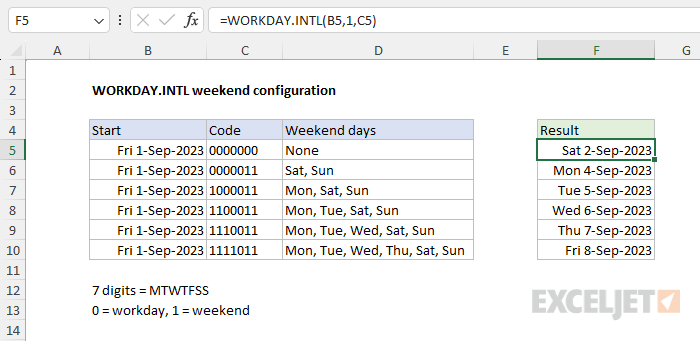
Notice as we add more weekend days (i.e. non-working days) the next working day gets pushed out. We use this behavior to list Saturdays or Sundays only in the formulas explained below.
Current version
In the current version of Excel (Excel 2019+), the easiest way to solve this problem is to use the SEQUENCE function inside the WORKDAY.INTL function . In the workbook shown above, the formula in cell D5 is:
=WORKDAY.INTL(B5-1,SEQUENCE(B8),"1111100")
The WORKDAY.INTL function takes a date and returns the next workday based on a given offset value. The inputs provided to WORKDAY.INTL are as follows:
- start_date - B5-1 (the day before the start date)
- days - array created by SEQUENCE (see below)
- weekend - “1111100” (code allowing Saturdays and Sundays only)
- holidays - omitted (not needed)
Working from the inside out, the SEQUENCE function is used to generate a sequential array of n numbers, where n comes from cell B8. With the number 12 in cell B8, SEQUENCE generates an array like this:
=SEQUENCE(B8)
=SEQUENCE(12)
={1;2;3;4;5;6;7;8;9;10;11;12}
The start_date is calculated by subtracting 1 from the date in B5. We do this because we want to force WORKDAY.INTL to evaluate the start date as well. If it is a Saturday or Sunday, it should be included in the list. Excel dates are just large serial numbers , so this operation evaluates like this:
=B5-1
=45170-1
=45169 // 31-Aug-2023
The number 45169 represents 31-Aug-2023, the day before the start date in B5. Simplifying, we now have:
=WORKDAY.INTL(45169,{1;2;3;4;5;6;7;8;9;10;11;12},"1111100")
Since we are providing days as an array containing 1-12, we are asking WORKDAY.INTL for the next 12 work days after 31-Aug-2023 when weekend is given as “1111100”. This is a special way of indicating which days of the week should be treated as weekend dates (i.e. non-working days), which are excluded by WORKDAY.INTL. There are 7 characters in the string, one for each day of the week starting on Monday. A “1” means the day is a non-working day (i.e. a “weekend”) and should be excluded. A “0” means the day is a working day and should be allowed. With this configuration, WORKDAY.INTL, returns the next 12 Saturdays and Sundays after 31-Aug-2023, skipping the days Monday through Friday. For more details on WORKDAY.INTL, see How to use the WORKDAY.INTL function .
List weekends between dates
To adapt this formula to list the weekends between two dates ( start and end ), you can use a generic formula like this:
=LET(dates,SEQUENCE(end-start+1,1,start),FILTER(dates,WORKDAY.INTL(dates-1,1,"1111100")=dates))
See this page for a detailed explanation of how this approach works.
Legacy Excel
In older versions of Excel, there is no SEQUENCE function, so we don’t have a simple way to request 12 dates at once. One simple solution is to set up the worksheet so that we can “drag copy” a formula that will return the next Saturday or Sunday after the “cell above”. First, enter this formula in cell D5:
=WORKDAY.INTL(B5-1,1,"1111100")
Here we use the WORKDAY.INTL function to determine the next Saturday or Sunday after the start date with these inputs:
- start_date - B5-1 (the day before the start date)
- days - 1 (i.e. next date)
- weekend - “1111100” (code allowing Saturdays and Sundays only)
To get the start_date, we subtract 1 day from the date in B5 to force WORKDAY.INTL to evaluate the start date in B5 like other dates. If the date in cell B5 is a Saturday or Sunday, it will be returned by the formula above. Otherwise, the next Saturday or Sunday will be returned. As explained above, the weekend argument is given as the code “1111100” This tells WORKDAY.INTL to treat the weekdays Monday through Friday as “weekends” and Saturday and Sunday as workdays. The result is that WORKDAY.INTL will only return dates that are a Saturday or Sunday.
Next, in cell D6, enter the formula below and copy the formula down as needed:
=WORKDAY.INTL(D5,1,"1111100")
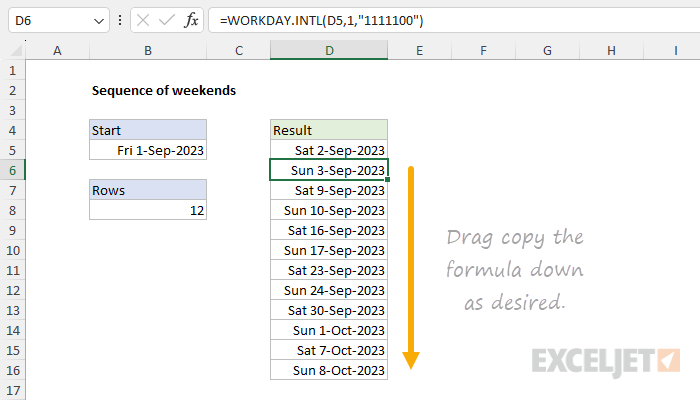
The inputs to WORKDAY.INTL are as follows:
- start_date - D5 (the “cell above”)
- days - 1 (i.e. next date)
- weekend - “1111100” (code allowing Saturdays and Sundays only)
As the formula is copied down, it begins with the date in the “cell above” and returns the next Saturday or Sunday. Because the formula in cell D6 refers to the start date in cell B5, cell B5 is still operational and will drive all results. The downside of this approach is that the formula in D5 is different from the formulas in cell D6 and below, so you must take care to keep them separate.
Conclusion
The key to this formula is the WORKDAY.INTL function which can calculate the next working day, and can be customized with the “weekend” argument to treat Saturdays and Sundays as working days. In Excel 2019+, the SEQUENCE function can be used within WORKDAY.INTL to generate a dynamic array of weekend dates based on a start date and the number of weekends you want to list. In addition, you can combine WORKDAY.INTL with SEQUENCE and the FILTER function to list weekends between two given dates. In an older version of Excel without SEQUENCE, you can use a manual “drag copy” approach to get the same results.
Explanation
The goal is to generate a dynamic list of sequential working days with a formula. The start date should be a variable input, and weekends and holidays should be automatically excluded from the output. In the current version of Excel, the easiest way to solve this problem is to use the SEQUENCE function inside the WORKDAY.INTL function like this:
=WORKDAY.INTL(B5-1,SEQUENCE(12),1,B8:B11)
The result is a list of 12 working days, starting on September 1, 2023, and ending on September 19, 2023. Weekends and holidays are omitted from the result. Note that the number of dates to return is hardcoded into the formula as 12. However, this value could easily be exposed on the worksheet as another variable.
In older versions of Excel without the SEQUENCE function, you can use a more manual approach, which is also explained below.
SEQUENCE function
Working from the inside out, let’s look first at the SEQUENCE function . SEQUENCE is designed to generate numeric sequences in rows and/or columns. The generic syntax for SEQUENCE looks like this:
=SEQUENCE(rows,[columns],[start],[step])
In this example, the goal is to generate a sequence of 12 workdays that exclude weekends and holidays. The hard part of this problem is done by the WORKDAY.INTL function (see below), which is designed for this purpose. However, we need a way to ask WORKDAY.INTL to return 12 workdays, and this is where SEQUENCE comes into the picture. We use SEQUENCE inside WORKDAY.INTL to create a value for the days argument like this:
=SEQUENCE(12)
With the number 12 given for the rows argument, SEQUENCE returns an array that contains 12 numbers starting with 1 and ending with 12:
{1;2;3;4;5;6;7;8;9;10;11;12}
The other arguments not provided to SEQUENCE (columns, start, and step) all default to 1.
For more details, see How to use the SEQUENCE function .
WORKDAY.INTL function
The WORKDAY.INTL function takes a date and returns the next workday based on a given offset value provided as the days argument. WORKDAY.INTL will automatically exclude weekends and can optionally exclude dates that are holidays. The generic syntax for WORKDAY.INTL looks like this:
=WORKDAY.INTL(start_date,days,[weekend],[holidays])
The arguments inside WORKDAY.INTL have the following purpose:
- start_date - the date to start from
- days - the number of days to move forward or back
- weekend - the weekend scheme to use
- holidays - dates to be excluded as holidays
The screen below shows the basic operation of WORKDAY.INTL:
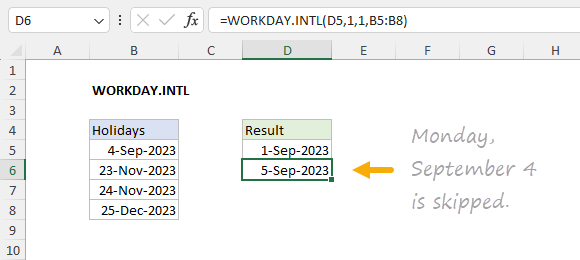
In the worksheet shown at the top, we use WORKDAY.INTL with the SEQUENCE function like this:
=WORKDAY.INTL(B5-1,SEQUENCE(12),1,B8:B11)
The inputs provided to WORKDAY.INTL are as follows:
- start_date - B5-1 (the day before the start date)
- days - array created by SEQUENCE
- weekend - 1 (Saturdays and Sundays)
- holidays - B8:B11 (dates that are holidays)
With the configuration above, WORKDAY.INTL starts on the day before the start date and calculates 12 workdays using the numbers returned by SEQUENCE as the days argument. After SEQUENCE runs, the formula looks like this:
=WORKDAY.INTL(B5-1,{1;2;3;4;5;6;7;8;9;10;11;12},1,B8:B11)
You can see now that we are asking WORKDAY.INTL for twelve results: the workday 1 day after the start date, the workday 2 days after the start date, the workday 3 days after the start date, and so on. The reason we start one day before the start date is to force WORKDAY.INTL to evaluate the start date as a potential weekend or holiday so that it can be excluded if necessary.
Notes: (1) weekend is optional and will default to 1 to exclude Saturdays and Sundays. (2) Holidays is an optional argument and can be omitted. (3) For more details on WORKDAY.INTL, see How to use the WORKDAY.INTL function .
Legacy Excel
In older versions of Excel, there is no SEQUENCE function. This means we don’t have a simple way to calculate 12 workdays all at once. However, one simple solution is to use the WORKDAY.INTL and “drag copy” the formula down as needed. You can see this approach in the screen below. The formula in D6 looks like this:
=WORKDAY.INTL(D5,1,1,$B$8:$B$11)
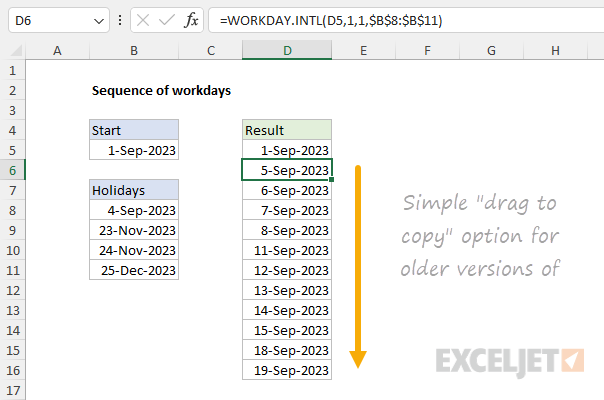
The inputs to WORKDAY.INTL are as follows:
- start_date - D5 (the “cell above”)
- days - 1 (i.e. next workday)
- weekend - 1 (Saturdays and Sundays)
- holidays - $B$8:$B$11 (holidays as an absolute reference )
As the formula is copied down, it simply calculates the “next workday” after the date in the row above. If the date in D5 changes, all formulas will recalculate to return valid workdays.
Notes: (1) The formula in D5 is simply =B5 so that the start date in cell B5 is still functional. (2) One limitation of this formula is that it does not evaluate the start date as a potential non-working day.
More complete option
It is also possible to generate workdays with a more complex formula that uses the ROW function to determine the number of days to give WORKDAY.INTL. This allows the formula to evaluate the start date and makes it possible to copy the same formula into D5:D16. In the screen below, the formula in cell D5 is:
=WORKDAY.INTL($B$5-1,ROW()-4,1,$B$8:$B$11)
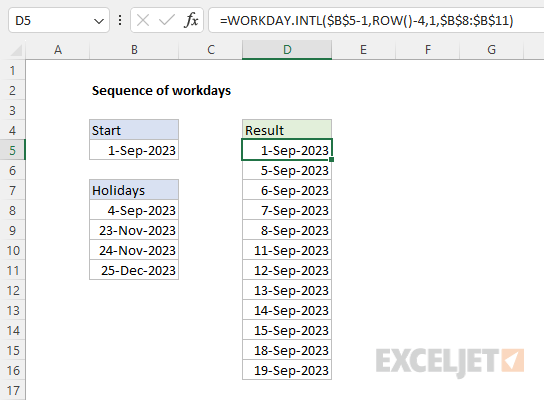
The inputs provided to WORKDAY.INTL are as follows:
- start_date - $B$5-1 (the day before the start date)
- days - ROW()-4 (we subtract 4 to start with 1)
- weekend - 1 (Saturdays and Sundays)
- holidays - $B$8:$B$11 (dates that are holidays)
We don’t have the SEQUENCE function to generate a value for days, but this approach mimics the same behavior. As before, we first subtract 1 day from the starting date in cell B5. We do this to force WORKDAY.INTL to evaluate the start date as a potential weekend or holiday. To create a value for days, we use the ROW function and subtract 4. We subtract 4 because the formula is entered in row 5, and we want to begin with 1. You will need to adjust this value if the formula is entered in a different row. As the formula is copied down, this value will increment.
For weekend , we provide 1, which is a code that configures WORKDAY.INTL to exclude Saturdays and Sundays. For holidays, we provide B8:B11, a range that contains dates that should be treated as non-working days. Notice that $B$5 and $B$8:$B$11 are entered as absolute references because we don’t want these values to change as the formula is copied. As the formula is copied down, the value returned by ROW() will increase, and each subsequent formula will display the next workday starting from the date in the cell above.
