Explanation
In this example, we are sorting a table with 10 rows and 3 columns. In the range J5:J7 (the named range custom ), the colors “red”, “blue”, and “green” are listed in the desired sort order. The goal is to sort the table using values in the Group column in this same custom order.
The SORTBY function allows sorting based on one or more “sort by” arrays, as long as dimensions are compatible with the source data. In this case, we can’t use the named range custom directly in SORTBY, because it only contains 3 rows while the table contains 10 rows.
However, to create an array with 10 rows that can be used as a “sort by” array, we can use the MATCH function like this:
MATCH(D5:D14,custom,0)
Notice we are passing in the Group values in D5:D14 as lookup values, and using custom as the lookup table. The result is an array like this:
{2;1;3;3;2;3;1;2;3;1}
Each value in the array represents the numeric position of given group value in custom , so there are 10 rows represented. This array is passed into the SORTBY function as the by_array1 argument. SORTBY sorts the table in the “red”, “blue”, “green” order and returns the result as a spill range starting in cell D5.
Dynamic Array Formulas are available in Office 365 only.
Explanation
The SORT function requires very little configuration. In the example shown, we want to sort data in B5:D14 by the third column, Group. For array , we provide entire range, B5:D14. For sort_index , we provide 3:
=SORT(B5:D14,3)
With this formula in F5, the SORT function outputs the sorted array in F5:H14.
Ascending vs. Descending
Data is sorted in ascending order (A-Z) by default. This behavior is controlled by an optional third argument, sort_order . The default value for sort_order is 1, so both formulas below return the same result as shown in the example above:
=SORT(B5:D14,3)
=SORT(B5:D14,3,1)
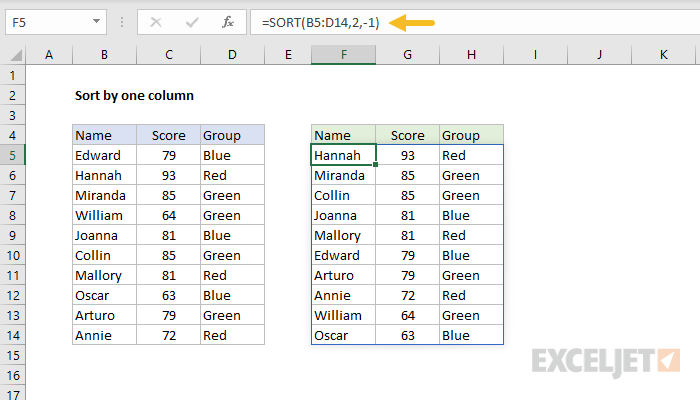
To sort in descending (Z-A) order, set sort_order to -1. In the example below, we are sorting data in descending order by score, which is the second column:
=SORT(B5:D14,2,-1)
Dynamic Array Formulas are available in Office 365 only.
