Purpose
Return value
Syntax
=SORT(array,[sort_index],[sort_order],[by_col])
- array - Range or array to sort.
- sort_index - [optional] Column index to use for sorting. Default is 1.
- sort_order - [optional] 1 = Ascending, -1 = Descending. Default is ascending order.
- by_col - [optional] TRUE = sort by column. FALSE = sort by row. Default is FALSE.
Using the SORT function
The SORT function sorts the contents of a range or array in ascending or descending order. The result is a dynamic array of values that will " spill " onto the worksheet. If values in the source data change, the result from SORT updates automatically. Note that the SORT function cannot sort data in place like Excel’s Sort command on the Ribbon. SORT always outputs results to a new location.
By default, SORT sorts values in ascending order using the first column in array . Use sort_index to specify which column (or row) to sort by, and sort_order to control direction: 1 for ascending, -1 for descending. To sort horizontally by columns instead of rows, set by_col to TRUE.
SORT only accepts a single value for sort_index , but you can sort by multiple columns at once using array constants . For example, {1,2} sorts by column 1, then column 2. See the multi-level sort example below. SORT can only sort alphabetically in A-Z or Z-A order. To sort in a custom order (e.g., “High, Medium, Low”), use the SORTBY function instead.
Note that SORT won’t automatically adjust the source range if data is added or deleted. To configure SORT with a range that automatically adjusts to fit the data, use an Excel Table or a dynamic range created with TRIMRANGE or the dot operator .
Video: Basic SORT function example
Key features
Returns a dynamic array that spills automatically
Sorts rows (default) or columns (set by_col to TRUE)
Ascending order by default; use -1 for descending
Handles text, numbers, and dates
Supports multi-level sorting with array constants
Works with Excel Tables and structured references
Basic usage
Simple A-Z sort
Sort by specific column
Sort data horizontally
Filter on top n values
Unique rows
Multi-level sort
Reverse sort with checkbox
Dates in chronological order
Notes
Basic usage
To sort in ascending or descending order:
=SORT(A1:A10) // sort A-Z (ascending)
=SORT(A1:A10,,-1) // Z-A (descending)
To sort by a specific column:
=SORT(A1:B10) // sort by column 1, ascending
=SORT(A1:B10,2) // sort by column 2, ascending
=SORT(A1:B10,2,-1) // sort by column 2, descending
Simple A-Z sort
In its simplest form, the SORT function sorts a single column of data in ascending order. In the worksheet below, the goal is to sort names in column B alphabetically. The formula in D5 is:
=SORT(B5:B16)
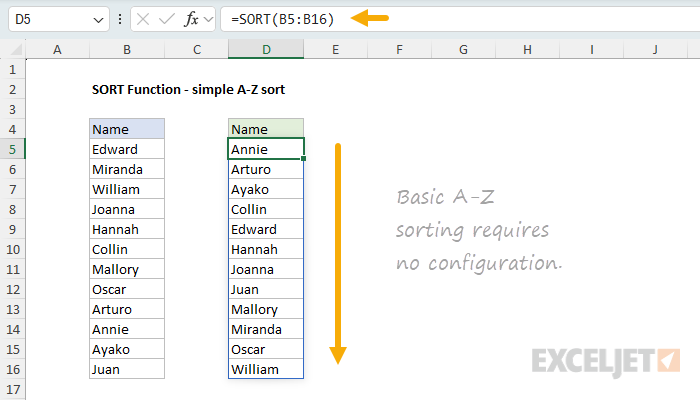
With no optional arguments, SORT returns all values in ascending (A-Z) order. The result spills into D5:D16.
Sort by specific column
When data has multiple columns, use sort_index to specify which column to sort by. In the worksheet below, the goal is to sort names and scores by score in descending order (highest first). The formula in E5 is:
=SORT(B5:C16,2,-1)
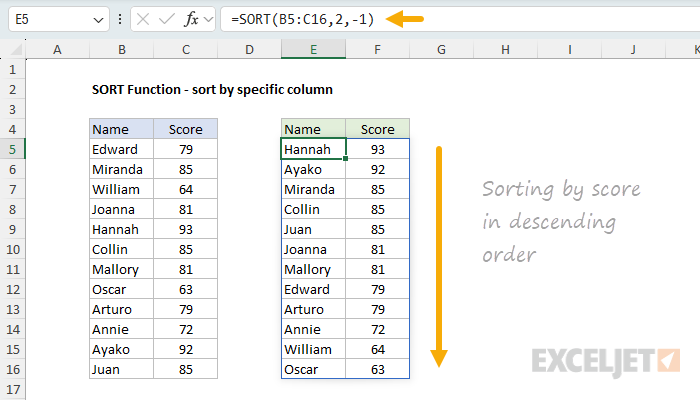
The sort_index of 2 tells SORT to use the second column (Score) for sorting. The sort_order of -1 sorts in descending order. The entire range is returned, sorted by score from highest to lowest. When sort_order is omitted, it defaults to 1 (ascending order).
For more details, see Sort by one column .
Sort data horizontally
The SORT function has the ability to sort data vertically (by row) or horizontally (by column). To sort data horizontally, set by_col to TRUE. In the worksheet below, names appear in row 4 and scores in row 5. The goal is to sort by score in descending order. The formula in B8 is:
=SORT(B4:K5,2,-1,TRUE)
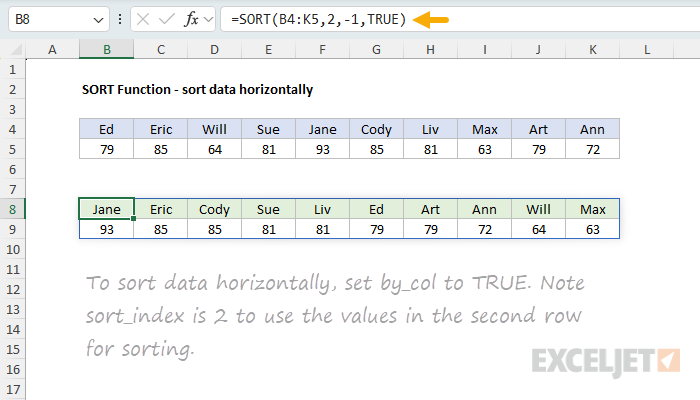
With by_col set to TRUE, the sort_index of 2 refers to row 2 of the array (the scores in row 5). The result is returned horizontally, with names and scores rearranged from highest to lowest score.
For more details, see Sort values by columns .
Filter on top n values
The SORT function pairs well with FILTER to filter and sort data in one step. In the worksheet below, the goal is to extract the top n scores (where n is a variable in cell F2), sorted from highest to lowest. The formula in E5 is:
=SORT(FILTER(B5:C16,C5:C16>=LARGE(C5:C16,F2)),2,-1)
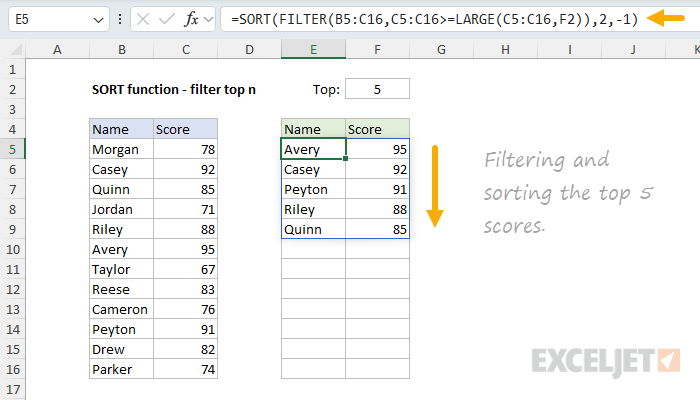
The LARGE function returns the nth largest score (where n comes from F2). FILTER returns all rows where the score is greater than or equal to this value. SORT then sorts the results by column 2 (Score) in descending order. Changing the value in F2 instantly updates the results.
For more details, see Filter on top n values .
Unique rows
The SORT function works well with UNIQUE to extract and sort unique rows. In the worksheet below, the goal is to extract unique Group/Color combinations, sorted by Group. The formula in E5 is:
=SORT(UNIQUE(B5:C16))
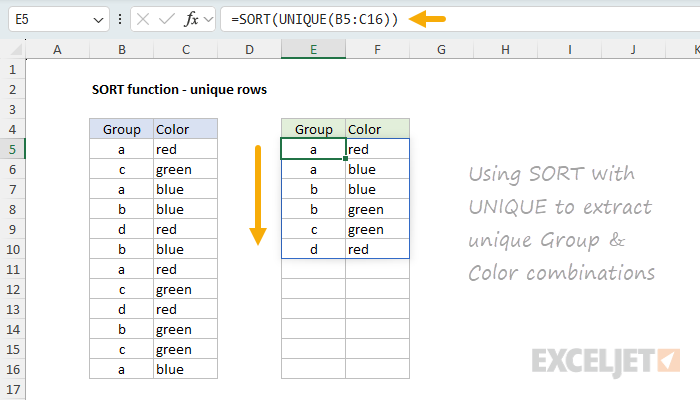
The UNIQUE function extracts unique rows from B5:C16. SORT then sorts these rows by the first column (Group) in ascending order. The result spills into the output range automatically.
For more details, see Unique rows .
Multi-level sort
The SORT function can sort by multiple columns using array constants for sort_index and sort_order . In the worksheet below, the goal is to sort first by Group (ascending), then by Score (descending). The formula in F5 is:
=SORT(B5:D16,{2,3},{1,-1})
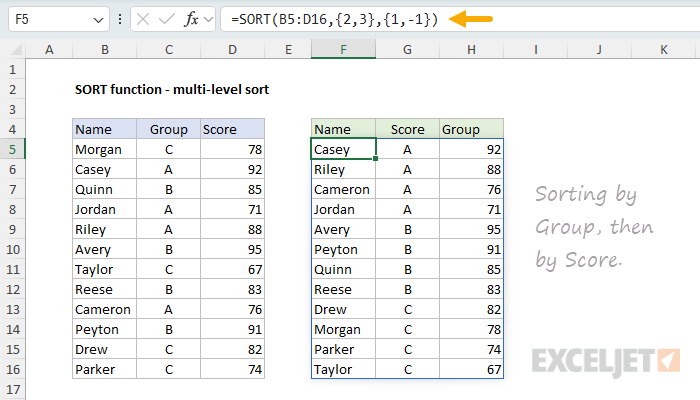
The array constant {2,3} tells SORT to sort first by column 2 (Group), then by column 3 (Score). The array constant {1,-1} specifies ascending order for Group and descending order for Score. Items in Group “A” appear first, sorted by Score from highest to lowest.
For more flexible multi-level sorting, consider the SORTBY function , which lets you sort by columns that aren’t part of the source data.
Reverse sort with checkbox
You can use a checkbox (or any TRUE/FALSE value) to toggle between ascending and descending sort order. In this example, movie titles are sorted from oldest to newest by default using the release year in the second column. Cell F2 contains a checkbox labeled “Reverse sort”. The formula in E5 is:
=SORT(B5:C16,2,1-2*F2)
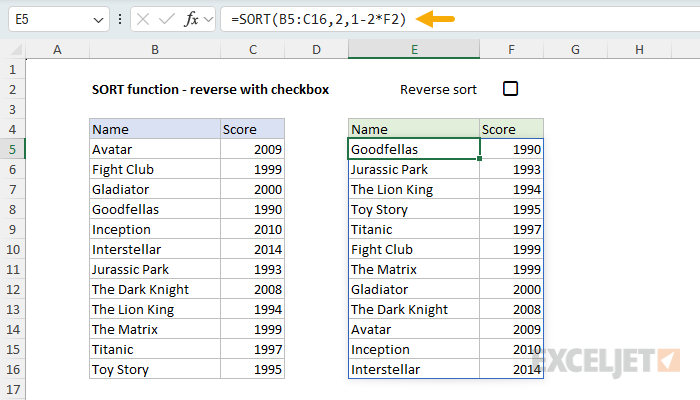
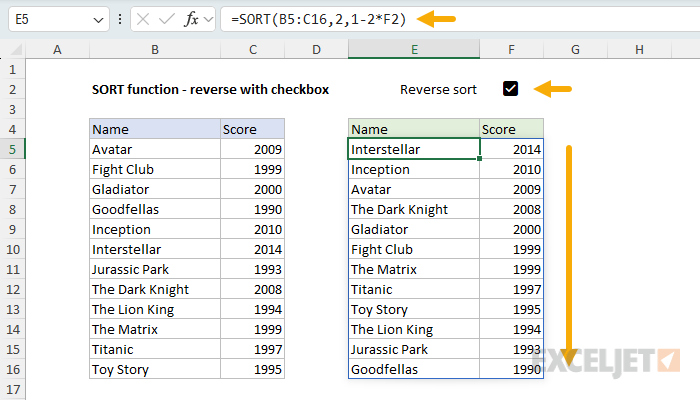
In Excel, a checkbox returns a TRUE/FALSE value. When the checkbox is unchecked , the value is FALSE. When the checkbox is checked , the value is TRUE. The expression 1-2*F2 is a simple trick to convert TRUE/FALSE to the sort order values SORT expects:
- When F2 is FALSE (unchecked): 1-2*0 = 1 (ascending)
- When F2 is TRUE (checked): 1-2*1 = -1 (descending)
Clicking the checkbox instantly reverses the sort order:
Dates in chronological order
The SORT function can be used to validate whether data is sorted correctly. For example, in the worksheet below, each row contains project milestone dates: Start, Ship, Install, Inspect, and Complete. The goal is to verify that all dates in a row are in the correct sequence. The formula in H5 is:
=IF(SUM(--(B5:F5<>SORT(B5:F5,1,1,1)))=0,"✓","")
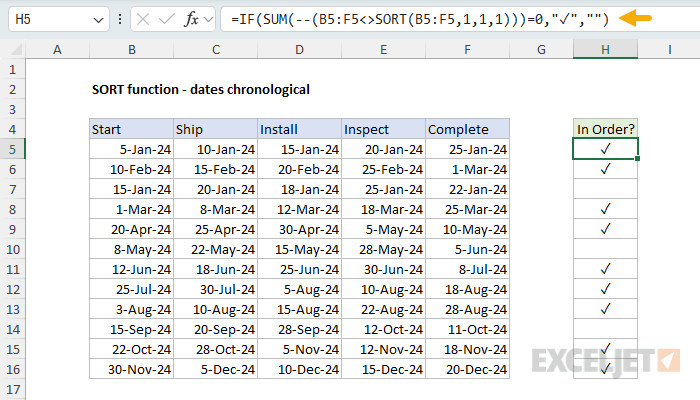
The formula compares each date in B5:F5 to the same dates after sorting horizontally with SORT (the final argument of 1 sets by_col to TRUE for horizontal sorting). The double-negative (–) converts the TRUE/FALSE values to 1/0, and the SUM function counts how many dates are different after sorting. If the count is zero, all dates are listed chronologically and a check mark (✓) is returned.
For more details, see All dates in chronological order .
Notes
- SORT returns a #VALUE! error if sort_index is out of range.
- SORT returns a #SPILL! error if the spill range is not empty.
- SORT returns a #REF! error when referencing a closed workbook (dynamic arrays require open workbooks).
- SORT is a “stable sort”—items with the same sort value maintain their original relative order.
- Do not include headers in the array argument; SORT treats all rows as data.
- SORT works with Excel Tables and structured references. Results update automatically when table data changes.
- Use the SORTBY function to sort data by values that are not part of the data being sorted.
Purpose
Return value
Syntax
=SORTBY(array,by_array,[sort_order],[array/order],...)
- array - Range or array to sort.
- by_array - Range or array to sort by.
- sort_order - [optional] Sort order. 1 = ascending (default), -1 = descending.
- array/order - [optional] Additional array and sort order pairs.
Using the SORTBY function
The Excel SORTBY function sorts the contents of a range or array based on the values from another range or array with a formula. The result from SORTBY is a sorted copy of the data which will " spill " onto the worksheet into a range. If values in the source data change, the output from SORTBY will update automatically.
The SORTBY function takes three primary arguments : array , by_array , and sort_order . The first argument, array , is the range or array to be sorted. The second argument, by_array , contains the values to be used for sorting. These values can come from an existing range, or from an array created by a formula . Note that by_array values do not need to be part of the source data, and do not need to appear in the output. However, by_array must have dimensions compatible with array . For example, if array contains ten rows, by_array should also contain ten rows. Finally, the optional sort_order argument determines sort direction. Use 1 for ascending order and -1 for descending order. By default, SORTBY will sort in ascending order. To sort by more than one level, provide additional sort_by and sort_order arguments in pairs.
Unlike the SORT function , the SORTBY function does not have an argument that explicitly controls sorting by rows versus sorting by columns. Instead, the range or array provided for the by_array argument will determine the sort orientation automatically. When by_array is a vertical range, SORTBY sorts vertically by rows. When by_array is a horizontal range, SORTBY sorts horizontally by columns.
Excel contains two functions for sorting: SORT and SORTBY. The SORT function is the easier option when data already contains the values needed for sorting. Use SORTBY when the values you need to sort by are not part of the data being sorted.
Basic example
To sort range1 in ascending order using values in range2 :
=SORTBY(range1,range2) // sort range1 by range2, ascending
=SORTBY(range1,range2,1) // sort range1 by range2, ascending
To switch the sort order to descending, use:
=SORTBY(range1,range2,-1)// sort range1 by range2, descending
Sort with arrays
The SORTBY function can be used with arrays and array constants as well. In the example below, we sort the first four letters in the alphabet in a custom order using the numeric values in the second array. By default, sort order is ascending :
=SORTBY({"a","b","c","d"},{3,4,2,1}) // returns {"d","c","a","b"}
Using negative one (-1) for sort order will sort the letters in descending order based on the numeric values in the second array:
=SORTBY({"a","b","c","d"},{3,4,2,1},-1) // {"b","a","c","d"}
Ranges and arrays can be mixed. The formula below will sort the values in A1:A5 using the array constant provided:
=SORTBY(A1:A5,{3;5;2;1;4})
Note the dimensions or the range argument must be compatible with those of the by_array argument. In this case, both contain five rows.
Example - sort by score
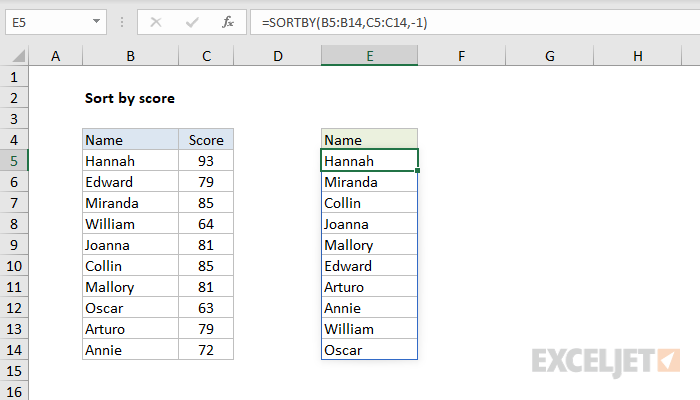
In the example shown above, the formula in E5 is:
=SORTBY(B5:B14,C5:C14,-1) // sort by grades descending
The output in E5:E14 is the list of names sorted by scores in descending order. To sort by grades in ascending order use:
=SORTBY(B5:B14,C5:C14,1) // sort by grades ascending
Sort by two levels
To sort a set of data by two levels, the generic formula is:
=SORTBY(array,by_array1,sort_order1,by_array2,sort_order2)
where array is a range that contains all data to be sorted, and by_array1 and by_array2 are compatible ranges or arrays, and sort_order1 and sort_order2 are provided as 1 (ascending) or -1 (descending). Example: sort by two columns .
Video: Basic SORTBY function example
Notes
- All array arguments must have compatible dimensions or SORTBY will return #VALUE!
- The by_array arguments can only be one row or one column.
- The sort_order argument can only be -1 (descending) or 1 (ascending).
- If no value is provided for sort_order , SORTBY will sort in ascending order.
