Explanation
The SORT function sorts a range using a given index, called sort_index . Normally, this index represents a column in the source data.
However, the SORT function has an optional argument called " by_col " which allows sorting values organized in columns. To sort by column, this argument must be set to TRUE, which tells the SORT function that sort_index represents a row.
In this case, we want to sort the data by Score, which appears in the second row, so we use a sort_index of 2. The SORT function that appears in C8 is configured like this:
=SORT(C4:L5,2,-1,TRUE)
- array is the data in the range C4:L5
- sort_index is 2, since score is in the second row
- sort_order is -1, since we want to sort in descending order
- by_col is TRUE, since data is organized in columns
The SORT function returns the sorted array into the range C8:L9. This result is dynamic; if any scores in the source data change, the results will automatically update.
With SORTBY
The SORTBY function can also be used to solve this problem. With SORTBY, the equivalent formula is:
=SORTBY(C4:L5,C5:L5,-1)
Dynamic Array Formulas are available in Office 365 only.
Explanation
In this example, one goal is to sum the numbers that appear in the range B5:B16. A second more challenging goal is to create the table of results seen in E7:F12. For convenience, data is the named range B5:B16.
Total sum
To sum all the numbers that appear in B5:B16, ignoring text, the formula in E5 is:
=SUM(--TEXTAFTER(data," "))
Working from the inside out, the TEXTAFTER function is used to extract the numbers like this:
TEXTAFTER(data," ") // get all numbers
TEXTAFTER is configured to extract the text that occurs after a single space character (" “). Because we are giving TEXTAFTER 12 separate text strings in data (B5:B16), TEXTAFTER returns 12 results in an array like this:
{"10";"25";"25";"5";"50";"15";"10";"15";"12";"12";"10";"5"}
Notice that at this point the numbers are still text, as you can see by the double quotes (”). To coerce these text strings into actual numbers, we use a double negative (–):
--{"10";"25";"25";"5";"50";"15";"10";"15";"12";"12";"10";"5"}
The result is an array that contains numbers only:
{10;25;25;5;50;15;10;15;12;12;10;5}
This array is returned directly to the SUM function:
=SUM({10;25;25;5;50;15;10;15;12;12;10;5}) // returns 194
SUM returns 194 as the final result.
Summary table in two parts
One easy way to create the summary table seen in the worksheet is to use two formulas, one to list unique colors, and one to sum the numbers associated with each color. To list the unique colors starting in cell E8, you can use:
=UNIQUE(TEXTBEFORE(B5:B16," ")) // unique colors
This is a variation of the formula explained above. Instead of using TEXTAFTER, we are using the TEXTBEFORE function to get the text before the space (" “):
TEXTBEFORE(B5:B16," ") // get all colors
TEXTBEFORE returns an array of 12 colors like this:
{"Red";"Blue";"Green";"White";"Black";"Red";"Blue";"Green";"White";"Black";"Red";"Blue"}
This array is returned directly to the UNIQUE function , which returns an array with 5 unique colors:
{"Red";"Blue";"Green";"White";"Black"}
The array is returned to cell E8, and spills into the range E8:E12.
To sum the numbers associated with each color in column F, you can enter this formula in cell F8 and copy it down:
=SUM((TEXTBEFORE(data," ")=E8)*TEXTAFTER(data," "))
Note: we can’t use the SUMIF function in this case (which would be easier) because we don’t have the colors without numbers in an actual range . Instead, the colors exist in an array returned by the TEXTBEFORE function. SUMIF requires a range for the range argument.
All-in-one summary table
To create an all-in-one summary table that lists the unique dates along with a count for each date, you can use an advanced formula like this:
LET(
    c, TEXTBEFORE(data, " "),
    n, --TEXTAFTER(data, " "),
    u, UNIQUE(c),
    HSTACK(
        u,
        BYROW(u, LAMBDA(x, SUM(--(c = x) * n)))
    )
This is how the formula looks in the worksheet:
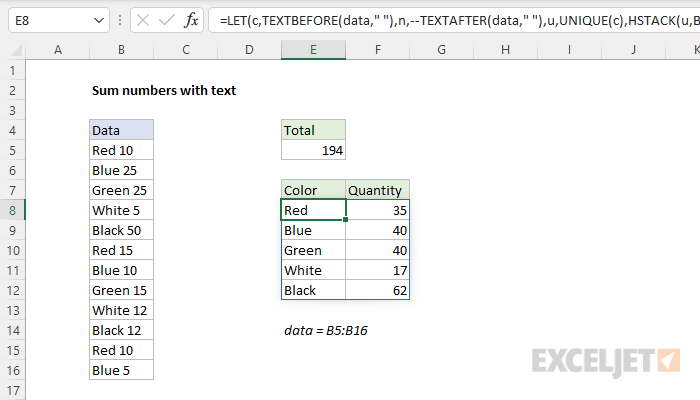
This formula utilizes the same patterns used in the formulas explained above, but now we move into more advanced functions like LET, LAMBDA, and BYROW.
The LET function is used to assign intermediate results to named variables. First, we use TEXTBEFORE to separate the colors from the numbers and assign the result to c. We use TEXTAFTER to separate the numbers and assign the result to n. Then we feed c into UNIQUE (to get unique colors) and assign the result to u. Next, we use the HSTACK function to combine two arrays. Array1 is u (the unique colors), and array2 is generated with the BYROW function :
BYROW(u, LAMBDA(x, SUM(--(c = x) * n)))
BYROW loops through each unique color in u and runs a custom LAMBDA function to sum the numbers associated with each color:
LAMBDA(x, SUM(--(c = x) * n))
The sum is generated with boolean logic and the SUM function :
SUM(--(c = x) * n)
The first part of the expression checks all colors (c) against the current row (x), generating an array of TRUE and FALSE values:
--(c = x)
The double negative (–) converts the TRUE and FALSE values to 1s and 0s. This array is then multiplied by all numbers (n). The numbers that survive are associated with the current row color (x) and the other numbers are converted to zero. SUM then returns the result for that row.
Note: Technically, the double negative (–) operation is not needed above because the multiplication step will automatically coerce the TRUE and FALSE values to 1s and 0s. However, it does no harm and perhaps makes the pattern of this formula easier to understand. In addition, if you remove the multiplication step, the result will be a count of each color rather than a sum. So the double negative allows the count variation of the formula to work without further adjustment.
The final result from the BYROW is an array with 5 sums:
{35;40;40;17;62}
This array is returned to HSTACK as array2 . HSTACK joins array1 and array2 together horizontally, and returns a 2-column array as a final result.
