Purpose
Return value
Syntax
=SORTBY(array,by_array,[sort_order],[array/order],...)
- array - Range or array to sort.
- by_array - Range or array to sort by.
- sort_order - [optional] Sort order. 1 = ascending (default), -1 = descending.
- array/order - [optional] Additional array and sort order pairs.
Using the SORTBY function
The Excel SORTBY function sorts the contents of a range or array based on the values from another range or array with a formula. The result from SORTBY is a sorted copy of the data which will " spill " onto the worksheet into a range. If values in the source data change, the output from SORTBY will update automatically.
The SORTBY function takes three primary arguments : array , by_array , and sort_order . The first argument, array , is the range or array to be sorted. The second argument, by_array , contains the values to be used for sorting. These values can come from an existing range, or from an array created by a formula . Note that by_array values do not need to be part of the source data, and do not need to appear in the output. However, by_array must have dimensions compatible with array . For example, if array contains ten rows, by_array should also contain ten rows. Finally, the optional sort_order argument determines sort direction. Use 1 for ascending order and -1 for descending order. By default, SORTBY will sort in ascending order. To sort by more than one level, provide additional sort_by and sort_order arguments in pairs.
Unlike the SORT function , the SORTBY function does not have an argument that explicitly controls sorting by rows versus sorting by columns. Instead, the range or array provided for the by_array argument will determine the sort orientation automatically. When by_array is a vertical range, SORTBY sorts vertically by rows. When by_array is a horizontal range, SORTBY sorts horizontally by columns.
Excel contains two functions for sorting: SORT and SORTBY. The SORT function is the easier option when data already contains the values needed for sorting. Use SORTBY when the values you need to sort by are not part of the data being sorted.
Basic example
To sort range1 in ascending order using values in range2 :
=SORTBY(range1,range2) // sort range1 by range2, ascending
=SORTBY(range1,range2,1) // sort range1 by range2, ascending
To switch the sort order to descending, use:
=SORTBY(range1,range2,-1)// sort range1 by range2, descending
Sort with arrays
The SORTBY function can be used with arrays and array constants as well. In the example below, we sort the first four letters in the alphabet in a custom order using the numeric values in the second array. By default, sort order is ascending :
=SORTBY({"a","b","c","d"},{3,4,2,1}) // returns {"d","c","a","b"}
Using negative one (-1) for sort order will sort the letters in descending order based on the numeric values in the second array:
=SORTBY({"a","b","c","d"},{3,4,2,1},-1) // {"b","a","c","d"}
Ranges and arrays can be mixed. The formula below will sort the values in A1:A5 using the array constant provided:
=SORTBY(A1:A5,{3;5;2;1;4})
Note the dimensions or the range argument must be compatible with those of the by_array argument. In this case, both contain five rows.
Example - sort by score
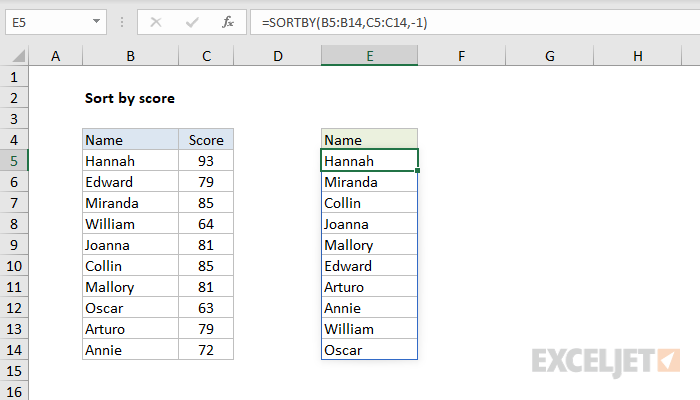
In the example shown above, the formula in E5 is:
=SORTBY(B5:B14,C5:C14,-1) // sort by grades descending
The output in E5:E14 is the list of names sorted by scores in descending order. To sort by grades in ascending order use:
=SORTBY(B5:B14,C5:C14,1) // sort by grades ascending
Sort by two levels
To sort a set of data by two levels, the generic formula is:
=SORTBY(array,by_array1,sort_order1,by_array2,sort_order2)
where array is a range that contains all data to be sorted, and by_array1 and by_array2 are compatible ranges or arrays, and sort_order1 and sort_order2 are provided as 1 (ascending) or -1 (descending). Example: sort by two columns .
Video: Basic SORTBY function example
Notes
- All array arguments must have compatible dimensions or SORTBY will return #VALUE!
- The by_array arguments can only be one row or one column.
- The sort_order argument can only be -1 (descending) or 1 (ascending).
- If no value is provided for sort_order , SORTBY will sort in ascending order.
Purpose
Return value
Syntax
=STOCKHISTORY(stock,start_date,[end_date],[interval],[headers],[properties],...)
- stock - A ticker symbol in double quotes (“MSFT”, “AAPL”, “GOOG”, etc.).
- start_date - The start date for data to be retrieved.
- end_date - [optional] The end date for data to be retrieved. Default is start_date.
- interval - [optional] Time interval. Daily = 0, weekly = 1, monthly = 2. Default is 0.
- headers - [optional] No header = 0, basic header = 1, instrument + header = 2. Default is 1.
- properties - [optional] Additional data to retrieve. Default is Date and Close. See below.
Using the STOCKHISTORY function
The STOCKHISTORY function retrieves historical stock price information based on a given symbol and date range. The main purpose of STOCKHISTORY is to get the history of a financial instrument over time. Although the name suggests that STOCKHISTORY is meant to work only with stocks, STOCKHISTORY can also work with bonds, index funds, mutual funds, and currency exchange rates. Note that STOCKHISTORY retrieves multiple results. The result is an array of values that spill onto the worksheet into multiple cells.
STOCKHISTORY only returns historical information recorded after market close. If you need a current stock price, use the stock datatype, as explained here: Get current stock price . The data provided by STOCKHISTORY comes from LSEG Data & Analytics (previously Refinitiv). The feed updates once per trading day , after markets close. Keep in mind that to get the latest data you may need to refresh the worksheet manually (Data › Refresh All). Microsoft cautions that all figures are provided “as‑is” and may be delayed, so use them for analysis only, not real‑time trading decisions.
- Primary arguments
- Additional properties
- Specifying the exchange
- Example - Daily close prices
- Example - Monthly close prices
- Example - Make inputs variable
- Example - Specifying additional properties
- Example - A horizontal layout for multiple stocks
- Example - Last 6 months
- Example - Make exchange variable
- Example - Retrieve currency exchange rates
Primary arguments
The STOCKHISTORY function accepts five primary arguments , and six additional property arguments to retrieve additional information. Stock and start_date are the only required arguments. Each argument is described in detail below. Additional properties are described in the table here .
- Stock - the ticker symbol used to retrieve historical prices. Stock should be supplied as a text value in double quotes ("") when hardcoded, for example, “MSFT”, “GOOG”, “AAPL”, “TSLA”, etc. Results are retrieved from the default exchange for the instrument.
- Start_date - The date at which to start retrieving data. Note that start_date is not necessarily the first date that will appear in the results. If the interval is set to daily (0), the first date in the results will be the first date that the exchange is open and data is available. If the interval is set to weekly (1) or monthly (2), the first date will be set to the first date in the period, i.e., the first day of the week or the first day of the month.
- End_date - The date at which to stop retrieving data. Like start_date , the actual last date in results may be different from the end_date provided. If the interval is set to daily (0), the last date in the results will be the last date in the date range that data is available. If the interval is set to weekly (1) or monthly (2), the last date will be the last date in the period, i.e., the last day of the week or the last day of the month. End_date is optional and will default to start_date if not supplied.
- Interval - the time period between data points. The available options are Daily (0), Weekly (1), and Monthly (2). Interval is optional and will default to Daily (0) if not provided.
- Headers - the headers argument controls header information that will appear at the top of the data retrieved. The available options are No header (0), Basic header (1), and header with instrument information (2). Headers is optional and will default to basic header (1) when not provided.
- Properties - six arguments for additional information that can be retrieved. See the table below for details.
Note: The safest way to provide the start_date and end_date is as a reference to a cell that contains a valid date or with the DATE function because dates as text values can sometimes be misinterpreted.
Additional Properties
The table below shows the additional information the STOCKHISTORY function can retrieve, which are described as properties. Properties are specified with the numeric code seen in the “Code” column.
| Code | Value | Description |
|---|---|---|
| 0 | Date | The first trading day in the period |
| 1 | Close | Closing price on the last trading day in the period |
| 2 | Open | The opening price on the last trading day in the period |
| 3 | High | The highest price in the period |
| 4 | Low | The lowest price in the period |
| 5 | Volume | Volume traded during the period |
The order in which you request properties is the order in which they will appear. See: STOCKHISTORY properties example .
Note that by default, STOCKHISTORY will return the Date and Close properties, so there is no need to ask for Date and Close if these are the only properties you need. However, if you request any properties , you will override this default behavior and will need to specify all the properties you want .
Specifying the exchange
When requesting the price for a stock symbol, results are retrieved from the default exchange for the instrument. To request information from a specific exchange, prefix the symbol with a 4-character ISO market identifier code (MIC), followed by a colon. For example, to refer to Microsoft Corporation on the Nasdaq Stock Market, use “XNAS:MSFT”. To refer to Microsoft Corporation on Austria’s Wiener Boerse exchange, use “XWBO:MSFT”. The table below lists the 4-character code for a few common exchanges.
| Exchange Name | Code | Country |
|---|---|---|
| New York Stock Exchange | XNYS | United States |
| Nasdaq Stock Market | XNAS | United States |
| London Stock Exchange | XLON | United Kingdom |
You can find a full list of supported exchange codes here .
Example - Get daily close prices for a stock
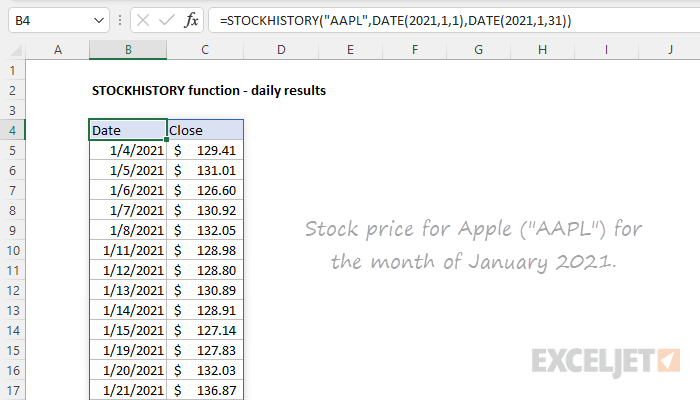
To retrieve the daily close price for Apple (“AAPL”) for the month of January 2021, the formula in cell B4 is:
=STOCKHISTORY("AAPL",DATE(2021,1,1),DATE(2021,1,31))
Interval is not provided and defaults to Daily (0). Headers is not provided and defaults to Date and Close. With this configuration, the STOCKHISTORY function returns 19 results. Note that weekends are excluded and the first date retrieved is January 4 since the exchange was closed January 1-3. Also note the DATE function is used to supply the start and end dates.
For a more detailed explanation, see this example .
Example - Monthly close prices
The STOCKHISTORY function can retrieve daily (0), weekly (1), and monthly (2) price data by setting a value for the interval argument. For example, to get monthly close prices for Apple, Inc. (“AAPL”) for all of 2023, set the interval to 2. In the workbook below, the formula in cell B4 is:
=STOCKHISTORY("AAPL",DATE(2023,1,1),DATE(2023,12,31),2)

Note that the interval argument is now provided as 2 in order to retrieve monthly results.
Note: When the interval is provided as 2, STOCKHISTORY will return the last closing price in a given month, regardless of the date. In other words, the result for the first of the month will be the same as the last day of the month.
Example - Make inputs variable
In the example below, the inputs for stock , start_date , and end_date are made variable by exposing them on the worksheet in cells F6, F7, and F8. The formula in cell B4 is:
=STOCKHISTORY(F6,F7,F8,2)
Note that the fourth argument, interval , is set to 2, which outputs monthly results.
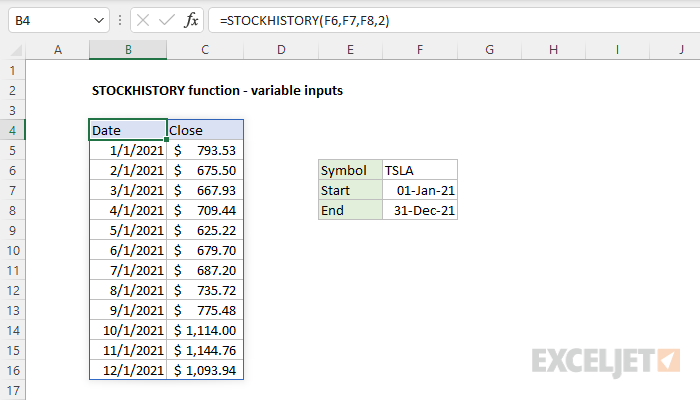
The result is the close price for Tesla (“TSLA”) for the 12 months in 2021. If the values in F6:F8 are changed, the results from STOCKHISTORY will automatically update.
Example - Additional properties
The properties returned by STOCKHISTORY can be controlled by customizing and/or reordering numbers starting with the sixth argument ( property1 ). In the example shown below, the formula in cell B4 is:
=STOCKHISTORY(I6,I7,I8,2,1,0,5,3,4,1)
The result is monthly stock price information for The 3M Company (“MMM”) for the year 2021. The properties requested include Date (0), Volume (5), High (3), Low (4), and Close (1). Notice these are the last 5 arguments in the function.
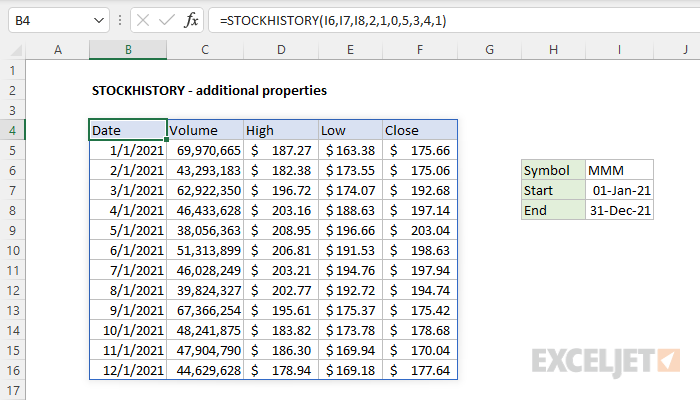
Note that the reason STOCKHISTORY uses numeric codes for properties is so they can be easily reordered. In the worksheet below, we are returning the same five properties in a new order: Date, Close, High, Low, and Volume. The formula in cell B4 is now:
=STOCKHISTORY(I6,I7,I8,2,1,0,1,3,4,5)
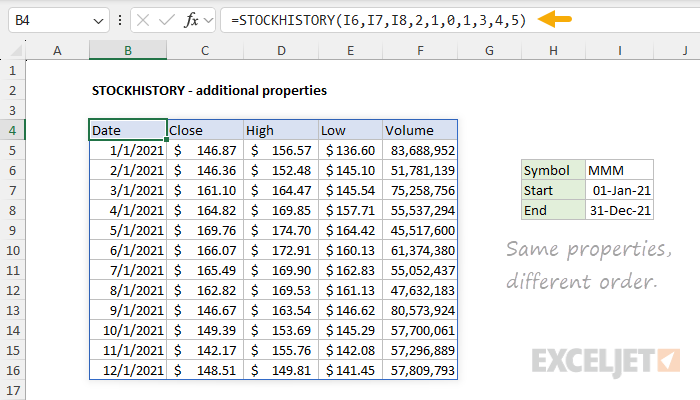
For a full list of properties with codes and descriptions, see the Properties section .
Example - A horizontal layout for multiple stocks
By default, STOCKHISTORY returns information in a vertical layout. To display results in a horizontal layout, you can use the TRANSPOSE function . In the example shown below, the formula in C5, copied down, is:
=TRANSPOSE(STOCKHISTORY(B5,DATE(2024,1,1),DATE(2024,6,1),2,0,1))
The result is the trailing monthly close price for each symbol for the first 6 months of 2024:
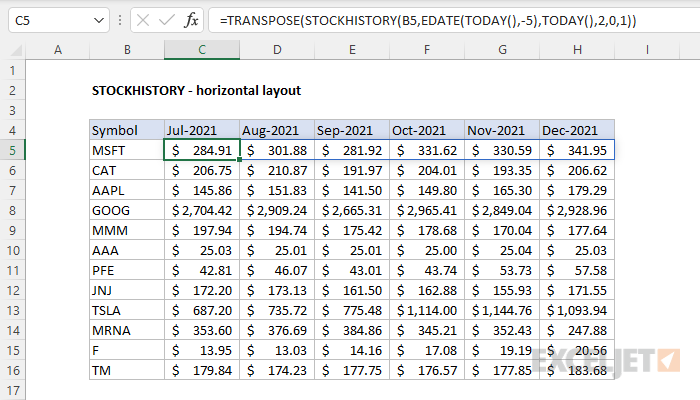
TRANSPOSE takes what would normally be a vertical layout and converts it to a horizontal layout.
Example - last 6 months
To get the monthly close price for a list of stocks for the last 6 complete months, you can use a formula based on the TODAY function. You can see the result in the workbook below, where the formula in C5 is:
=TRANSPOSE(STOCKHISTORY(B5,EOMONTH(TODAY(),-7)+1,EOMONTH(TODAY(),-1)+1,2,0,1))

This formula is dynamic and will continue to return data for the last 6 months over time. The EOMONTH function and the TODAY function are used to create a start date on the first day of the month , 6 months before the current month. The end date is created in the same way and is the first day of the previous month. The formula here is a variation of an example explained in greater detail here .
Notes: (1) Because the TODAY function will recalculate each time a worksheet is opened, the STOCKHISTORY function also recalculates when the worksheet is opened. (2) The trend line is created by selecting a range like C5:H5 and inserting a sparkling at Insert > Sparklines > Line.
Example - Make exchange variable
To request information from a specific exchange, prefix the symbol with a 4-character code , followed by a colon (:). In the worksheet below, the exchange is variable and entered in cell F5. The formula in cell B4 is:
=STOCKHISTORY(F5&":"&F6,F7,F8,2)
The result is the monthly close price for Caterpillar, Inc. on the Wiener-Borse exchange:
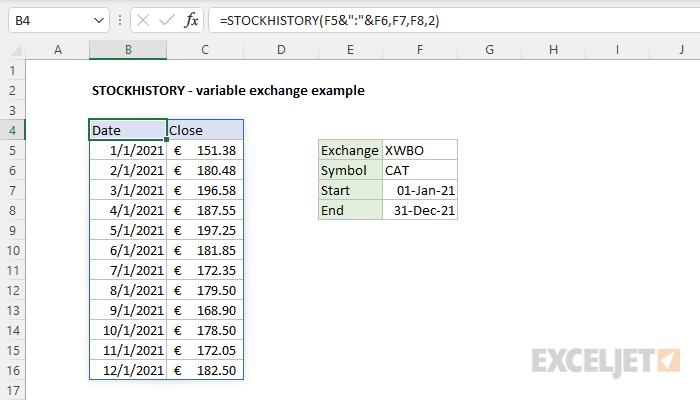
If the value in F5 is changed to “XNYS,” STOCKHISTORY will return Caterpillar’s monthly close price on the New York Stock Exchange.
Example - Retrieve currency exchange rates
To get the currency exchange rate for a given currency pair with STOCKHISTORY, enter the two 3-letter codes separated by a colon (:) as the stock argument. For example, to get the monthly currency exchange rate between the US Dollar (“USD”) and the Euro (“EUR”) for the months of January 2021 through March 2021, you can use STOCKHISTORY like this:
=STOCKHISTORY("USD:EUR","1-Jan-2021","1-Mar-2021",2)
The result is an array with three months of rates:
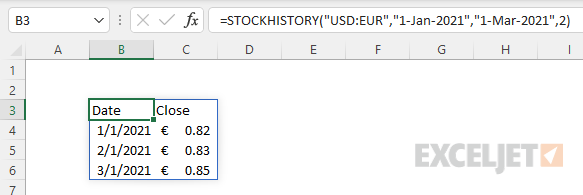
To reverse the direction of the exchange, just swap the order of the currency pairs:
=STOCKHISTORY("EUR:USD","1-Jan-2021","1-Mar-2021",2)
For a more detailed explanation, see this example .
Notes
- If data is not available for the period requested, STOCKHISTORY returns a #VALUE! error.
- When interval is monthly (2), STOCKHISTORY returns the latest data in a given month. In other words, you will get the latest closing price when a month is not yet complete.
- By default, STOCKHISTORY will return the date and closing price, but this behavior can be adjusted by specifying custom properties .
- STOCKHISTORY only returns historical information recorded after market close. If you need a current stock price , use the stock datatype, as explained here: Get current stock price .
