Explanation
The goal is to calculate a tax amount with both fixed and variable components according to the following logic:
- If the amount is less than $1000, only the base tax applies.
- If the amount is $1000 or greater, the result is the base tax + 15% * the amount over $1000
This problem can be easily solved with the IF function. The formula in C5 is:
=IF(B5<limit,base,base+(B5-limit)*rate)
Where rate (F4), base (F5), and limit (F6) are named ranges . The logical test inside the IF function checks if the amount in column B is less than the limit entered in cell F6:
=IF(B5<limit,
If the amount in B5 is less than $1000 (F6), the test is TRUE and IF returns $100 (F5):
=IF(B5<limit,base,
If the amount in B5 is not less than $1000, the test is FALSE, and IF returns $100 (F6) plus 15% (F4) of the amount over $1000 (F5):
base+(B5-limit)*rate
As the formula is copied down, the formula calculates a tax for each amount in column B.
Without named ranges
If you prefer not to use named ranges you can use absolute references instead like this:
=IF(B5<$F$6,$F$5,$F$5+(B5-$F$6)*$F$4)

Note the B5 is still a relative reference because we want that reference to change as the formula is copied down. However, the other references are absolute because they should not change as the formula is copied.
Explanation
The goal is to calculate a tax of 6% on amounts up to 20,000 and a tax of 10% on amounts of 20,000 or greater. This problem illustrates how to use the IF function to return different calculations. At the core, this formula uses a single IF function . The logical test is based on this expression:
B5<=limit
When B5 (the current amount) is less than the limit in cell F6 (20,000), the test returns TRUE and the IF function applies rate1 only:
B5*rate1
When B5 is greater than 20,000, the test returns FALSE and the IF function applies rate1 and rate2 :
limit*rate1+(B5-limit)*rate2
Translation:
- Calculate rate1 by multiplying the limit (20,000) by 6% (F4).
- Calculate rate2 by subtracting the limit from the amount, and multiplying the result by 10% (F5)
- Add #1 and #2 together
Without named ranges
Named ranges can make formulas easier to write and read. The same formula without named ranges looks like this:
=IF(B5<=$F$6,B5*$F$4,$F$6*$F$4+(B5-$F$6)*$F$5)
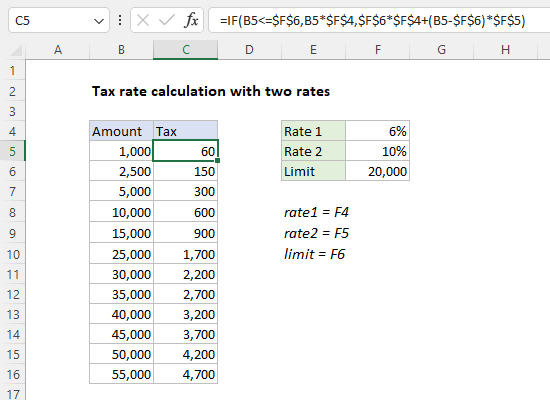
References to F4, F5, and F5 are locked to prevent changes when the formula is copied down the table. Notice B5 is still a relative reference because we want the reference to change as the formula is copied.
