Purpose
Return value
Syntax
=TRIM(text)
- text - The text from which to remove extra space.
Using the TRIM function
The TRIM function strips extra spaces from text, leaving only a single space between words, and removing any leading or trailing space. For example:
=TRIM(" A stitch in time. ") // returns "A stitch in time."
The TRIM function can be used together with the CLEAN function to remove extra space and strip out other non-printing characters:
=TRIM(CLEAN(A1)) // trim and clean
TRIM often appears in other more advanced text formulas. For example, the formula below will count the number of words in cell A1:
LEN(TRIM(A1))-LEN(SUBSTITUTE(A1," ",""))+1
Because this formula depends on single spaces to get an accurate word count, TRIM is used to normalize space before the count is calculated. Full description here .
Notes
- TRIM strips extra spaces from text, leaving only single spaces between words and no space characters at the start or end of the text.
- TRIM is useful when cleaning up text that has come from other applications or environments.
- TRIM only removes the ASCII space character (32) from text.
- Unicode text often contains a non-breaking space character (160) that appears in web pages as an HTML entity. This will not be removed with TRIM.
- The CLEAN function strips the first 32 non-printing characters (ASCII values 0 through 31) from text.
Purpose
Return value
Syntax
=UNICHAR(number)
- number - Code point for a Unicode character in decimal.
Using the UNICHAR function
The UNICHAR function returns the Unicode character at a given code point, provided as a number in decimal format . To illustrate, the Euro symbol (€) has a code point of 8364 in decimal notation. The following formula will return the Euro character:
=UNICHAR(8364) // returns euro sign "€"
Unicode numbers
Unicode assigns each character a unique numeric value and name. This numeric value is referred to as a “code point”. Code points are typically represented by the “U+” notation followed by hexadecimal numbers. For example, the code point for the capital letter A is U+0041, and the code point for the “😊” emoji is U+1F60A. It is important to understand that the UNICHAR function does not accept Unicode numbers in hexadecimal format, it requires numbers in decimal format. In decimal representation, the code point for “A” is 65, and the code point for the “😊” emoji is 128522, therefore:
=UNICHAR(65) // returns "A"
=UNICHAR(128522) // returns "😊"
In Excel, you can use the HEX2DEC function to translate numbers from hexadecimal to decimal if needed.
=UNICHAR(HEX2DEC("1F642")) // returns "🙂"
About Unicode
Excel supports Unicode characters, which are characters that can represent most of the world’s writing systems. Unicode is a computing standard that assigns a unique number (code point) to each character, regardless of the font, platform, or program. Because Unicode is a superset of other character sets, it is very large. The first 128 code points in Unicode align exactly with the ASCII characters. In total, Unicode contains over 140,000 characters spanning more than 160 modern and historic scripts, plus thousands of symbols and emoji.
Unicode can be implemented in different encodings, most commonly UTF-8 and UTF-16. It is estimated that over 90% of websites on the internet use UTF-8.
Examples
The Unicode character “★” is code point 9733 in decimal notation, therefore:
=UNICHAR(9733) // returns "★"
To display a different character, change the number to match the symbol you want:
=UNICHAR(10003) // returns "✓"
=UNICHAR(10007) // returns "✗"
=UNICHAR(128578) // returns "😊"
Here are some more useful Unicode symbols in Excel:
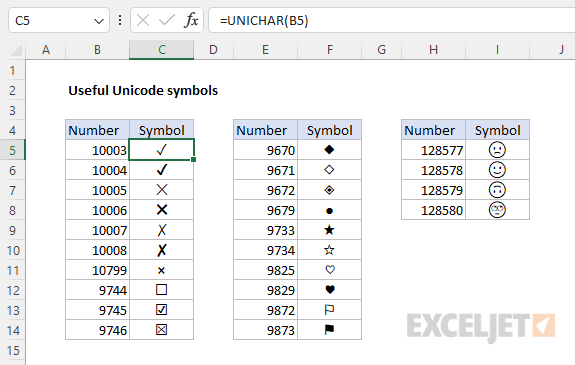
Note: As of this writing in May 2023, emojis in Excel Online (i.e. the web app) appear in color, but emojis in the desktop version of Excel appear in black and white only. See Emoji Wizard for emoji and their corresponding unicode sequence.
UNICHAR in a formula
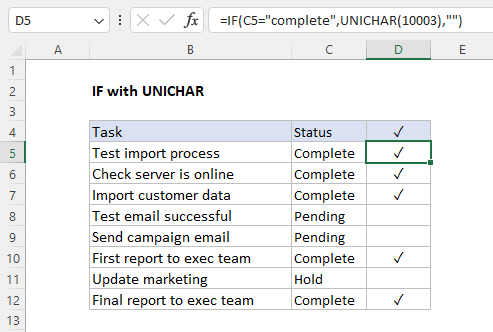
The UNICHAR function offers a straightforward way to display a Unicode symbol in a formula. The formula below uses UNICHAR inside the IF function to display a checkmark when a task is complete:
=IF(C5="complete",UNICHAR(10003),"")
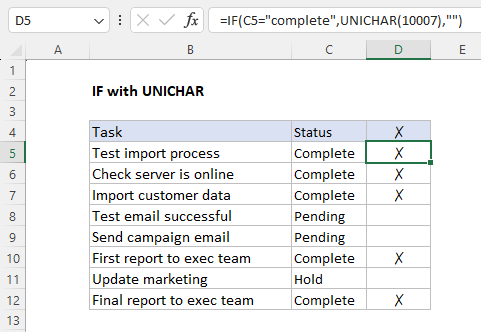
A key advantage of this approach is that it is easy to display a different symbol. For example, to display an “X” instead of a check mark, use 10007:
=IF(C5="complete",UNICHAR(10007),"")
This page has an overview of ways to insert a checkmark in a formula.
UNICHAR versus UNICODE
The UNICHAR function translates a given code in decimal number format into a Unicode character . To perform the opposite conversion, see the UNICODE function , which translates a Unicode character into a code in decimal number format.
Notes
- If number is out-of-range, UNICHAR returns #VALUE!
- If number is not a recognized number, UNICHAR returns #VALUE!
