Explanation
In this example, we have a table of employee locations like this on Sheet2:

On Sheet1, we retrieve the building location for each team member using this formula:
=VLOOKUP(B5,Sheet2!$B$5:$C$104,2,0)
The lookup value is the employee ID, from cell B5.
For the table array, we use the range $B$5:$C$104 qualified with a sheet name, and locked as an absolute reference , so that the range does not change as the formula is copied down:
Sheet2!$B$5:$C$104 // includes sheet name
This is the only difference from a normal VLOOKUP formula – the sheet name simply tells VLOOKUP where to find the lookup table range, B5:C104.
Finally, column number is 2, since the building names appear in the second column, and VLOOKUP is set to exact match mode by including zero (0) as the last argument. This ensures that we get the correct building for each team member and a #N/A error if for some reason the id is not found in the location table.
Explanation
In this example, the goal is to use VLOOKUP to find and retrieve price information for a given product stored in an external Excel workbook. The workbook exists in the same directory and the data in the file looks like this:
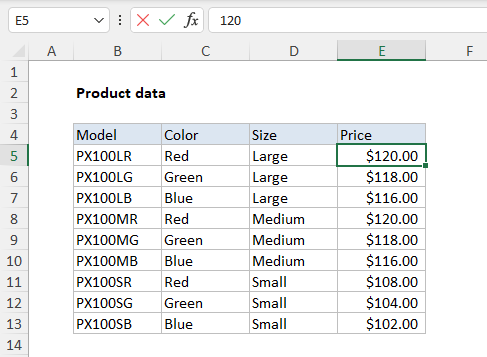
Note the data itself is in the range B5:E13.
VLOOKUP formula
The formula used to solve the problem in C5, copied down, is:
=VLOOKUP(B5,'[product data.xlsx]Sheet1'!$B$5:$E$13,4,0)
This is a standard use of the VLOOKUP function to retrieve data from the 4th column in a table:
- lookup_value comes from B5
- table_array is a reference to a range in an external workbook
- col_index is 4, to retrieve data from column 4
- range_lookup is zero to force an exact match
The only difference is the special syntax used for external references, in the “t able_array " argument. The syntax for external references is:
'[workbook]sheet'!range
- workbook - the name of the external workbook (product data.xlsx)
- sheet - the name of the sheet containing the range (Sheet1)
- range - the actual range for the table array ($B$5:$E$13)
Note the workbook and sheet part of the reference are enclosed in single quotes (’) because the file name “product data.xlsx” contains a space character. Also, note the range is entered as an absolute reference . This allows the formula to be copied down the column without the range changing.
Entering the reference
The easiest way to enter a reference to an external range is to use the “point and click” method. Begin entering the VLOOKUP function normally. Then, when entering the table_array argument, browse to the external workbook and select the range directly in the other file. Excel will construct the needed reference automatically.
Note the reference will change depending on whether the external file is open or not. If the external workbook is open, VLOOKUP will show the workbook name and address for the table_array argument, as in the screenshot above. If the external file is not open, VLOOKUP will display the full file path to the workbook + workbook name and address.
Handling spaces and punctuation
Note the reference to the workbook is enclosed in square brackets, and the entire workbook + sheet is enclosed in single quotes. The single quotes (’) are required when the workbook or sheet name contains space or punctuation characters
