A small number of Excel functions are “volatile”. Volatile functions trigger recalculation on every worksheet change, so they can have a drastic impact on worksheet performance. In workbooks that contain a small amount of data, the performance impact may not be noticeable. However, in workbooks with large data sets and lots of formulas, adding a volatile function can make the worksheet feel sluggish. In extreme cases, this can make a spreadsheet almost unusable. From official Microsoft documentation :
Excel supports the concept of a volatile function, that is, one whose value cannot be assumed to be the same from one moment to the next even if none of its arguments (if it takes any) has changed. Excel reevaluates cells that contain volatile functions, together with all dependents, every time that it recalculates. For this reason, too much reliance on volatile functions can make recalculation times slow. Use them sparingly.
Volatile function list
The following functions are considered volatile:
- NOW
- TODAY
- RAND
- RANDARRAY
- RANDBETWEEN
- OFFSET
- INDIRECT
- CELL (depends on arguments)
- INFO (depends on arguments)
Formulas that generate random results with volatile functions
A number of formulas on this site explain how to generate random results ( random sorts , random names , etc.). Typically, such formulas use volatile functions like RAND, RANDARRAY, and RANDBETWEEN. As a consequence, they will recalculate every time a worksheet is changed, which is often undesired behavior. One workaround is to replace the volatile functions with the seeded random number generator explained in this article: Seeded Random Number Generator in Excel .
A wildcard is a special character that lets you perform “fuzzy” matching on text in your Excel formulas. For example, this formula:
=COUNTIF(B5:B11,"*combo")
counts all cells in the range B5:B11 that end with the text “combo”. And this formula:
=COUNTIF(A1:A100,"???")
Counts all cells in A1:A100 that contain exactly 3 characters.
Available wildcards
Excel has 3 wildcards you can use in your formulas:
- Asterisk (*) - zero or more characters
- Question mark (?) - any one character
- Tilde (~) - escape for literal character (~*) a literal question mark (~?), or a literal tilde (~~).
Note: wildcards only work with text , not numbers.
Example wildcard usage
| Usage | Behavior | Will match |
|---|---|---|
| ? | Any one character | “A”, “B”, “c”, “z”, etc. |
| ?? | Any two characters | “AA”, “AZ”, “zz”, etc. |
| ??? | Any three characters | “Jet”, “AAA”, “ccc”, etc. |
| * | Any characters | “apple”, “APPLE”, “A100”, etc. |
| *th | Ends in “th” | “bath”, “fourth”, etc. |
| c* | Starts with “c” | “Cat”, “CAB”, “cindy”, “candy”, etc. |
| ?* | At least one character | “a”, “b”, “ab”, “ABCD”, etc. |
| ???-?? | 5 characters with hyphen | “ABC-99”,“100-ZT”, etc. |
| *~? | Ends with a question mark | “Hello?”, “Anybody home?”, etc. |
| xyz | Contains “xyz” | “code is XYZ”, “100-XYZ”, “XyZ90”, etc. |
Wildcards only work with text. For numeric data, you can use logical operators .
More general information on formula criteria here .
Functions that support wildcards
Not all functions allow wildcards. Here is a list of the most common functions that do:
- AVERAGEIF , AVERAGEIFS
- COUNTIF , COUNTIFS
- MATCH
- MAXIFS , MINIFS
- SEARCH
- SUMIF , SUMIFS
- VLOOKUP , HLOOKUP
- XLOOKUP
- XMATCH
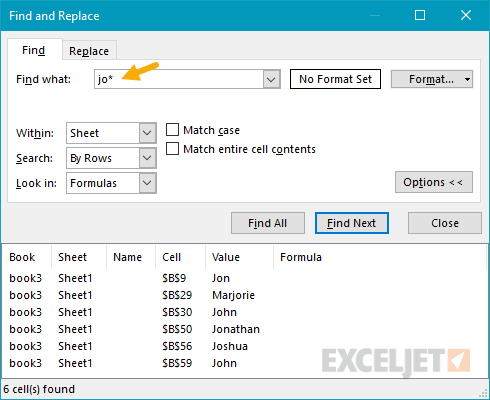
Wildcards in Excel’s Find and Replace
Wildcards are also active by default in Excel’s Find and Replace dialog. For example, searching for “jo*” will match “Jon”, “Marjorie”, “John”, “Jonathan”, and “Joshua” as seen in the screen below: