Purpose
Return value
Syntax
=WEBSERVICE(url)
- url - The url of the web service to call.
Using the WEBSERVICE function
The WEBSERVICE function returns data from a web service hosted on the internet. The WEBSERVICE function is only available in Excel 2013 and later for Windows.
A web service uses a protocol like HTTP to retrieve data in a machine-readable format like XML or JSON. For example, a formula that uses WEBSERVICE to call a fictitious web service hosted at somewebservice.com might look something like this:
=WEBSERVICE(“http://somewebservice.com/endpoint?query=xxxx”)
The result from the WEBSERVICE function is returned directly to the worksheet. In cases where the result from a webservice is in XML format, you can use the FILTERXML function to parse the XML.
Example
A simple example of a web service is RSS, which is used to syndicate content in XML format. RSS is widely available and does not require authentication, so it is an easy way to test the WEBSERVICE function. In the example above, WEBSERVICE is used to fetch breaking news from NASA. The formula in B4 is:
=WEBSERVICE("https://www.nasa.gov/rss/dyn/breaking_news.rss")
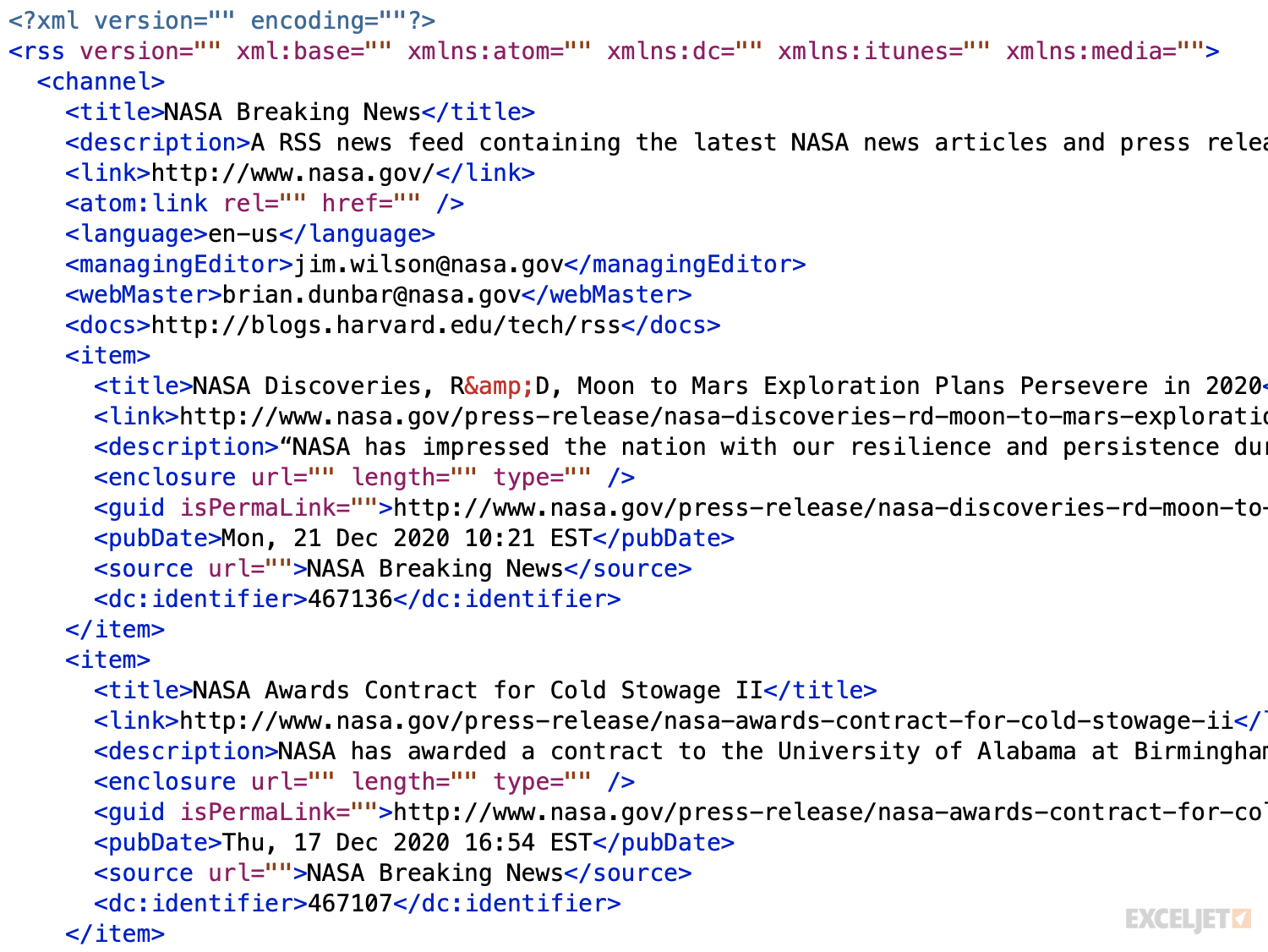
RSS uses XML, so the result is a long string of XML that contains the titles of the last 10 news articles published by NASA, along with meta information like description, date, url, and so on. The screen below shows this data in a text editor:
Parsing the result
When the result from WEBSERVICE is XML, you can use the FILTERXML function to parse the data. In the example shown, this is how the data and title of each article is extracted. The formula in B7 extracts the date, and trims extra characters with the MID function to create an Excel-friendly date:
=MID(FILTERXML(B4,"//item/pubDate"),6,11)
The formula in C7 extracts the title:
=FILTERXML(B4,"//item/title")
Notes
- When WEBSERVICE can’t retrieve data, it returns a #VALUE! error.
- If the result from WEBSERVICE is more than 32767 characters, it returns a #VALUE! error.
Purpose
Return value
Syntax
=DAVERAGE(database,field,criteria)
- database - Database range including headers.
- field - Field name or index to count.
- criteria - Criteria range including headers.
Using the DAVERAGE function
The Excel DAVERAGE function gets the average in a given field for a subset of records that match criteria. The database argument is a range of cells that includes field headers, field is the name or index of the field to get a max value from, and criteria is a range of cells with headers that match those in database.
Using the example above, you can get the average value from the field “Price” for records where the color is “red” and quantity is > 2 with these formulas:
=DAVERAGE(B7:E14,"Price",B4:E5) // field by name
=DAVERAGE(B7:E14,2,B4:E5) // field by index
Criteria options
The criteria can include a variety of expressions, including some wildcards . The table below shows some examples:
| Criteria | Behavior |
|---|---|
| Red | Match “red” or “RED” |
| Re* | Begins with “re” |
| 10 | Equal to 10 |
| >10 | Greater than 10 |
| <> | Not blank |
| <>100 | Not 100 |
| >12/19/2017 | Greater than Dec 19, 2017 |
Note: support for wildcards is a little different wildcards with COUNTIFS, SUMIFS, MATCH etc. For example, the pattern ??? will match strings with 3 exactly characters in these more recent functions, but not in database functions. If you are using wildcards, test carefully.
Multi-row criteria
The criteria range for DAVERAGE can include more than one row below the headers. When criteria includes more than one row, each row is joined with OR logic, and the expressions in a given criteria row are joined with AND logic.
Notes:
- DAVERAGE supports wildcards in criteria
- Criteria can include more than one row (as explained above)
- The field argument can be supplied as a name in double quotes ("") or as a number representing field index.
- The database and criteria ranges must include matching headers.
