Purpose
Return value
Syntax
=WEEKNUM(serial_num,[return_type])
- serial_num - A valid Excel date in serial number format.
- return_type - [optional] The day the week begins. Default is 1.
Using the WEEKNUM function
The WEEKNUM function takes a date and returns a number between 1 and 54 that corresponds to the week of the year. By default, the WEEKNUM function starts counting on the week that contains January 1 and increments week numbers on Sunday. Typically the last week number in a year is 53. However, WEEKNUM will return 54 at the end of some years, like 2000 and 2028.
The WEEKNUM function accepts two arguments , serial_num and return_type . The serial_num argument must have a valid Excel date . The return_type argument controls what day of the week begins a new week number. Return_type is optional and defaults to 1, which sets new week numbers to start on Sunday. When return_type is set to 2, week numbers begin on Monday.
With a return_type of 1-17, week number 1 in a given year is assigned to the week that contains January 1. With return_type 21, week 1 is the week containing the first Thursday of the year, following ISO 8601 . The table below summarizes return_type options .
| Return_type | Week begins |
|---|---|
| 1 (default) | Sunday |
| 2 | Monday |
| 11 | Monday |
| 12 | Tuesday |
| 13 | Wednesday |
| 14 | Thursday |
| 15 | Friday |
| 16 | Saturday |
| 17 | Sunday |
| 21 | Monday (see note above) |
Example #1 - basic usage
The formulas below return the week number for the last day of 2020 and the first day of 2021:
=WEEKNUM("31-Dec-2020") // returns 53
=WEEKNUM("1-Jan-2021") // returns 1
Example #2 - return type
The return_type argument controls what day of the week a new week number should begin. By default, return_type is 1, and numbers increment on Sunday. When return_type is provided as 2, week numbers begin on Monday. For example, January 3, 2021, is a Sunday and, WEEKNUM will return 2 since new numbers start on Sundays:
=WEEKNUM("3-Jan-2021") // returns 2
However, when return_type is set to 2, WEEKNUM will return 1 and start week 2 on Monday:
=WEEKNUM("3-Jan-2021",2) // returns 1
=WEEKNUM("4-Jan-2021",2) // returns 2
Note: the examples above show dates as text values for readability, but working with native Excel dates is more reliable. To create a date from scratch in a formula, you can use the DATE function .
Purpose
Return value
Syntax
=WORKDAY(start_date,days,[holidays])
- start_date - The date from which to start.
- days - Working days before or after start_date.
- holidays - [optional] A list of dates that are non-working days.
Using the WORKDAY function
The WORKDAY function calculates a date that is a given number of working days from a specified start date, automatically excluding weekends and, optionally, holidays. You can use the WORKDAY function to calculate project start dates, delivery dates, due dates, and other dates that must consider both working and non-working days. Note that WORKDAY will automatically exclude Saturdays and Sundays but will only exclude holidays if they are provided.
The WORKDAY function takes three arguments :
- start_date - the date from which to start counting. When calculating a result, WORKDAY does not include the start date as a work day.
- days - the number of days in the future or past to calculate a workday. Use a positive number for days to calculate dates in the future, and a negative number for past dates.
- holidays - an optional argument to specify non-working dates that should be skipped when computing a result. Holidays must be provided as a range or array that contains valid Excel dates. If holidays are not provided, WORKDAY will treat only Saturdays and Sundays as non-working days.
The WORKDAY function explained
To illustrate how WORKDAY works, assume we are scheduling a task that takes 5 working days, starting on Monday, July 1, 2024. The goal is to calculate a date that is 5 working days after July 1, 2024. If we simply add 5 to the start date, Excel will return Saturday, July 6:
="1-Jul-2024"+5 // returns "6-Jul-2024"
If however, we use WORKDAY to calculate a date 5 days after July 1, it returns Monday, July 8, 2024:
=WORKDAY("1-Jul-2024",5) // returns "8-Jul-2024"
This is because WORKDAY automatically skips Saturday and Sunday when it calculates a result. If we extend the formula to provide holidays, one of which overlaps the date range, WORKDAY returns Tuesday, July 9, 2024, since Thursday, July 4, 2024 is a non-working day and is also skipped in the calculation:
=WORKDAY("1-Jul-2024",5,{"4-Jul-2024";"2-Sep-2024"}) // returns "9-Jul-2024"
Note: the holidays above are provided as an array constant , but more typically holidays are provided as a range. Remember that holidays must be valid Excel dates. The name of the holiday makes no difference.
Of course, in real life, you will not hardcode dates directly into formulas. You will instead refer to dates on the worksheet with cell references. The screen below shows the three formulas above “ported” to a workbook with cell references:
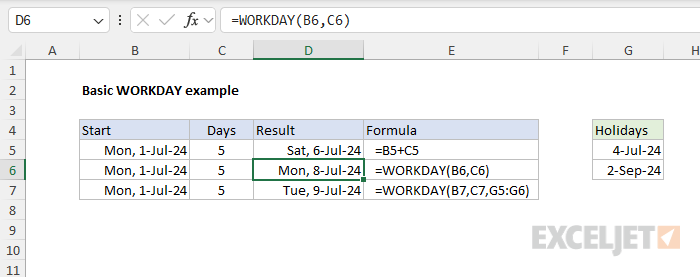
The formula in D5 does not use WORKDAY and simply adds 5 days to the start date:
=B5+C5 // returns "6-Jul-2024"
The formula in D6 uses the WORKDAY function but does not provide any holidays:
=WORKDAY(B6,C6)// returns "8-Jul-2024"
The formula in D7 provides holidays in the range G5:G6:
=WORKDAY(B7,C7,G5:G6) // returns "9-Jul-2024"
In all cases, the start date in column B and the days in column D are the same.
Worksheet Example
In the worksheet below, Column B contains a variety of different start dates, column C contains the number of days to use, and “holidays” is the named range F5:F13. The formula in cell D5 is:
=WORKDAY(B5,C5,holidays)
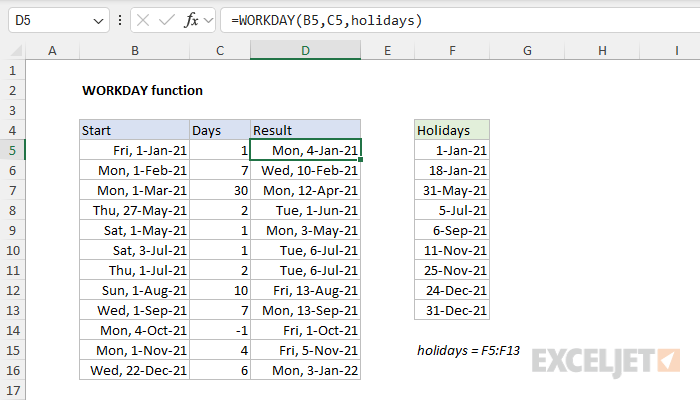
As the formula is copied down, WORKDAY calculates a date n working days from the start date using the value in column C for days . Notice that WORKDAY automatically excludes Saturdays, Sundays, and overlapping holidays in the calculated result.
Note: named ranges automatically behave like absolute references so there is no need to lock the reference to “holidays” before copying the formula. If you prefer not to use a named range, use an absolute reference like $F$5:$F$13 instead.
Visualized Example
It can be hard to visualize what days WORKDAY is excluding when it calculates a result. The worksheet below contains a more detailed example that shows non-working days shaded in gray in columns D and E:
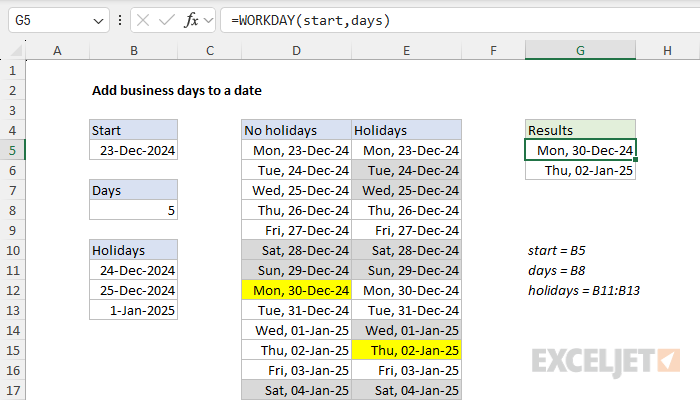
In the example above, the WORKDAY function is used to calculate a date 5 working days after 23-Dec-2024. The formulas in G5 and G6 show the result with and without the holidays in B11:B13:
=WORKDAY(start,days)
=WORKDAY(start,days,holidays)
The first formula (G5) excludes weekends only and returns December 30, 2024. The second formula (G6) excludes weekends and holidays and returns January 2, 2025. The dates in columns D and E are not required in this solution, they exist only to help visualize how the WORKDAY function evaluates working and non-working days and arrives at a final result. The shading and highlighting is applied with conditional formatting . For a full explanation with details, see this page .
Example - is this date a workday?
One problem you might run into is how to test a date to determine whether it is a workday. You can use WORKDAY for this task, but the formula is not immediately obvious. Essentially, we need to “trick” WORKDAY into evaluating a given date by shifting the date back one day and then asking for the next workday. You can see this approach in the worksheet below. The formula in cell D5 is:
=WORKDAY(B5-1,1,holidays)=B5
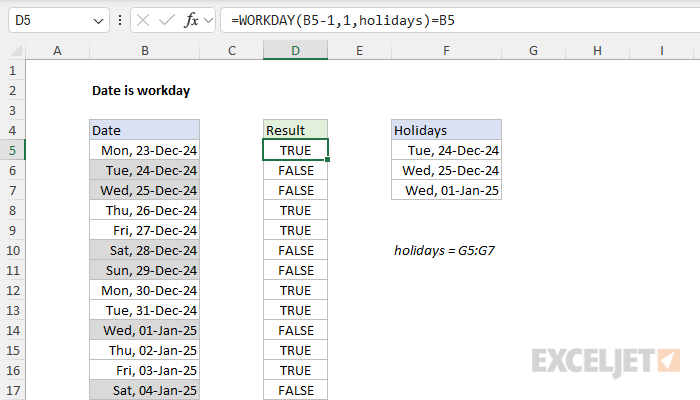
For a more detailed explanation, see this example: Date is Workday .
Custom Weekends
By default, WORKDAY will exclude weekends (Saturday and Sunday). If you need to customize which days of the week are considered weekend days, use the more robust WORKDAY.INTL function. WORKDAY.INTL can be configured to treat any day of the week as a working or non-working day.
Recommendations
- Use cell references for the start date, days, and holidays to make it easy to adjust the formula quickly.
- Switch to the more flexible WORKDAY.INTL function if you need to customize non-working days.
- WORKDAY returns a date. If you need to calculate the number of working days between two dates, see the NETWORKDAYS function or the more flexible NETWORKDAYS.INTL function .
Notes
- WORKDAY returns a date that is a given number of working days from a specified start_date
- Use a positive number for days to calculate dates in the future, and a negative number for past dates.
- WORKDAY automatically ignores Saturday and Sunday. Switch to WORKDAY.INTL to customize this behavior.
- If days is not numeric, WORKDAY will return a #VALUE! error.
- If days is zero, WORKDAY will return the start_date unchanged.
- Holidays must be provided as valid Excel dates, typically in a range.
- When calculating a result, WORKDAY does not include the start date as a work day.
