A wildcard is a special character that lets you perform “fuzzy” matching on text in your Excel formulas. For example, this formula:
=COUNTIF(B5:B11,"*combo")
counts all cells in the range B5:B11 that end with the text “combo”. And this formula:
=COUNTIF(A1:A100,"???")
Counts all cells in A1:A100 that contain exactly 3 characters.
Available wildcards
Excel has 3 wildcards you can use in your formulas:
- Asterisk (*) - zero or more characters
- Question mark (?) - any one character
- Tilde (~) - escape for literal character (~*) a literal question mark (~?), or a literal tilde (~~).
Note: wildcards only work with text , not numbers.
Example wildcard usage
| Usage | Behavior | Will match |
|---|---|---|
| ? | Any one character | “A”, “B”, “c”, “z”, etc. |
| ?? | Any two characters | “AA”, “AZ”, “zz”, etc. |
| ??? | Any three characters | “Jet”, “AAA”, “ccc”, etc. |
| * | Any characters | “apple”, “APPLE”, “A100”, etc. |
| *th | Ends in “th” | “bath”, “fourth”, etc. |
| c* | Starts with “c” | “Cat”, “CAB”, “cindy”, “candy”, etc. |
| ?* | At least one character | “a”, “b”, “ab”, “ABCD”, etc. |
| ???-?? | 5 characters with hyphen | “ABC-99”,“100-ZT”, etc. |
| *~? | Ends with a question mark | “Hello?”, “Anybody home?”, etc. |
| xyz | Contains “xyz” | “code is XYZ”, “100-XYZ”, “XyZ90”, etc. |
Wildcards only work with text. For numeric data, you can use logical operators .
More general information on formula criteria here .
Functions that support wildcards
Not all functions allow wildcards. Here is a list of the most common functions that do:
- AVERAGEIF , AVERAGEIFS
- COUNTIF , COUNTIFS
- MATCH
- MAXIFS , MINIFS
- SEARCH
- SUMIF , SUMIFS
- VLOOKUP , HLOOKUP
- XLOOKUP
- XMATCH
Wildcards in Excel’s Find and Replace
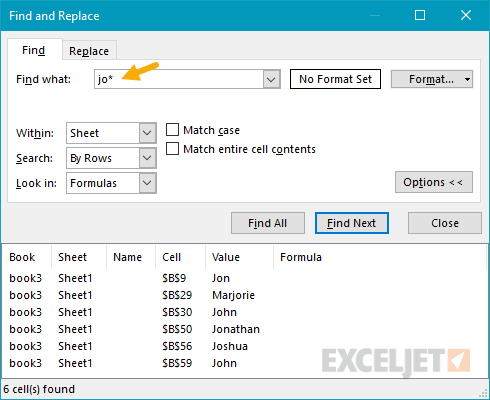
Wildcards are also active by default in Excel’s Find and Replace dialog. For example, searching for “jo*” will match “Jon”, “Marjorie”, “John”, “Jonathan”, and “Joshua” as seen in the screen below:
If you open up a spreadsheet that you did not create, you may run into the “__xlfn” prefix before certain functions. The generic meaning of xlfn is “unsupported function”. Typically, it indicates that the worksheet was created in a newer version of Excel and uses functions not yet available in the version currently running.
In the example shown, the UNIQUE function is used to extract unique values from a range of data. UNIQUE is only available in Excel 365 , and was introduced in 2020. When the workbook is opened in an older version of Excel, the __xlfn prefix appears. Note that the original result is still displayed. However, the formula will not update to show a new result if data changes.
Solution or workaround
If you open the same workbook in a version of Excel that contains the missing function(s), the _xlfn prefix will disappear and the function will calculate normally. If this is not possible, you might be able to use another formula that does not rely on the newer function.
