Introduction
For decades, INDEX and MATCH have been the go-to solution for handling complex lookup problems. Unlike VLOOKUP , INDEX and MATCH are based on numeric positions: the MATCH function locates the position of a value, and the INDEX function retrieves a value at that position. This approach makes INDEX and MATCH highly versatile, at the cost of more configuration.
However, with the introduction of XLOOKUP in 2019, Excel users have a powerful new lookup option available. XLOOKUP can do everything VLOOKUP can do, and much more (for a detailed comparison, see this article ). But what about INDEX and MATCH? Can XLOOKUP do everything that INDEX and MATCH can do? Let’s take a look at how these two options stack up against each other.
INDEX AND MATCH: The Classic
The combination of INDEX and MATCH is a classic method for performing lookups in Excel. While it requires two separate functions, it provides a highly flexible and customizable solution for a wide range of lookup problems. The syntax for INDEX and MATCH looks like this:
INDEX(return_array,MATCH(lookup_value,lookup_array,[match_type]))
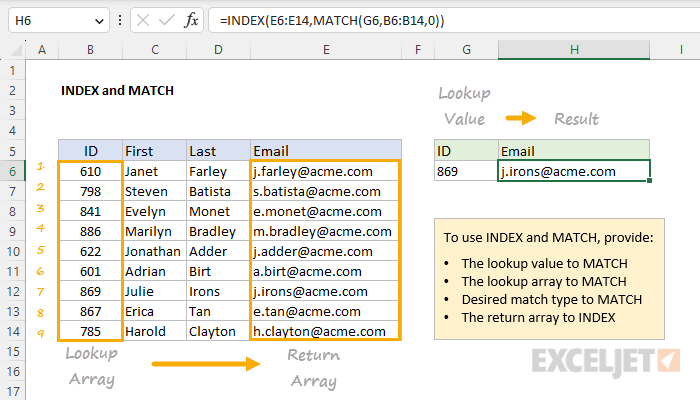
In a nutshell, the MATCH function is used to locate the numeric position of a match in a set of data, and the INDEX function is used to retrieve a value at that position. The screen below shows an example of INDEX and MATCH configured to find an email address based on ID. The formula in cell H6 is:
=INDEX(E6:E14,MATCH(G6,B6:B14,0))
Inside the MATCH function, the lookup_array is B6:B14, which contains IDs, and match_type is set to 0 to force an exact match. Inside the INDEX function, the (return) array is given as E6:E14, which contains email addresses. MATCH returns the numeric position of ID 869 (7) to the INDEX function, and INDEX returns the value at that position as a final result.
For a full explanation of INDEX and MATCH step-by-step, see: How to use INDEX and MATCH .
MATCH vs XMATCH
Before we jump in and start comparing XLOOKUP to INDEX and MATCH, we need to talk about the XMATCH function . XMATCH is an upgraded replacement for the MATCH function, released at the same time as XLOOKUP. Like the MATCH function, XMATCH performs a lookup and returns a numeric position. Also like MATCH, XMATCH can perform lookups in vertical or horizontal ranges, supports approximate and exact matches, and allows wildcards (* ?) for partial matches.
There are 5 key differences between XMATCH and MATCH:
- XMATCH defaults to an exact match , while MATCH defaults to an approximate match .
- XMATCH can find the next larger item or the next smaller item.
- XMATCH can perform a reverse search (i.e. search from last to first).
- XMATCH does not require values to be sorted when performing an approximate match.
- XMATCH can perform a binary search, which is specifically optimized for speed.
In summary, XMATCH works like MATCH, but it is more flexible and powerful.
XMATCH was released at the same time as XLOOKUP. If you have XLOOKUP, you also have XMATCH. As a result, it doesn’t make sense to compare XLOOKUP to INDEX and MATCH without including XMATCH. For the purpose of this article, you can assume that “INDEX and MATCH” can also mean “INDEX and XMATCH” as dictated by requirements.
INDEX and MATCH Pros
Compatibility: The basic INDEX and MATCH combination will work in all versions of Excel and has long been a preferred option for difficult lookup problems. There are millions and millions of spreadsheets in the world that use this approach.
Flexibility : The combination of INDEX and MATCH is supremely flexible and can solve pretty much any lookup problem in Excel: lookups in vertical or horizontal ranges, approximate and exact match lookups, lookups with wildcards, and more.
Numeric index: MATCH returns a numeric position, and INDEX returns a value at that position. Because MATCH returns a numeric index, this value can be easily manipulated. For example, some advanced INDEX and MATCH formulas make simple on-the-fly adjustments to row or column index values based on other information in a worksheet ( example 1 , example 2 , example 3 ).
Vertical or horizontal: INDEX and MATCH work equally well with vertical or horizontal ranges.
Entire rows and columns : INDEX can return entire rows by setting the column number to zero, and entire columns by setting the row number to zero.
Two-way lookups : INDEX and MATCH are well suited for two-way lookups (also called “matrix lookups” or “2D lookups”) that target both rows and columns because INDEX is designed to accept separate row and column numbers ( see example here ).
Troubleshooting : The two-step process used by INDEX and MATCH is a bit easier to troubleshoot because the operation is more transparent. You can test the result from MATCH ( with F9 ) to see if you have a valid position. Alternatively, you can hardcode a row or column number into INDEX to simulate a result from MATCH.
Multiple criteria : The behavior of INDEX and MATCH makes it relatively straightforward to apply multiple criteria. The standard approach is to create a lookup_array with Boolean algebra , then set the lookup_value in MATCH to 1 ( See example ).
Reverse search: INDEX + XMATCH can easily perform a reverse search (last to first) because this feature is built into XMATCH.
Binary search: INDEX + XMATCH can be configured for a binary search (speed optimized) because this feature is built into XMATCH.
Match flexibility: INDEX + XMATCH can match the next smaller or the next larger value in unsorted data because this feature is provided by XMATCH.
INDEX and MATCH Cons
While the INDEX and MATCH combo has many pros, it also has some cons.
Dangerous default: The default behavior for INDEX + MATCH is to return an approximate match , and the input that controls this behavior, match_type , is not required. This makes it easy to configure INDEX and MATCH in a way that returns a normal-looking, but incorrect, result. This is not a problem with INDEX + XMATCH, since XMATCH returns an exact match by default.
Complexity: The two-function structure of INDEX and MATCH can be more challenging to learn and apply because it uses a concept called nesting , in which an “inner” function (MATCH) returns a value directly to an “outer” function (INDEX).
MATCH confusion: While XMATCH allows INDEX and MATCH to compete directly with XLOOKUP on features, the choice of XMATCH over MATCH may cause confusion among users who are not clear on the differences. In addition, using XMATCH creates a dependency, since XMATCH will only work in a recent version of Excel.
No built-in error handling : Unlike XLOOKUP, the INDEX and MATCH combination does not have a built-in error-handling feature, so the formula will simply return #N/A when a lookup fails. To provide a more friendly or helpful message, another function like IFERROR or IFNA needs to be included (example).
XLOOKUP - A Modern Alternative
XLOOKUP is a modern replacement for the VLOOKUP function and was designed to address many of the limitations of VLOOKUP directly. It is a flexible and versatile function that can be used in a wide variety of situations. The syntax for XLOOKUP looks like this:
XLOOKUP(lookup_value,lookup_array,return_array,[if_not_found],[match_mode],[search_mode])
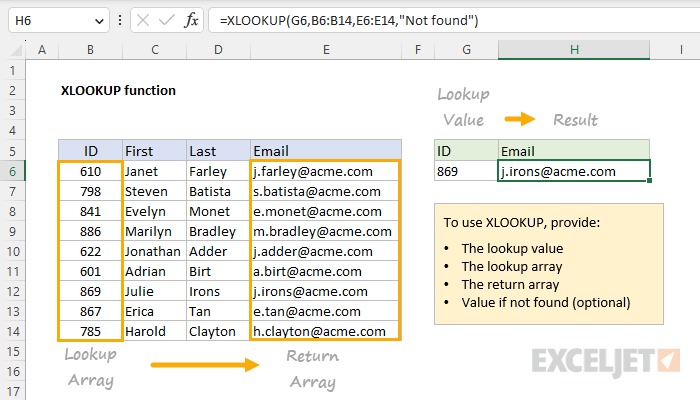
The screen below shows how XLOOKUP would be configured to look up an email address based on ID. The formula in cell H6 is:
=XLOOKUP(G6,B6:B14,E6:E14,"Not found")
Notice both lookup_array and return_array are provided as separate references, and the optional if_not_found argument is set to display “Not found” in case there are no results. Also, note that XLOOKUP will perform an exact match by default, so there is no need to enable this behavior.
For more XLOOKUP examples and videos, see this page .
XLOOKUP Pros
Simplicity: XLOOKUP is easier to configure than INDEX and MATCH because there is just one function to work with, and only three required arguments: lookup_value , lookup_array , and return_array .
Safe defaults: unlike INDEX + MATCH, XLOOKUP defaults to an exact match . This is a much safer default because a user must explicitly enable approximate match behavior when needed. Note that INDEX + XMATCH will default to an exact match because this is the default behavior for XMATCH.
Vertical or horizontal: Like INDEX and MATCH, XLOOKUP can use a vertical or horizontal lookup array.
Entire rows and columns : XLOOKUP can easily return entire rows or entire columns .
Reverse search: XLOOKUP can search in a forward direction (first to last) or in reverse (last to first). This makes XLOOKUP useful for solving complicated problems like retrieving the latest price from data in chronological order. See an example here .
Match flexibility: XLOOKUP can be configured for an approximate match in two ways: (1) exact match or the next smaller value (2) exact match or the next larger value. In both cases, data does not need to be sorted . INDEX + XMATCH has the same capability, but INDEX + MATCH is limited to approximate matches in sorted data only .
Built-in error handling: XLOOKUP offers a dedicated argument, if_not_found , to provide a custom value, a message, or even another formula to run if XLOOKUP does not find a match. See an example here . With INDEX and MATCH, you must add another function like IFERROR or IFNA to handle errors.
Multiple criteria : The structure of XLOOKUP makes it relatively straightforward to apply multiple criteria. The standard approach is to create a lookup_array with Boolean algebra , then set the lookup_value to 1 ( basic example , advanced example ).
XLOOKUP cons
Limited availability: XLOOKUP is only available in the latest versions of Excel. This means XLOOKUP will not work if a worksheet is opened in an older version of Excel. Before you use XLOOKUP, you must consider who will need to use a worksheet and what version of Excel they use.
Two-way lookups are more complex: Compared to INDEX and MATCH, a two-way lookup (i.e. looking up both a row and column in the same formula) with XLOOKUP is more complicated. This is because XLOOKUP does not use a numeric index to retrieve data, so you can’t use the MATCH function like you can with INDEX and MATCH. See an example here .
Feature comparison
The table below summarizes the key differences mentioned above.
| Feature | INDEX and MATCH | XLOOKUP |
|---|---|---|
| Availability | All versions | Excel 2021+ |
| Learning curve | Moderate | Easier |
| Dangerous defaults | Yes/No* | No |
| Approximate match unsorted data | Yes* | Yes |
| Horizontal lookup | Yes | Yes |
| Return entire rows or columns | Yes | Yes |
| Left lookup | Yes | Yes |
| Numeric indexing | Yes | No |
| Built-in error handling | No | Yes |
| Reverse search | Yes* | Yes |
| Binary search | Yes* | Yes |
| Two-way lookup | Yes | Yes with XLOOKUP + XLOOKUP |
| Multiple criteria | Yes with Boolean Logic | Yes with Boolean Logic |
- Requires XMATCH, available in Excel 2021+.
Summary
XLOOKUP and INDEX + MATCH are both flexible and powerful lookup solutions in Excel. For difficult lookup problems that require backward compatibility with older versions of Excel, INDEX + MATCH is the clear winner, since XLOOKUP is only available in Excel 2021 and later. If backward compatibility is not needed, XLOOKUP is better than regular INDEX and MATCH in several ways: XLOOKUP is simpler, has safe defaults, has built-in error handling, and is very flexible.
However, when we compare XLOOKUP to INDEX + XMATCH, the contest is much closer. Both options can run lookups on horizontal or vertical ranges, handle reverse lookups, use fast binary searches, and use approximate matching on unsorted data. XLOOKUP has an edge with built-in error handling and a friendly learning curve. But the numeric index used by INDEX + XMATCH is easier to test and troubleshoot because the two-step process is more transparent. In addition, many users will likely find an INDEX and MATCH formula more intuitive for two-way lookups.
With the above in mind, here are a few general recommendations and thoughts:
- For new projects that don’t require backward compatibility with older versions of Excel, XLOOKUP should be your default choice. It is a modern and powerful function that can handle almost any lookup problem.
- INDEX + XMATCH is very close to XLOOKUP in terms of features and flexibility, and is arguably easier to use for two-way lookup problems. It also offers subtle benefits in certain kinds of advanced lookups .
- If backward compatibility is required, INDEX + MATCH is the most flexible and powerful lookup option available. However, for simple lookup problems, VLOOKUP will work just fine.
- If you work in Excel frequently, it is worth your time to understand both XLOOKUP and INDEX and MATCH, since you will likely run into existing INDEX and MATCH formulas in older worksheets for many years to come.
Learning Resources
- INDEX and MATCH overview
- INDEX and MATCH training
- XLOOKUP examples
- XLOOKUP training
Introduction
Excel offers a vast number of functions that cater to different users and their unique requirements. Among these functions, VLOOKUP has long been the go-to choice for basic lookups in a table or range. In almost every industry, millions and millions of existing spreadsheets use VLOOKUP to do something useful.
However, with the introduction of XLOOKUP in 2019, Excel users have a powerful new lookup option available. XLOOKUP can do everything VLOOKUP can do, and much more. Should you stop using VLOOKUP altogether? Should you even learn VLOOKUP if you are new to Excel? Let’s have a look at the pros and cons of XLOOKUP and VLOOKUP.
VLOOKUP: The Old Standard
VLOOKUP is an Excel function that has been widely used for many years. As the name implies, VLOOKUP is designed to work with vertical data . Given a lookup value, VLOOKUP searches the first column of a table and returns a corresponding value from the same row in another specified column. In short, VLOOKUP looks up data in a table like a human would, and does so with minimal configuration. The syntax for VLOOKUP looks like this:
VLOOKUP(lookup_value,table_array,col_index_num,range_lookup)
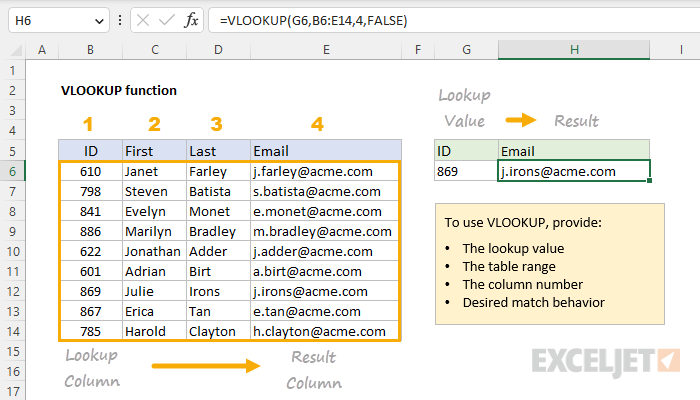
The screen below shows an example of VLOOKUP configured to find an email address based on ID. The formula in cell H6 is:
=VLOOKUP(G6,B6:E14,4,FALSE)
Notice that table_array is a reference to the entire table , and the column to return is hardcoded as 4. Also note that VLOOKUP will perform an approximate match by default, so range_lookup is set to FALSE to force an exact match.
For more VLOOKUP examples and videos see this page .
VLOOKUP Pros
Intuitive operation: VLOOKUP scans through the first column in the table. When it finds a match, it moves across the table to the specified column number and retrieves the value in the same row. With a small number of inputs, VLOOKUP is easy and intuitive.
Widely used: There are millions upon millions of spreadsheets in the world that depend on VLOOKUP to do useful work. You will find VLOOKUP everywhere, and being comfortable with VLOOKUP is a real advantage, even if you prefer XLOOKUP.
Simple configuration: If you have a data table with lookup values in the first column, you have pretty much everything you need to use VLOOKUP. All VLOOKUP needs is a lookup value, the table address, and a column number.
VLOOKUP Cons
While VLOOKUP is popular and easy to use, it does have some real limitations.
Dangerous default: VLOOKUP’s default behavior is to return an approximate match , and the argument that controls this behavior ( range_lookup ) is not required . This is dangerous because it makes it easy for a new user to configure VLOOKUP in a way that returns a normal-looking result that is, in fact, wrong . See an example here .
Vertical data only: VLOOKUP can only search vertically , which means you have to use another formula like HLOOKUP or INDEX and MATCH to perform a lookup in data that is organized horizontally.
Lookup values in the first column only: The lookup table given to VLOOKUP must have lookup values in the first column. This means VLOOKUP can’t return data located in a column to the left of the lookup column, without a complicated workaround .
Hardcoded column reference: Because the column index number is hardcoded inside VLOOKUP, it won’t respond to changes in the worksheet, which can potentially break a VLOOKUP formula. However, to be fair, you can combine VLOOKUP with the MATCH function to perform a dynamic 2-way lookup.
Approximate match: VLOOKUP can be configured for an approximate match by setting range_lookup to TRUE, or by omitting the argument altogether. In this mode, VLOOKUP will match a value exactly or match the next smallest value. However, to work correctly, data must be sorted in ascending order .
No built-in error trapping: VLOOKUP does not offer a way to provide an alternate value when a lookup is unsuccessful. This means VLOOKUP will simply return a #N/A error when a lookup fails. To trap and handle this error, you must use another function like IFERROR or IFNA. See an example here .
No reverse search: VLOOKUP will always start at the beginning of a table and return the first match in a lookup operation. There is no simple way to get VLOOKUP to perform a reverse search.
No easy way to apply multiple criteria : Because VLOOKUP requires an entire lookup table as an input, it is not easy to apply multiple criteria. The most basic workaround is to add a helper column with concatenated values . A more advanced approach involves creating a new lookup table on the fly.
XLOOKUP - A Robust Alternative
XLOOKUP is a modern replacement for the VLOOKUP function and was designed to address many of the limitations of VLOOKUP directly. It is a flexible and versatile function that can be used in a wide variety of situations. The syntax for the XLOOKUP function looks like this:
XLOOKUP(lookup_value,lookup_array,return_array,[if_not_found],[match_mode],[search_mode])
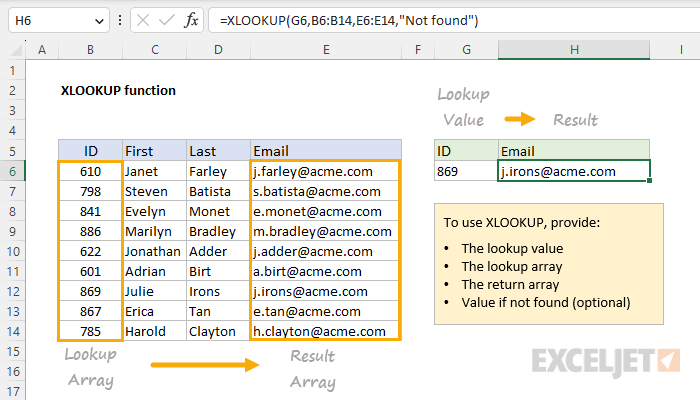
The screen below shows how XLOOKUP would be configured to look up an email address based on ID. The formula in cell H6 is:
=XLOOKUP(G6,B6:B14,E6:E14,"Not found")
Notice both lookup_array and return_array are provided as regular references and the optional if_not_found argument is set to display “Not found” in case there are no results. Also note that XLOOKUP will perform an exact match by default, so there is no need to enable this behavior.
For more XLOOKUP examples and videos see this page .
XLOOKUP Pros
Sensible defaults: Unlike VLOOKUP, XLOOKUP defaults to an exact match . This is a much safer default because a user must explicitly enable approximate match behavior when needed. VLOOKUP’s approximate match default is dangerous because it can create incorrect (but normal-looking) results. See an example here .
Two-way search: Unlike VLOOKUP, XLOOKUP can search both vertically and horizontally , which means there is no need to use other functions when data is not in a vertical orientation. See an example here .
Reverse search: XLOOKUP can search in a forward direction (first to last) or in reverse (last to first). This means XLOOKUP can easily solve complicated problems like retrieving the latest price from data in chronological order. See an example here .
Normal column reference: XLOOKUP uses a normal cell reference for the return_array . This means XLOOKUP is less fragile than VLOOKUP because ordinary changes to the table structure (i.e. inserting or deleting columns) will not break the formula.
Approximate match: XLOOKUP can be set for an approximate match in two ways: (1) exact match or the next smaller value (2) exact match or the next larger value. In both cases, data does not need to be sorted. See a basic example here . See a more advanced closest-match example here .
Built-in error handling: XLOOKUP offers a dedicated argument, if_not_found , to provide a custom value, a message, or even another formula to run if XLOOKUP does not find a match. There is no need to use another function like IFERROR . See an example here .
Easy to apply multiple criteria : The structure of XLOOKUP makes it straightforward to apply multiple criteria. The trick is to create a lookup_array with Boolean algebra , then set the lookup_value to 1 ( basic example , advanced example ).
XLOOKUP cons
Limited availability: XLOOKUP is only available in the latest versions of Excel. This means XLOOKUP will not work if a worksheet is opened in an older version of Excel. Before you use XLOOKUP, you must consider who will need to use a worksheet and what version of Excel they use.
Learning curve: XLOOKUP is more complex to configure than VLOOKUP and takes some time to get the hang of. This is mostly because XLOOKUP provides many more features than VLOOKUP.
Two-way lookups are more complex: Compared to VLOOKUP and INDEX and MATCH, a two-way lookup (i.e. looking up both a row and column in the same formula) with XLOOKUP is more complicated. This is because XLOOKUP does not use a numeric index to retrieve data, so you can’t just add the MATCH function like we can with VLOOKUP. See an example here .
Feature comparison
The table below summarizes the key differences mentioned above.
| Feature | VLOOKUP | XLOOKUP |
|---|---|---|
| Availability | All versions | Excel 2021+ |
| Simple configuration | Yes | More options |
| Dangerous defaults | Yes | No |
| Approximate matching | Yes, with sorted data | Yes, data can be unsorted |
| Horizontal lookup | No | Yes |
| Left lookup | No | Yes |
| Numeric column reference | Yes | No |
| Built-in error handling | No | Yes |
| Reverse search | No | Yes |
| Multiple criteria | Complicated | Easier |
| Two-way lookup | Yes with MATCH | Yes with XLOOKUP + XLOOKUP |
Summary
While VLOOKUP has been widely used in Excel for many decades, it has real limitations. The XLOOKUP function has been designed to address these limitations head-on. In almost every respect, XLOOKUP is a better and more powerful lookup function. That said, there are millions of spreadsheets in the world that use VLOOKUP successfully to solve many ordinary lookup problems. There is no burning need to replace existing VLOOKUP solutions with XLOOKUP unless the existing configuration is unnecessarily complex. In other words, VLOOKUP is not broken; it is simply limited. In addition, before you replace VLOOKUP with XLOOKUP, you need to consider the Excel version used by others who will use the worksheet. XLOOKUP is only available in Excel 2021 and later.
With the above in mind, I recommend that you start using XLOOKUP for your lookup problems. XLOOKUP takes a little more practice because it has more features and options. However, even if you use XLOOKUP almost exclusively for your own work, you will likely continue to run into existing VLOOKUP solutions for many years to come. If you work in Excel frequently, it is worth your time to be proficient with both VLOOKUP and XLOOKUP.
Learning Resources
- VLOOKUP examples
- VLOOKUP video training
- XLOOKUP examples
- XLOOKUP video training
