Introduction
Excel offers a vast number of functions that cater to different users and their unique requirements. Among these functions, VLOOKUP has long been the go-to choice for basic lookups in a table or range. In almost every industry, millions and millions of existing spreadsheets use VLOOKUP to do something useful.
However, with the introduction of XLOOKUP in 2019, Excel users have a powerful new lookup option available. XLOOKUP can do everything VLOOKUP can do, and much more. Should you stop using VLOOKUP altogether? Should you even learn VLOOKUP if you are new to Excel? Let’s have a look at the pros and cons of XLOOKUP and VLOOKUP.
VLOOKUP: The Old Standard
VLOOKUP is an Excel function that has been widely used for many years. As the name implies, VLOOKUP is designed to work with vertical data . Given a lookup value, VLOOKUP searches the first column of a table and returns a corresponding value from the same row in another specified column. In short, VLOOKUP looks up data in a table like a human would, and does so with minimal configuration. The syntax for VLOOKUP looks like this:
VLOOKUP(lookup_value,table_array,col_index_num,range_lookup)
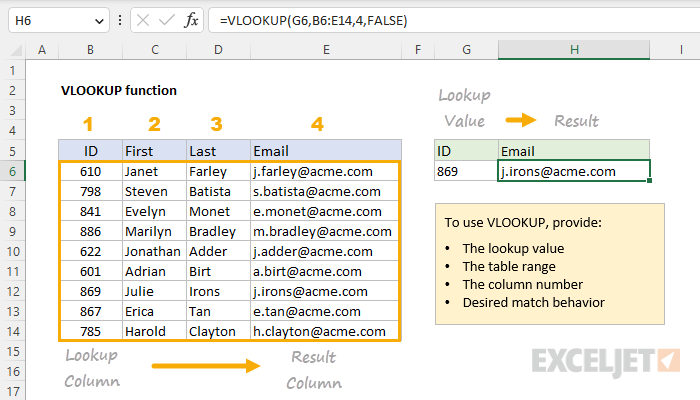
The screen below shows an example of VLOOKUP configured to find an email address based on ID. The formula in cell H6 is:
=VLOOKUP(G6,B6:E14,4,FALSE)
Notice that table_array is a reference to the entire table , and the column to return is hardcoded as 4. Also note that VLOOKUP will perform an approximate match by default, so range_lookup is set to FALSE to force an exact match.
For more VLOOKUP examples and videos see this page .
VLOOKUP Pros
Intuitive operation: VLOOKUP scans through the first column in the table. When it finds a match, it moves across the table to the specified column number and retrieves the value in the same row. With a small number of inputs, VLOOKUP is easy and intuitive.
Widely used: There are millions upon millions of spreadsheets in the world that depend on VLOOKUP to do useful work. You will find VLOOKUP everywhere, and being comfortable with VLOOKUP is a real advantage, even if you prefer XLOOKUP.
Simple configuration: If you have a data table with lookup values in the first column, you have pretty much everything you need to use VLOOKUP. All VLOOKUP needs is a lookup value, the table address, and a column number.
VLOOKUP Cons
While VLOOKUP is popular and easy to use, it does have some real limitations.
Dangerous default: VLOOKUP’s default behavior is to return an approximate match , and the argument that controls this behavior ( range_lookup ) is not required . This is dangerous because it makes it easy for a new user to configure VLOOKUP in a way that returns a normal-looking result that is, in fact, wrong . See an example here .
Vertical data only: VLOOKUP can only search vertically , which means you have to use another formula like HLOOKUP or INDEX and MATCH to perform a lookup in data that is organized horizontally.
Lookup values in the first column only: The lookup table given to VLOOKUP must have lookup values in the first column. This means VLOOKUP can’t return data located in a column to the left of the lookup column, without a complicated workaround .
Hardcoded column reference: Because the column index number is hardcoded inside VLOOKUP, it won’t respond to changes in the worksheet, which can potentially break a VLOOKUP formula. However, to be fair, you can combine VLOOKUP with the MATCH function to perform a dynamic 2-way lookup.
Approximate match: VLOOKUP can be configured for an approximate match by setting range_lookup to TRUE, or by omitting the argument altogether. In this mode, VLOOKUP will match a value exactly or match the next smallest value. However, to work correctly, data must be sorted in ascending order .
No built-in error trapping: VLOOKUP does not offer a way to provide an alternate value when a lookup is unsuccessful. This means VLOOKUP will simply return a #N/A error when a lookup fails. To trap and handle this error, you must use another function like IFERROR or IFNA. See an example here .
No reverse search: VLOOKUP will always start at the beginning of a table and return the first match in a lookup operation. There is no simple way to get VLOOKUP to perform a reverse search.
No easy way to apply multiple criteria : Because VLOOKUP requires an entire lookup table as an input, it is not easy to apply multiple criteria. The most basic workaround is to add a helper column with concatenated values . A more advanced approach involves creating a new lookup table on the fly.
XLOOKUP - A Robust Alternative
XLOOKUP is a modern replacement for the VLOOKUP function and was designed to address many of the limitations of VLOOKUP directly. It is a flexible and versatile function that can be used in a wide variety of situations. The syntax for the XLOOKUP function looks like this:
XLOOKUP(lookup_value,lookup_array,return_array,[if_not_found],[match_mode],[search_mode])
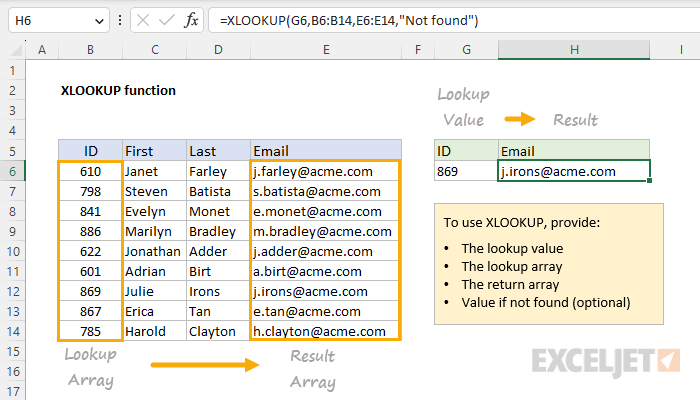
The screen below shows how XLOOKUP would be configured to look up an email address based on ID. The formula in cell H6 is:
=XLOOKUP(G6,B6:B14,E6:E14,"Not found")
Notice both lookup_array and return_array are provided as regular references and the optional if_not_found argument is set to display “Not found” in case there are no results. Also note that XLOOKUP will perform an exact match by default, so there is no need to enable this behavior.
For more XLOOKUP examples and videos see this page .
XLOOKUP Pros
Sensible defaults: Unlike VLOOKUP, XLOOKUP defaults to an exact match . This is a much safer default because a user must explicitly enable approximate match behavior when needed. VLOOKUP’s approximate match default is dangerous because it can create incorrect (but normal-looking) results. See an example here .
Two-way search: Unlike VLOOKUP, XLOOKUP can search both vertically and horizontally , which means there is no need to use other functions when data is not in a vertical orientation. See an example here .
Reverse search: XLOOKUP can search in a forward direction (first to last) or in reverse (last to first). This means XLOOKUP can easily solve complicated problems like retrieving the latest price from data in chronological order. See an example here .
Normal column reference: XLOOKUP uses a normal cell reference for the return_array . This means XLOOKUP is less fragile than VLOOKUP because ordinary changes to the table structure (i.e. inserting or deleting columns) will not break the formula.
Approximate match: XLOOKUP can be set for an approximate match in two ways: (1) exact match or the next smaller value (2) exact match or the next larger value. In both cases, data does not need to be sorted. See a basic example here . See a more advanced closest-match example here .
Built-in error handling: XLOOKUP offers a dedicated argument, if_not_found , to provide a custom value, a message, or even another formula to run if XLOOKUP does not find a match. There is no need to use another function like IFERROR . See an example here .
Easy to apply multiple criteria : The structure of XLOOKUP makes it straightforward to apply multiple criteria. The trick is to create a lookup_array with Boolean algebra , then set the lookup_value to 1 ( basic example , advanced example ).
XLOOKUP cons
Limited availability: XLOOKUP is only available in the latest versions of Excel. This means XLOOKUP will not work if a worksheet is opened in an older version of Excel. Before you use XLOOKUP, you must consider who will need to use a worksheet and what version of Excel they use.
Learning curve: XLOOKUP is more complex to configure than VLOOKUP and takes some time to get the hang of. This is mostly because XLOOKUP provides many more features than VLOOKUP.
Two-way lookups are more complex: Compared to VLOOKUP and INDEX and MATCH, a two-way lookup (i.e. looking up both a row and column in the same formula) with XLOOKUP is more complicated. This is because XLOOKUP does not use a numeric index to retrieve data, so you can’t just add the MATCH function like we can with VLOOKUP. See an example here .
Feature comparison
The table below summarizes the key differences mentioned above.
| Feature | VLOOKUP | XLOOKUP |
|---|---|---|
| Availability | All versions | Excel 2021+ |
| Simple configuration | Yes | More options |
| Dangerous defaults | Yes | No |
| Approximate matching | Yes, with sorted data | Yes, data can be unsorted |
| Horizontal lookup | No | Yes |
| Left lookup | No | Yes |
| Numeric column reference | Yes | No |
| Built-in error handling | No | Yes |
| Reverse search | No | Yes |
| Multiple criteria | Complicated | Easier |
| Two-way lookup | Yes with MATCH | Yes with XLOOKUP + XLOOKUP |
Summary
While VLOOKUP has been widely used in Excel for many decades, it has real limitations. The XLOOKUP function has been designed to address these limitations head-on. In almost every respect, XLOOKUP is a better and more powerful lookup function. That said, there are millions of spreadsheets in the world that use VLOOKUP successfully to solve many ordinary lookup problems. There is no burning need to replace existing VLOOKUP solutions with XLOOKUP unless the existing configuration is unnecessarily complex. In other words, VLOOKUP is not broken; it is simply limited. In addition, before you replace VLOOKUP with XLOOKUP, you need to consider the Excel version used by others who will use the worksheet. XLOOKUP is only available in Excel 2021 and later.
With the above in mind, I recommend that you start using XLOOKUP for your lookup problems. XLOOKUP takes a little more practice because it has more features and options. However, even if you use XLOOKUP almost exclusively for your own work, you will likely continue to run into existing VLOOKUP solutions for many years to come. If you work in Excel frequently, it is worth your time to be proficient with both VLOOKUP and XLOOKUP.
Learning Resources
- VLOOKUP examples
- VLOOKUP video training
- XLOOKUP examples
- XLOOKUP video training
If you spend much time working with Excel formulas, you’ll start to run into the SUMPRODUCT function a lot. SUMPRODUCT seems to be the catch-all, do-all, go-to solution for many seemingly unrelated Excel problems. Why is SUMPRODUCT in so many Excel formulas?
The main reason SUMPRODUCT appears so often in Excel formulas is that it supports array operations natively, and array operations combined with Boolean logic are a very good way to solve many problems in Excel. In the past (Excel 2019 and older) Excel’s formula engine did not handle most array operations without special handling. As a result, SUMPRODUCT has always been a simple way to create an array formula that “just works”. In the current version of Excel, these limitations are gone , so it is possible to use the SUM function instead.
Note: as mentioned above, the technique of using SUMPRODUCT to solve general problems in Excel often involves some kind of Boolean logic . If this concept is new to you, this video provides a basic overview . The video was created in Excel 365 , so I am using the SUM function, but SUMPRODUCT would work just as well.
The SUMPRODUCT function
The purpose of SUMPRODUCT is to calculate the sum of products. The worksheet below shows a classic example: SUMPRODUCT is used to calculate the sum of Price * Qty:
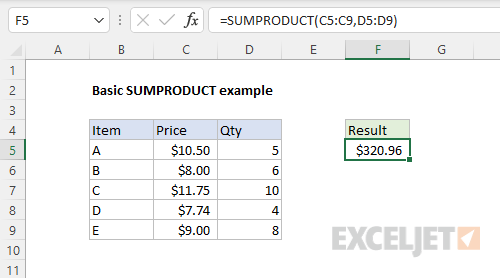
In this worksheet, there is no helper column that calculates the “Extended price” for each item. Instead, SUMPRODUCT calculates the intermediate values by multiplying the two ranges together and returns a sum in one step. Notice we are providing C5:C9 as array1 and D5:D9 as array2 . So far, so good. SUMPRODUCT performs a useful calculation, but there seems to be nothing special about it.
SUMPRODUCT and array operations
In the formula above, we are using two separate arguments , array1 and array2 :
=SUMPRODUCT(C5:C9,D5:D9)
Things get more interesting if we alter the structure of this formula and combine the two arguments into one argument like this:
=SUMPRODUCT(C5:C9*D5:D9)
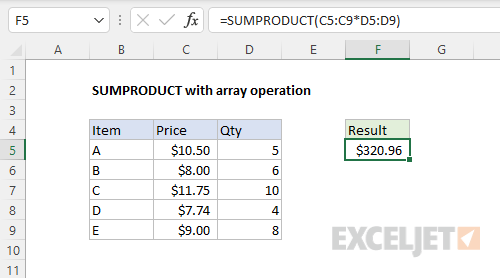
In this formula, we multiply the two ranges together inside array1, using what is called an " array operation “. The formula evaluates like this:
=SUMPRODUCT(C5:C9*D5:D9)
=SUMPRODUCT({10.5;8;11.75;7.74;9}*{5;6;10;4;8})
=SUMPRODUCT({52.5;48;117.5;30.96;72})
After multiplication, there is just one array given to SUMPRODUCT as array1 . The final result is exactly the same as the original formula.
You will see this pattern frequently in SUMPRODUCT — various math operations combined in array1 — because it provides more control over the logic used to manage data. When separate arguments are used, SUMPRODUCT multiplies arguments, which works like AND logic in Boolean algebra . Using one argument means you can use addition (+) for OR logic, or other math operations as needed. As a bonus, any math operation will automatically convert TRUE and FALSE values to 1s and 0s , which are frequently needed to tally up results. Finally, this flexibility means SUMPRODUCT can solve all kinds of tricky problems without Control + Shift + Enter, which is why it’s the go-to function in so many formulas.
A further reason SUMPRODUCT is used so often is that it can handle conditional counts and sums in ways that COUNTIFS and SUMIFS simply can’t. This is because these functions require ranges and can’t use arrays directly. Examples: Count birthdays by year , Sum by year .
The SUM function
In the formula above, notice that we have just a single array after multiplication. When SUMPRODUCT is given one array, it simply returns a sum. In that case, you might wonder if we can replace the SUMPRODUCT function with the SUM function like this:
=SUM(C5:C9*D5:D9)
The answer is: it depends. In modern versions of Excel that include the new dynamic array engine , you can indeed use SUM instead of SUMPRODUCT. However, in older versions of Excel, the SUM version of the formula must be entered as an array formula with Control + Shift + Enter. If not, the formula returns an incorrect result:
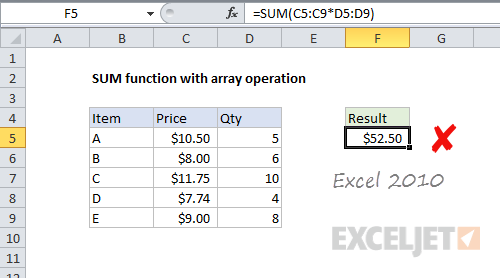
In older versions of Excel (2010, 2016, 2019), the SUM version of the formula returns an incorrect result when the formula is entered normally. In Excel 365, the formula works just fine:
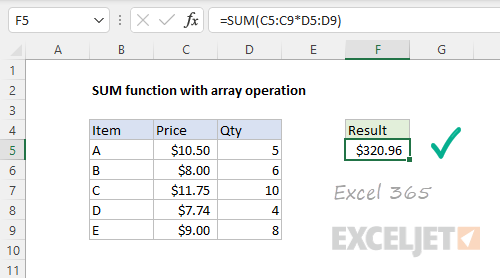
Why does the formula work in SUMPRODUCT but not SUM? Recall that multiplying the two ranges together is an " array operation “. It turns out that SUMPRODUCT is in a small group of functions that can handle most array operations natively. The SUM function is not in this group and must be entered with Control + Shift + Enter when arguments include array operations.
Note: in the example above, we are using just one argument . When only one argument is provided, both SUM and SUMPRODUCT return a sum. With more than one argument, SUM and SUMPRODUCT have different behaviors. SUM returns a sum, while SUMPRODUCT returns the sum of products.
The past
The main reason SUMPRODUCT appears so often in Excel formulas is that it supports array operations natively, and array operations combined with Boolean logic turn out to be a very good way to solve many problems in Excel. In the past (Excel 2019 and older) Excel’s formula engine did not handle most array operations without special handling. As a result, SUMPRODUCT has always been a simple way to create an array formula that “just works”.
In the past, you could use the SUM function instead of SUMPRODUCT in formulas that use array operations, but SUM required Control + Shift + Enter. This means if someone forgets to use CSE when checking or adjusting a formula, the result might change, even if the formula did not change. SUMPRODUCT avoids this problem. It also avoids the need to explain Control + Shift + Enter, which is a complicated topic.
The present
Since dynamic array formulas were introduced in Excel 365 , the need for SUMPRODUCT has started to diminish, because array formulas are natively supported. This means you can replace the SUMPRODUCT function with the SUM function in formulas that use an array operation and get the same behavior. To illustrate with another example, the worksheet below uses the LEN function to count the total number of characters in the range B5:B9.
=SUMPRODUCT(LEN(B5:B9))
Because the range contains five cells, the LEN function returns an array with five counts:
LEN(B5:B9) // returns {5;5;4;6;4}
This is another kind of array operation called lifting . The array from LEN is returned to SUMPRODUCT as array1 :
=SUMPRODUCT({5;5;4;6;4}) // returns 24
And SUMPRODUCT returns 24 as a final result. This formula needs no special handling; it will work in any version of Excel.
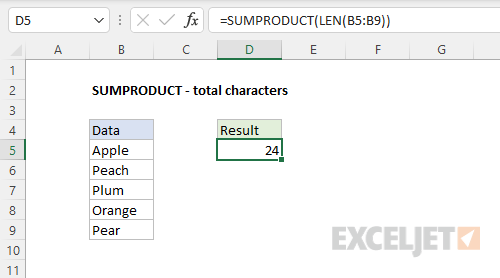
In “modern” versions of Excel, the SUM version of the formula works exactly the same way:
=SUM(LEN(B5:B9))
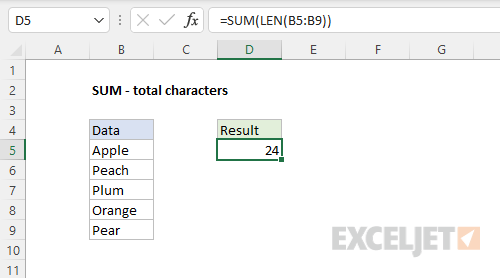
However, in Legacy Excel the SUM version fails. The screen below shows the same formula in Excel 2010:
=SUM(LEN(B5:B9))
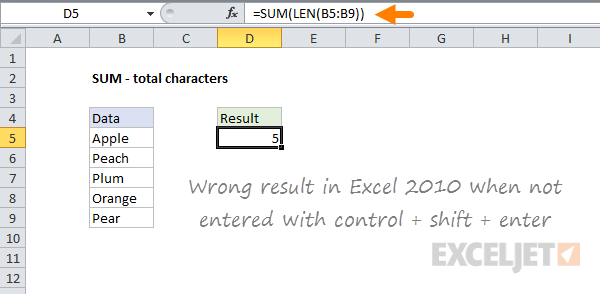
Note that curly braces are not visible in the formula bar. This confirms the formula was not entered with CSE . Below is the same formula, this time entered with Control + Shift + Enter:
{=SUM(LEN(B5:B9))}
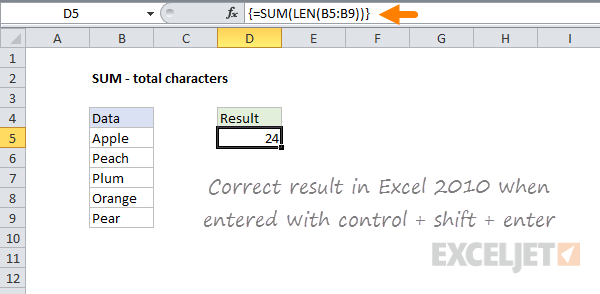
Now the formula returns a correct result. The curly braces in the formula bar confirm the formula was entered with Control + Shift + Enter.
Note: the curly braces are added by Excel automatically when a formula is entered as an array formula with Control + Shift + Enter. Do not add curly braces manually or the formula will not work.
Automatic array formula conversion
To prevent formulas from breaking in older versions of Excel, Excel will automatically convert array formulas to use the array syntax*. This means you will see curly braces in the formula bar even when a formula was never entered with Control + Shift + Enter. For example, the SUM formula above will appear like this if opened in Excel 2016:
{=SUM(LEN(B5:B9))}
Note this is automatic behavior to prevent the formula from returning a different result in older versions of Excel. If the formula is re-entered without Control + Shift + Enter in an older version of Excel, the formula will return an incorrect result.
- Excel is quite conservative in how it evaluates array formulas and you will sometimes see curly braces added to formulas that work just fine without them. For example, you will see the curly braces added to a SUMPRODUCT formula that uses array operations, even when they are not needed. The only way to be sure if the array syntax is needed is to re-enter the formula normally and check the result.
Summary
SUMPRODUCT is in a small group of functions that can handle array operations natively, without Control + Shift + Enter. By placing various operations into a single argument, you can extract data with other functions, and use Boolean algebra to create AND and OR logic in many different ways. This has made SUMPRODUCT the go-to solution for tricky problems over the years.
In Excel 365 and Excel 2021 the formula engine handles arrays natively . This means you can often use the SUM function in place of SUMPRODUCT with the same result and no need to enter the formula in a special way. However, if the same formula is opened in an earlier version of Excel, it will require Control + Shift + Enter.
If you need compatibility with older versions of Excel, SUMPRODUCT is a safer and more robust option, since it “just works” in almost all cases. If you will only be using a worksheet in modern versions of Excel (with the new dynamic array engine ), the SUM function can be used instead of SUMPRODUCT and will work just fine. If you are not sure what version of Excel a worksheet will be used with, SUMPRODUCT is probably the better option, since it avoids complexity.
More Examples
The formulas below use SUMPRODUCT for compatibility with older versions of Excel, but you can use the SUM function instead in modern Excel.
- Count if row meets internal criteria
- Count birthdays by year
- Count cells equal to case sensitive
- Count cells that begin with
Workbook note
The attached workbook below contains the examples used in the article above. Keep in mind that if you open this workbook in older versions of Excel, you will see that the formulas with array operations have already been converted to array formulas. Look for the curly braces in the formula bar, and notice they disappear if you edit the formula. To see the formula fail without this special handling, re-enter the formula normally (i.e. don’t use Control + Shift + Enter).
